Important
You are browsing documentation for version 6.0 of OroCommerce, supported until 2028. Read the documentation for the latest LTS version to get up-to-date information.
See our Release Process documentation for more information on the currently supported and upcoming releases.
Configure Global Customer User Login Settings
To apply customer user login-related options in your Oro application instance:
Navigate to System > Configuration in the main menu.
Click Commerce > Customer > Customer User Login.
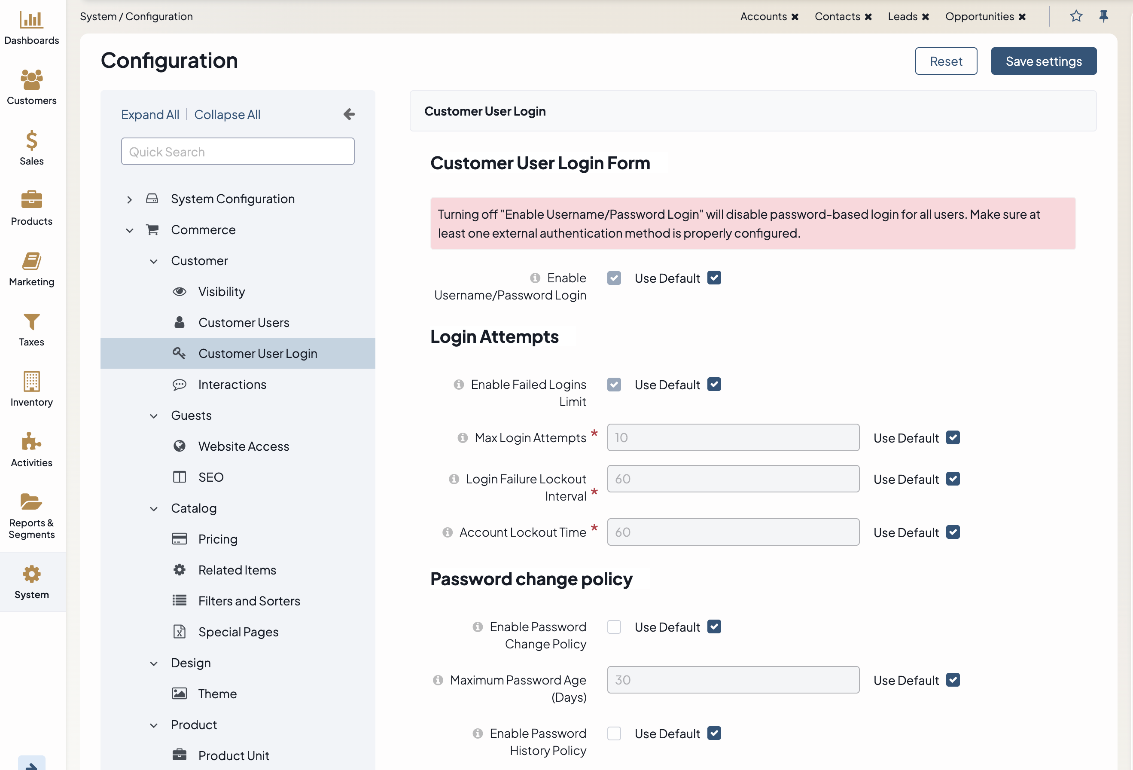
Configure Customer User Login Form
In the Customer User Login Form section, configure the ability for a customer user to sign in with a username and password.
Enable Username/Password Login - When this option is enabled, customer users can sign in with a username and password, and all features related to passwords will be available. If you disable this option, password login will be turned off for all customer users. Consequently, all password-related features will also become unavailable.
Important
Before disabling this option, make sure that at least one external authentication method (such as Single Sign-On) is properly set up.
Configure Password Change Policy
In the Password Change Policy section, configure the following options:
Enable Password Change Policy — select checkbox to enable the feature. Please be aware that this is an Enterprise Edition feature only. Once the feature is enabled, customer users will receive email notifications 7, 3, and 1 days before the password expires with a link to change their password. Seven days before the password expires, the customer user will start getting flash notifications on each login, prompting them to change their password. As soon as the password expires, the customer user will receive an email with the link to change the password. From that moment, they will only be able to log in if they have updated their password. In this case, the status of the customer user password in the back-office changes to Expired. It will return to Active once the customer user changes the password. You can change the contents of email notifications by updating the customer_user_expired_password and customer_user_mandatory_password_change email template of the Customer User entity.
Maximum Password Age (Days) — change the default number of days by toggling the option. By default, the password is changed every 30 days.
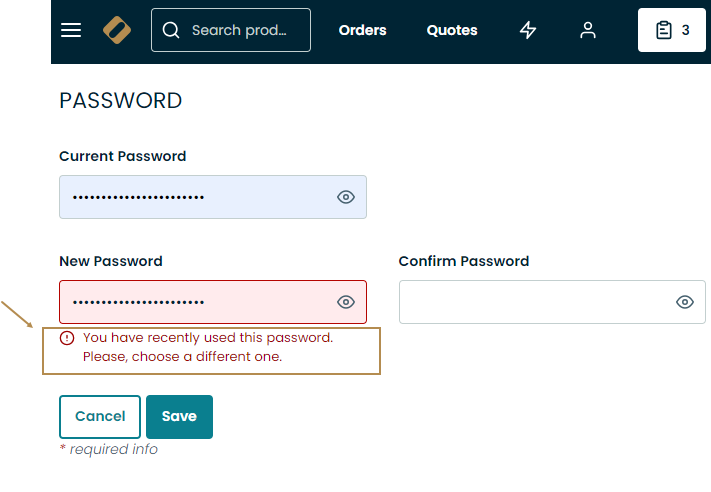
Enable Password History Policy — enable this option to prevent customer users from reusing the password they have already used previously. Once the feature is enabled, customer users will no longer be able to reuse their older passwords. If they try to, they will get the following message:
Enforce Password History Policy — By default, the system collects the last 12 previously used passwords, but you can change this number by toggling this option.
Configure Login Attempts
In the Login Attempts section, configure the following options:
Enable Failed Logins Limit — Defines whether a user can be locked out when the max number of login attempts is reached. By default, the option is enabled.
Max Login Attempts — The number of attempts within the login failure lockout interval that a user has to authenticate before they are locked out. By default, the number is set to 10.
Login Failure Lockout Interval — The time in minutes in which failed login attempts are counted. If one failed login attempt is followed by the second failed attempt within this lockout interval, the failed login count starts. The user will be locked out if they reach the maximum number of failed login attempts. Set zero (0) to count failed login attempts globally. By default, it is set to 60 minutes.
Account Lockout Time — The time in minutes that indicates how long the user has before they are locked out of the system if they reach the maximum number of failed login attempts. Set zero (0) to disable automatic unlock. By default, it is set to 60 minutes.