Important
You are browsing documentation for version 6.0 of OroCommerce, supported until 2028. Read the documentation for the latest LTS version to get up-to-date information.
See our Release Process documentation for more information on the currently supported and upcoming releases.
Configure Guest Website Access Settings per Organization
Hint
This section is part of the Guest Functions topic that provides a general understanding of the guest access concept in OroCommerce.
Note
Guest access can be enabled globally, per organization, and per website.
To enable guest access per organization:
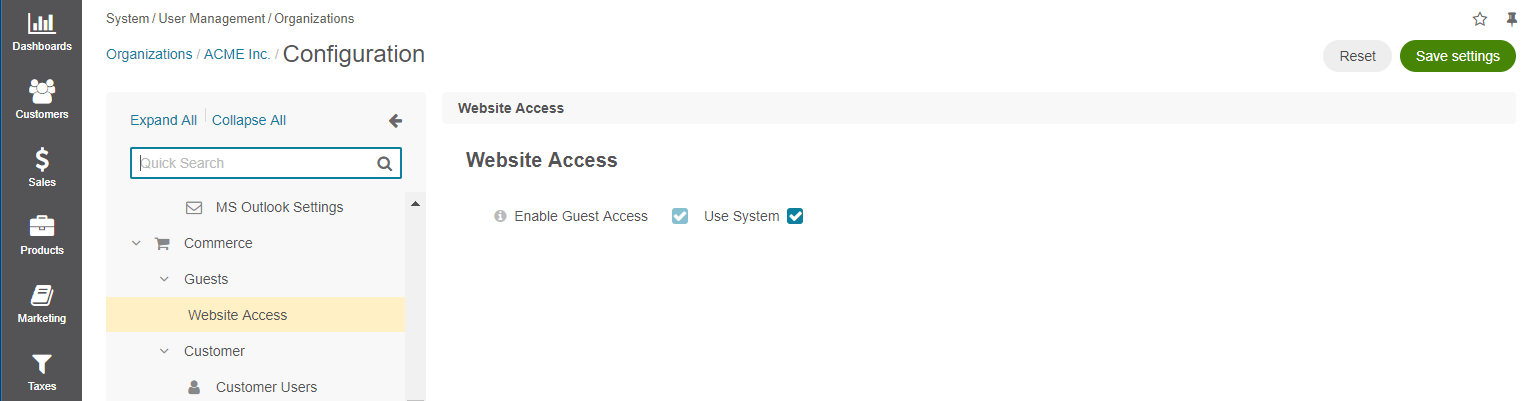
To manage guest access per organization:
Navigate to System > User Management > Organizations.
For the necessary organization, hover over the More Options menu to the right of the necessary organization, and click to start editing the configuration.
Select Commerce > Guests > Website Access in the menu on the left.
Note
For faster navigation between the configuration menu sections, use Quick Search.
Clear the Use System checkbox to change the system-wide settings.
In the Website Access section, toggle the Enable Guest Access checkbox to enable or disable guest users from browsing the website.
When Enable Guest Access is disabled, the storefront becomes inaccessible to guest users except for the login/forgot/reset password page and any system or landing pages explicitly allowed by the administrator.
In this case, the following additional options become available (available starting from OroCommerce version 6.0.9):
Allow Guest Access to System Pages — Select the system pages that should remain available to guest users.
Allow Guest Access to Landing Pages — Select the landing (CMS) pages that should remain available to guest users.
In the Anonymous Customer Group Access section, select a customer user group to represent Non-authenticated Visitors (guests) in the storefront. This group is used to define product and catalog visibility rules, as well as other features that depend on customer group settings.
Click Save Settings.