Important
You are browsing upcoming documentation for version 7.1 of OroCommerce, scheduled for release in 2027. Read the documentation for the latest LTS version to get up-to-date information.
See our Release Process documentation for more information on the currently supported and upcoming releases.
Configure Customer Settings per Website
The Customer Settings configuration page brings together several settings that apply to storefront customers and how they can obtain product information. This section covers two groups of settings available here at the website level:
Product Data Export — Controls whether registered customer users can export products, their prices, and price tiers into a .csv file from the storefront product collection and search results pages.
Customer Part Number — Controls whether customer part numbers are displayed to customers of this website in the storefront.
You can configure these settings globally, per organization, website, customer group, and customer.
Hint
In addition to configuring product grid export on the above mentioned configuration levels, you can mark “simple” fields of a product as Exportable. You can also mark a price attribute as Enabled in Product Export. Exportable setting is available for all “simple” fields (scalar values and select/multi-select enums) of the product entity. Export is not allowed for relations, other complex fields (“WYSIWYG”, attachments, etc.) and entityfallback-type fields. Please note that product name is always included in the export.
To configure these settings per website:
Navigate to System > Website in the main menu.
For the necessary website, hover over the More Options menu to the right of the necessary website and click the Configuration icon to start editing the configuration.
Select Commerce > Product > Customer Settings in the menu to the left.
Note
For faster navigation between the configuration menu sections, use Quick Search.
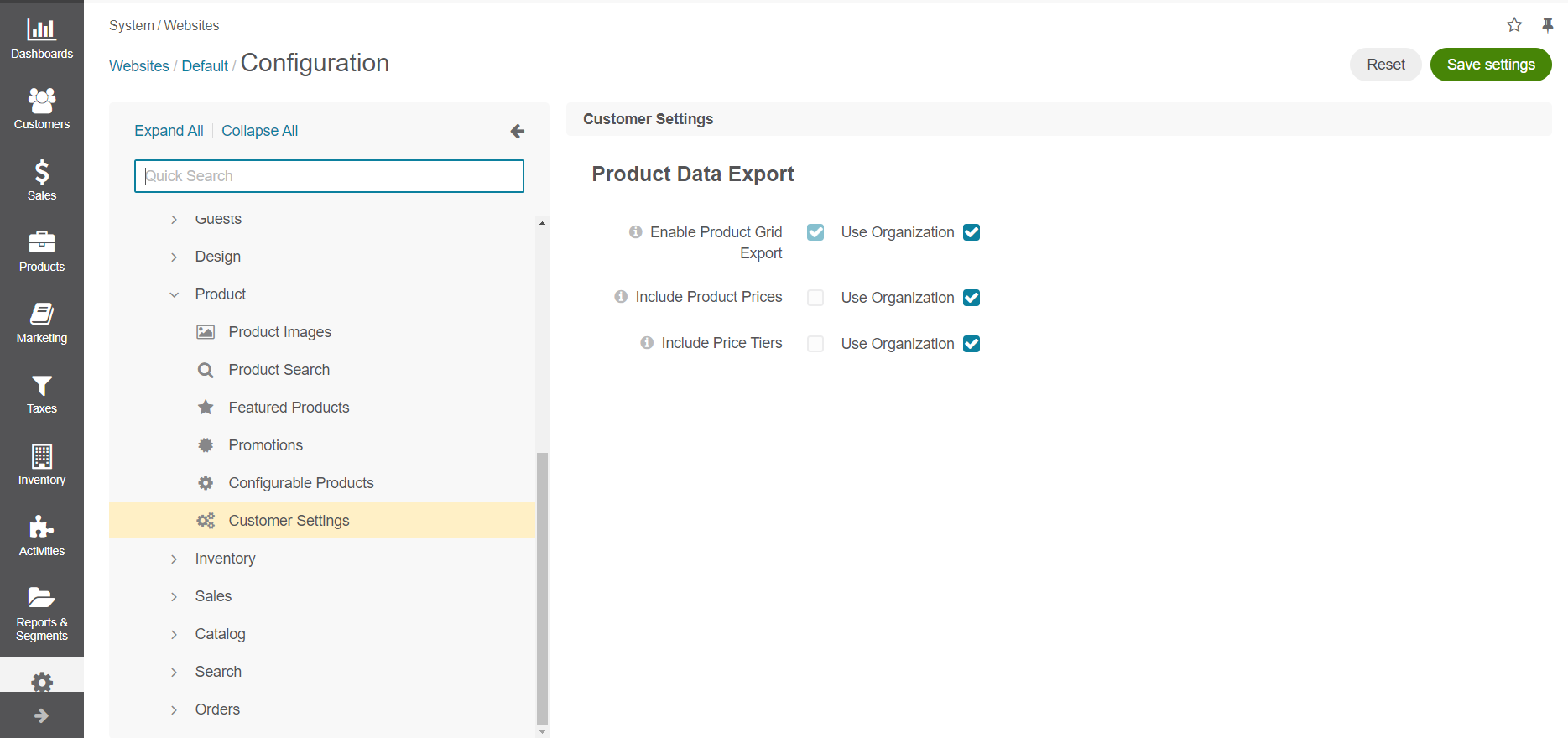
Under Product Data Export, enable the following options by clearing the Use Organization checkbox next to the required option:
Enable Product Grid Export — Enable this option to allow customers in the storefront to export selected product data. Once you enable this option and click Save Settings at the top right, options Include Product Prices and Include Price Tiers will be displayed.
Include Product Prices — Enable this option to add product prices to the exported product data file. Data will be displayed only for the primary unit, minimum quantity and the currency currently selected in the storefront.
Include Price Tiers — Enable this option to include price tiers to the exported product data file, if available. If product units have no price, they will be omitted in the exported file.
Under Customer Part Number, enable the following option by clearing the Use Organization checkbox:
Display Customer Part Numbers In The Storefront — Enable this option to let customers view their own part numbers in the storefront (e.g., on the product listing, search results, and product details pages), as well as create, delete, and filter by them. This option has no effect on its own unless option Enable Customer Part Numbers is enabled on the global level.
Click Save Settings.