Important
You are browsing documentation for version 6.1 of OroCommerce, supported until 2029. Read the documentation for the latest LTS version to get up-to-date information.
See our Release Process documentation for more information on the currently supported and upcoming releases.
Add OAuth Applications under My User Menu
Oro applications support OAuth 2.0 credentials authorization grant type to enable connection of third-party applications to the web API. To connect a third-party application, you need to add it and configure its pre-generated credentials in the back-office of your Oro application. These credentials are managed on user level which enables generation of different credentials for various applications across multiple organizations (the multi-org functionality is only available in the Enterprise edition).
Starting Conditions
To be able to create an OAuth application, make sure that you generate private and public encryption keys and add them to the /var directory of the installed Oro application. Although the path to the keys is predefined, you can change it by providing your custom location in the config.yml file.
Note
If no keys are found, the following warning message will be displayed in the back-office:
OAuth authorization is not available as encryption keys configuration was not complete. Please contact your administrator.
Add an Application
To add a new OAuth application in the back-office:
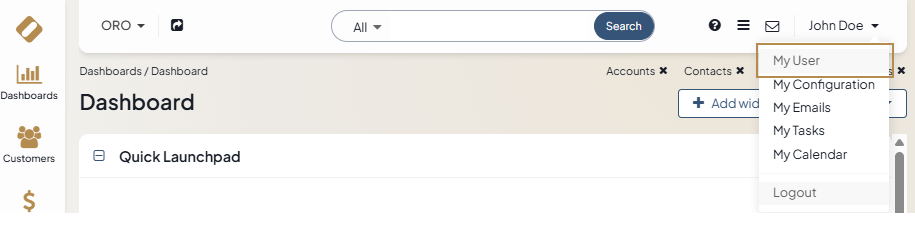
Click on your user name at the top right of the screen.
Click My User.
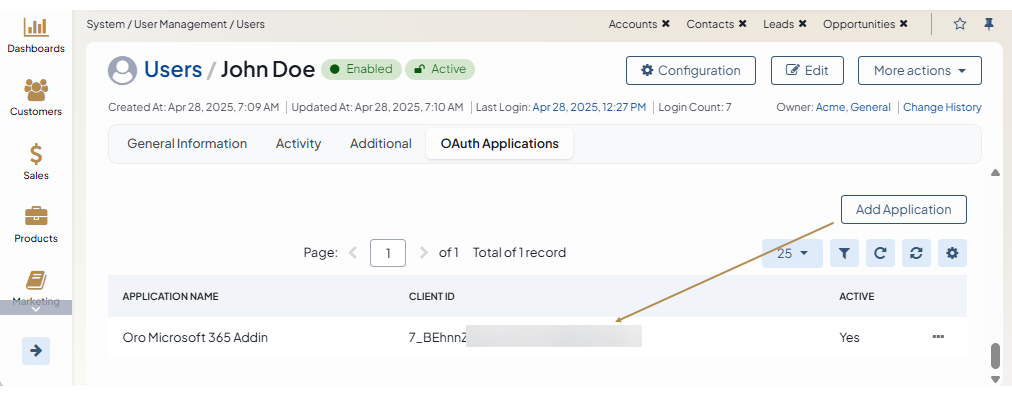
In the OAuth Applications section, click Add Application at the top right and provide the following details in the pop-up dialog:
Organization — If you are adding an application within the organization with global access, you can select which other available organization to add the application to. This field is displayed to users with access to multiple organizations (available for the Enterprise edition only).
Application Name — Provide a meaningful name for the application you are adding.
Active — Select the Active checkbox to activate the new application.
Support all APIs — Select whether the client should support all available API types. If disabled, the Supported APIs filed appears with a list of API types for the user to select the required one.
Supported APIs — The field appears when the Support all APIs field is disabled. Select the API type that the client should support, for example JSON:API, Email Addon, SCIM, etc.
Click Create.
A corresponding notification is sent to the user’s primary email address, the owner of the oauth application. You can change the default recipient, localization, or an email content if needed by updating the OAuth email templates and the related notification rule set out of the box in the system configuration.
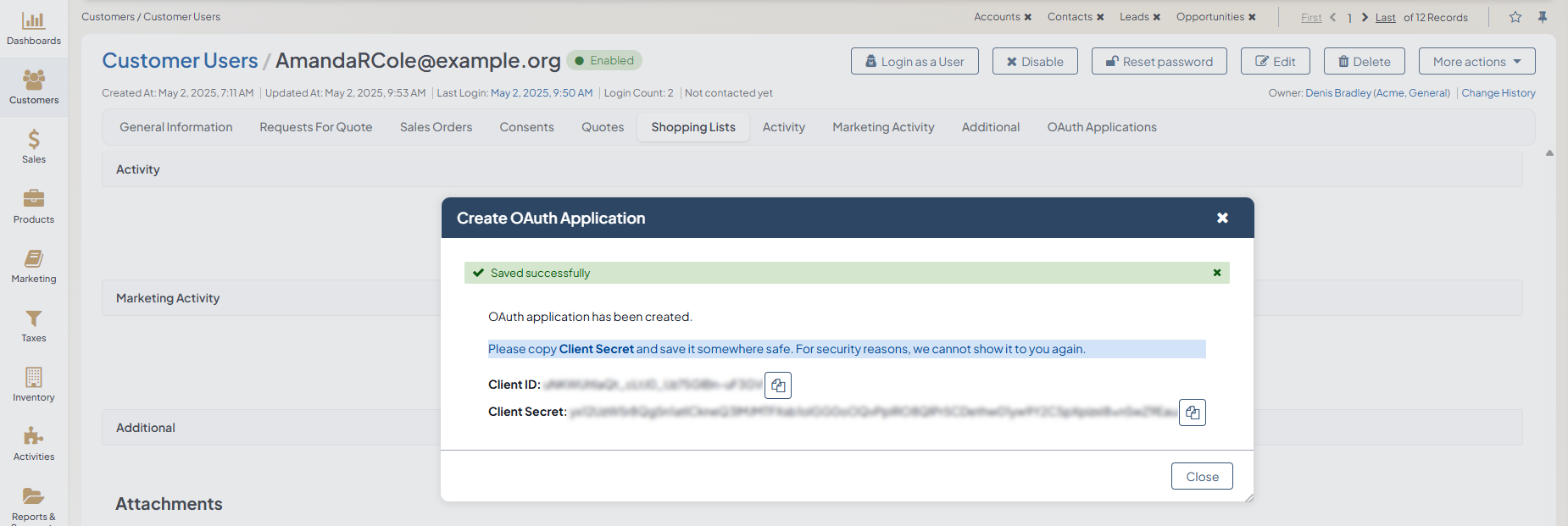
Once the application is created, you are provided with a Client ID and a Client Secret. Click on the icon to copy the credentials to the clipboard.
Important
For security reasons, the Client Secret is displayed only once, immediately after you have created a new application. You cannot view the Client Secret anywhere in the application once you close this dialog, so make sure you save it somewhere safe to access it later.
You can add as many applications as you need for any of your existing organizations. All added applications are displayed in the grid; you can filter them by name, organization, and status.
Hint
Use the More Options menu to edit, deactivate or delete an application.

Use the generated Client ID and Client Secret to retrieve an access token to connect to your Oro application.
Note
To create an OAuth application under Customers > Customer Users in the back-office, see Add a Customer User oAuth application.
To add an OAuth application to a customer user directly from their page in the back-office, see Add OAuth Applications from Customer User’s Page.
To add an OAuth application to a back-office user under System > User Management > Users, see Add OAuth Applications to a Back-Office User.
To add an oAuth application under System > User Management > OAuth Applications, see Configure OAuth Applications for Users in the Back-Office.