Important
You are browsing documentation for version 6.1 of OroCommerce, supported until 2029. Read the documentation for the latest LTS version to get up-to-date information.
See our Release Process documentation for more information on the currently supported and upcoming releases.
Integration with OroPay Payment Service
Hint
Please contact our support team for more information on available integration options. You can also visit our extensions store to explore other integrations and extensions.
OroPay is the payment service built into OroCommerce, delivered together with Global Payments. It lets your customers pay by card, ACH, Apple Pay, Google Pay, and PayPal, including the local payment methods PayPal surfaces automatically where available. All of this happens within the checkout, invoice, and order screens you already use. Availability depends on your Global Payments account setup, so confirm with your account manager which methods apply to your business.
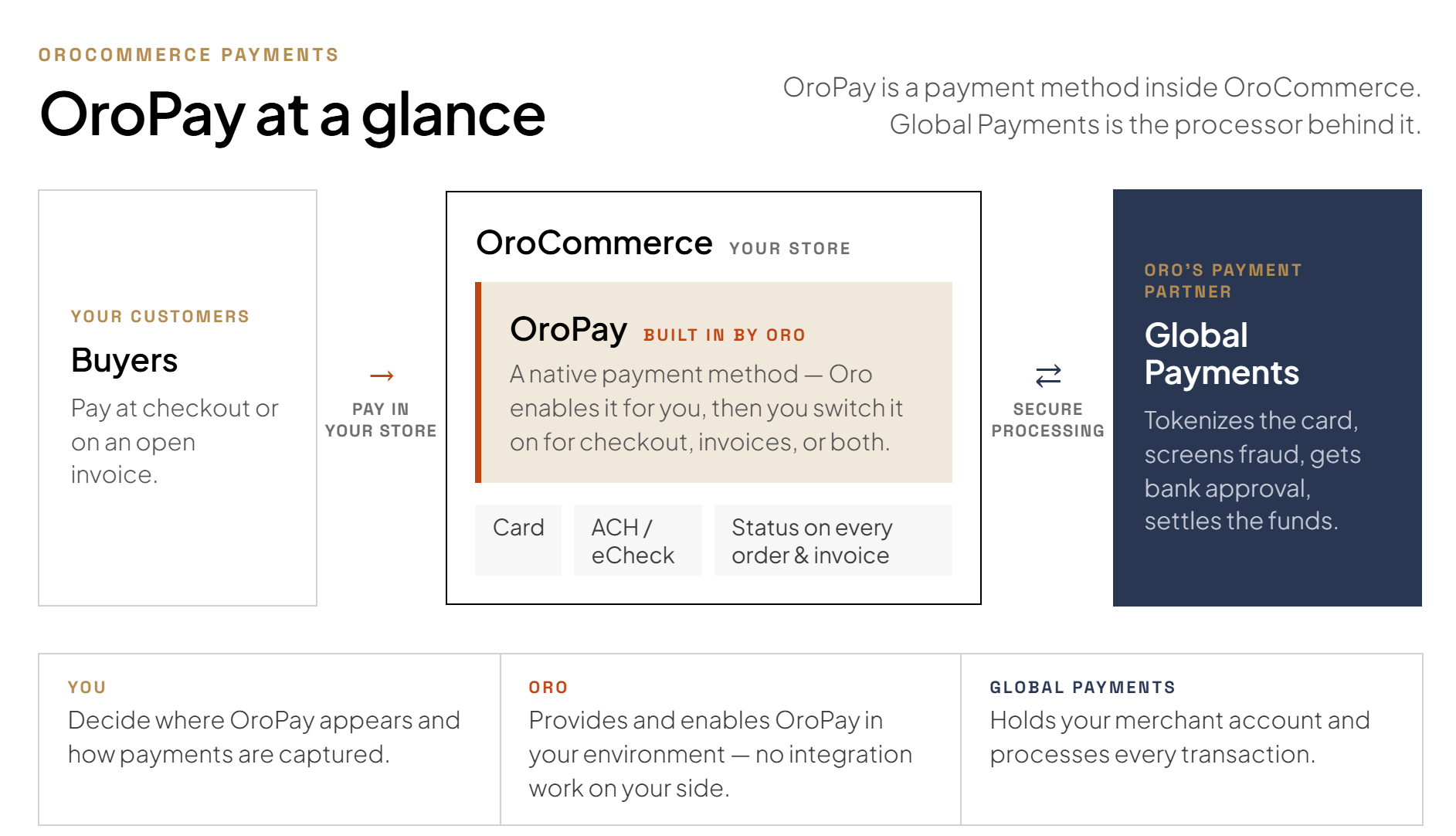
What OroPay Is
OroPay brings payment processing directly into OroCommerce, so a payment, an order, and an invoice all live in the same place instead of across separate systems. There is no additional application for your team to install or maintain.
Global Payments provides the underlying gateway, processing, and acquiring. Global Payments is a Fortune 500, S&P 500 payment technology company serving more than 6 million merchant locations and processing trillions of dollars in payment volume across more than 175 countries, so your transactions run on established, well-capitalized infrastructure. Because Global Payments covers the gateway, processing, and acquiring roles directly, there are no separate intermediary gateway, processor, or acquirer relationships to manage — one direct connection replaces what would otherwise be several. Global Payments manages your merchant account and processing rates directly with you, while Oro takes care of connecting that account to your OroCommerce checkout and keeping it running.
OroPay supplies OroCommerce with the settings and credentials it needs to communicate with Global Payments. When a customer pays at checkout, or against an invoice, OroCommerce processes the payment directly with Global Payments using that connection, and the outcome comes back as a notification that updates the order or invoice. Card details themselves are entered on a payment page hosted by Global Payments and tokenized there, so OroCommerce only ever sees a transaction record, never the card itself.
OroCommerce also connects to the ERP and other back-office systems you already run, with ready-made connectors for platforms such as SAP, NetSuite, and Microsoft Dynamics, among others. Because OroPay is part of OroCommerce, payment activity shows up alongside your existing order and financial data instead of in a separate system you have to reconcile by hand.
OroPay and Your Existing Payment Providers
OroPay is an additional payment method, not a replacement for what you already use. You can run it alongside your current providers for as long as it makes sense, splitting by website, currency, or customer segment however suits your business.
If you do decide to move volume over later, two things are worth knowing in advance:
Saved cards do not carry over between processors, so a returning buyer re-enters their card the first time they pay through OroPay.
An authorization already taken on another provider needs to be captured or voided there (OroPay cannot take over a payment that started elsewhere).
Supported Payment Capabilities
The table below covers what is available today. A few items depend on how your merchant account is set up with Global Payments rather than being on by default, and those are noted so you know what to ask about.
At checkout and on invoices
Capability |
Details |
|---|---|
Card payment at checkout, automatic capture |
The customer pays at checkout, and the funds are captured immediately. |
Card payment at checkout, manual authorize |
The card is authorized at checkout, and you capture the funds later from the order view page — useful if you prefer to capture on shipment rather than at order placement. |
Level 2 and Level 3 card data |
Submitted automatically with card transactions, providing the more detailed transaction data that complex B2B purchases require. This can help qualify large B2B transactions for reduced interchange rates, depending on your card network and processing agreement. |
Invoice payment |
Customers can pay an open invoice directly from the storefront. A Pay button appears on the invoice, and a Payments section is added to the invoice view page in the back-office. |
Saved-card payment for returning buyers |
Available where enabled on your merchant account. A returning buyer can select a previously used card instead of entering details again. |
ACH payment |
Available where ACH is part of your merchant setup. Authorization wording and SEC code selection remain the merchant’s responsibility, under NACHA rules. |
After the sale
Capability |
Details |
|---|---|
Full refund |
Refund the full amount of a captured payment from the order view page. |
Partial refund |
Refund part of a captured payment, where enabled on your merchant account. |
Capture from an authorization |
Complete a manual-authorize payment from the order view page. |
Partial capture |
Capture less than the full authorized amount, where enabled on your merchant account. |
Cancel or void |
Void an authorization before it is captured. |
Every transaction is visible both in OroCommerce, on the order or invoice, and in the payment portal Global Payments sets you up with. The portal is the place to go for statements and settlement details.
Note
This reflects what OroPay supports today. If you have a specific need that is not covered here, for example a pay-by-link flow, it is worth checking with your account manager rather than assuming OroPay covers everything a payment gateway typically can.
How to Get Started
Your Oro account manager is your main point of contact for the whole process, from your first conversation through go-live, bringing in the right people at the right points and providing a coordinated experience across all parties.
Along the way, your account manager will want to understand a few things about your setup: whether your environment runs on OroCloud (OroPay is available there today, with self-hosted support on the roadmap), which OroCommerce version you are on, which legal entity and currencies the merchant account should cover, and, if you run multiple websites or customer groups, which ones you would like OroPay available to first. None of this needs to be settled before your first conversation — it is easier to work through together with your account manager.
The Onboarding Process
You can begin testing while the Global Payments merchant application is being processed, helping the implementation move forward in parallel. The production timeline is then primarily determined by the application process, which varies depending on your business. Your account manager can give you a sense of what to expect for your situation.
Broadly, it works like this:
Getting acquainted. Your account manager reviews your requirements and current payment setup, then brings in the right team members to help define the approach and prepare a proposal.
Trying it out early. A sandbox OroPay environment, connected to a test gateway, can be requested from your account manager at any time and does not depend on your merchant application being finished. Most teams request one early and run through the payment lifecycle in parallel with the steps below — a good point to work through the capabilities in Supported Payment Capabilities and confirm everything behaves as expected, with our team on hand to help.
Setting up your merchant account. You work with Global Payments directly to apply for a merchant account and agree the terms. This typically covers your company details, ownership information, a settlement bank account, and your expected transaction volumes. Global Payments also gives you your own portal for the virtual terminal, transaction search, and statements.
Adding OroPay to your Oro agreement. Your account manager handles this in parallel, so it does not hold anything up.
Connecting the two for production. Once your merchant account is approved, the Oro team sets up the technical connection between OroPay and your merchant account, and styles the hosted payment page to match your checkout. Around this point, Oro’s support team sends you a short questionnaire covering the specific details they need to complete your account configuration. You never need to handle the gateway credentials yourself.
Going live. OroPay moves into production, you confirm it with a handful of real transactions, and then you decide how widely to roll it out and to whom. Nothing is switched on for your buyers until you choose to switch it on.
One detail worth knowing ahead of time: OroPay learns the outcome of a payment through a notification link that OroCommerce generates the first time you save the integration, so it cannot be set up any earlier than that. Your account manager will ask you for this link once you set up your sandbox integration, and again once you move to production, since the two are different. Until it is in place, a payment can succeed on the Global Payments side while still showing as pending in OroCommerce, so it is worth double-checking this step during testing.
Getting Support
Once you are live, where you go for help depends on what you are seeing:
What you are seeing |
Where to go |
|---|---|
The payment method is missing at checkout, the integration shows an error, a payment status is not updating in OroCommerce, or the health check fails |
|
Questions about the merchant account, settlement and funding, fees and statements, declines and fraud rules, chargebacks and disputes, or portal access |
Global Payments, directly |
Payment Data and Compliance
Card details are entered on the payment page hosted by Global Payments, never on an OroCommerce page, and are tokenized there. OroCommerce only stores the transaction record and a reference back to the gateway, not the card itself.
Global Payments’ compliance coverage also extends to GDPR-compliant data handling and, for European transactions, PSD2 and Strong Customer Authentication (SCA).
Because of that, working out which PCI DSS self-assessment questionnaire applies to your business is best done together with Global Payments and your own security assessor, since it depends on your broader payment setup rather than on OroCommerce alone.
If you accept ACH payments, the authorization wording shown to your buyers and the SEC code you use remain your responsibility as the merchant, under NACHA rules.
Related Articles