Important
You are browsing documentation for version 6.1 of OroCommerce, supported until 2029. Read the documentation for the latest LTS version to get up-to-date information.
See our Release Process documentation for more information on the currently supported and upcoming releases.
Configure Data Audit in the Back-Office
Data Audit shows the full history of changes made to an entity and its fields (e.g., Customers, Products, etc.), provided the entity and the fields are marked as auditable.
Data Audit also shows changes made to any configuration setting at any of the six levels: system (global), organization, website, customer group, customer, and user (My Configuration). See View Configuration Settings Changes for details.
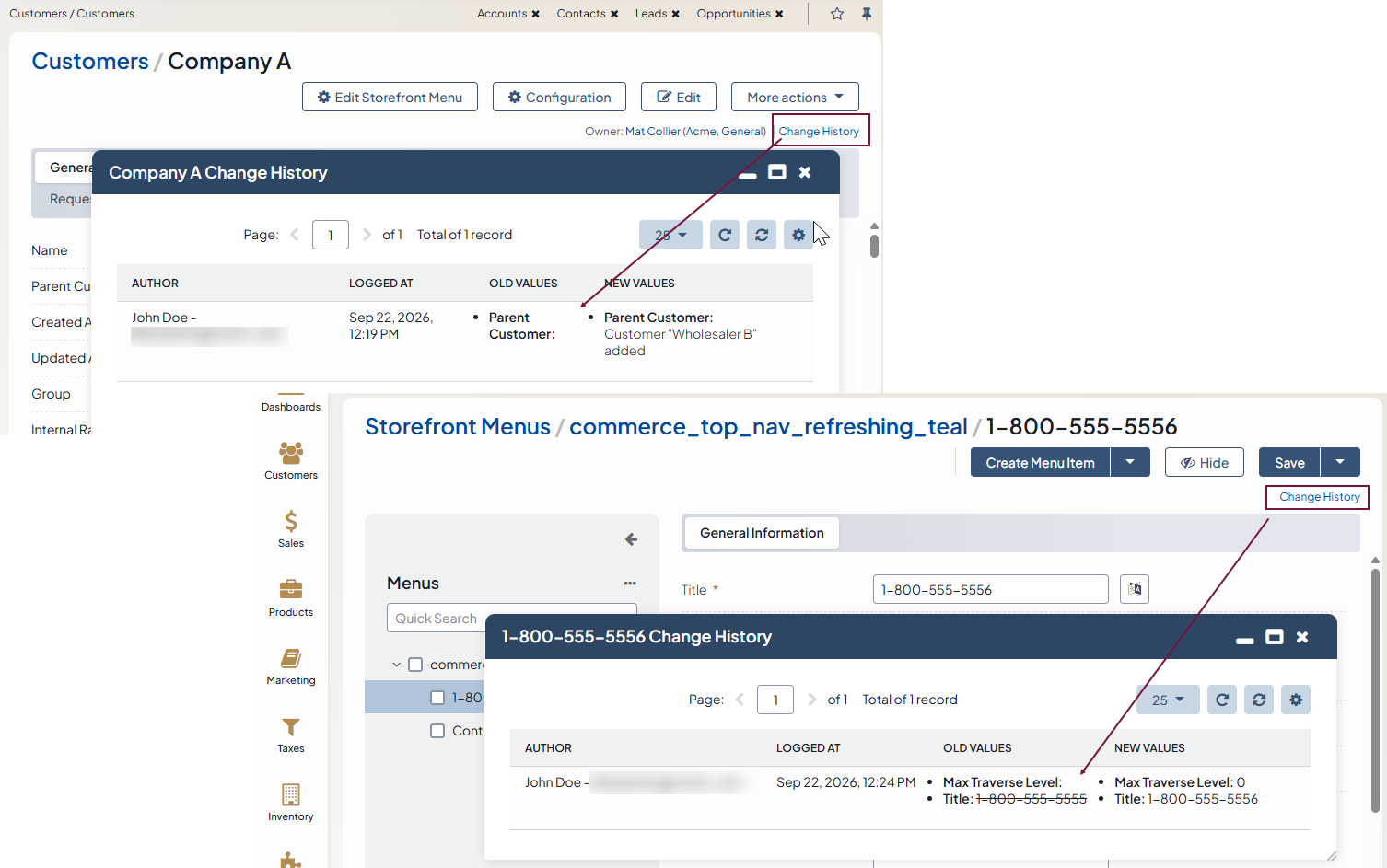
Data Audit also tracks changes made to the back-office and storefront menus at any of the five levels: system (global), organization, website, customer group, and customer. See View Menu Changes for details.
You can also build reports based on these changes. See Create a Data Audit Report for details.
All changes made to auditable entities, their fields, configuration settings, and menus appear under System > Data Audit in the back-office main menu. You can filter this table by the criteria you need. You can also save the filtered view for future reference.
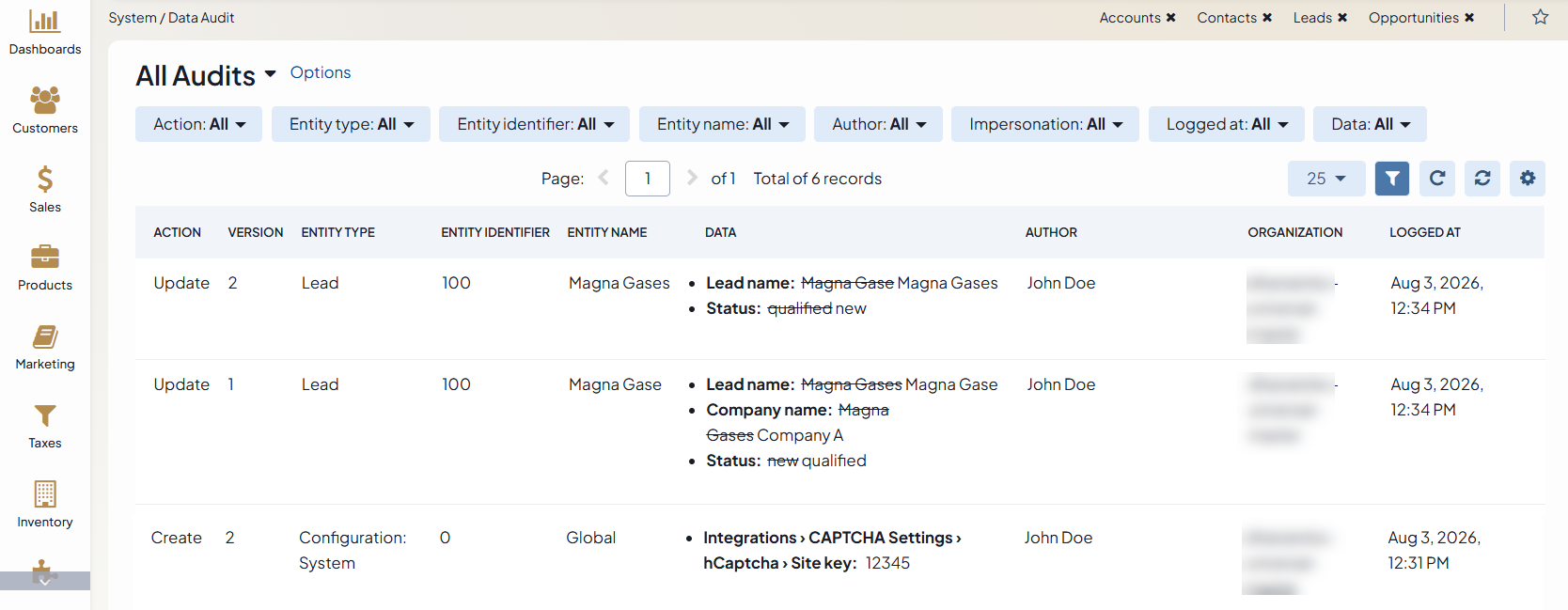
The report grid contains the following columns:
Name |
Description |
|---|---|
ACTION |
The kind of change made to the record: created, updated, or removed.
|
VERSION |
The sequential number of the change made to the specific record. |
ENTITY TYPE |
The type of the entity to which the entity record belongs. For configuration settings, the type shows the configuration level at which the change occurred, for example Configuration: System, Configuration: Website, or Configuration: User, etc. For menus, the type shows the level at which the menu was customized, for example Back-Office Menu: Global or Storefront Menu: Website. |
ENTITY IDENTIFIER |
The ID of the entity to which the record belongs. |
ENTITY NAME |
The name of the specific record that changed. |
DATA |
For entities and entity fields, DATA displays the details of the change made to the entity. For configuration settings, DATA displays the location of the changed setting, followed by its old and new values. The location is shown as a path, for example Commerce › Product › Promotions › New Arrivals › Maximum Items. For menus, DATA displays the properties of the changed menu item, with their old and new values. |
AUTHOR |
The name and email address of the user who made the change. |
IMPERSONATION |
Shows who made the change while impersonating another user. If the change occurred during an impersonation session, the column shows the IP address and the impersonation token. |
ORGANIZATION |
Organization in which the change was made. |
LOGGED AT |
The date and time when the event was logged. |
Use filters to find the required audit record. Use the Data filter to search a match in the name of the changed entity or setting (within old and new values) or its location.
Mark an Entity as Auditable
Marking an entity as auditable tells the system to log every change made to the entity, together with the name of the user who made the change.
To mark an entity as auditable:
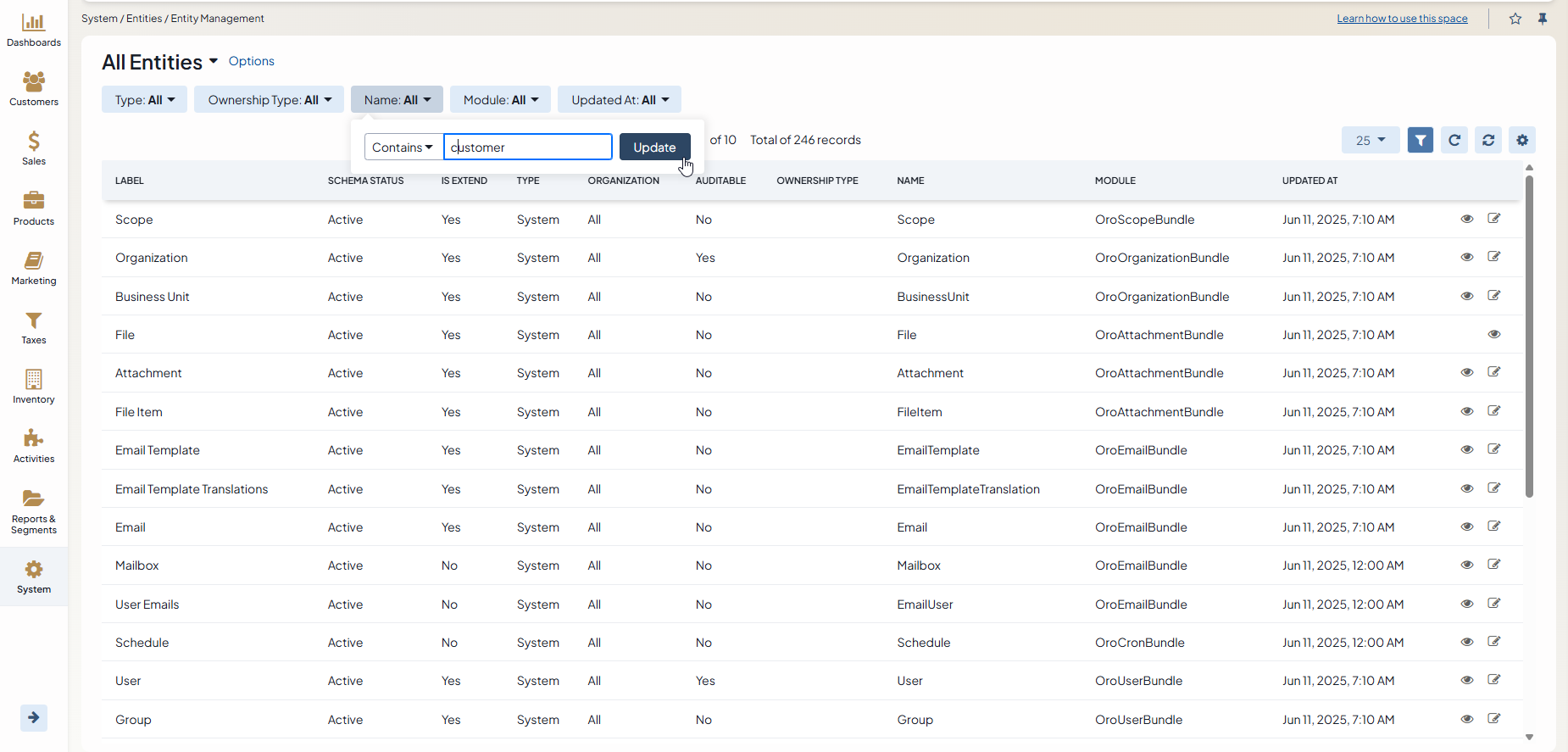
Navigate to System Configuration > Entities > Entity Management in the main menu.
Locate the required entity and open its edit page.
Hint
To save time looking for the entity, use filters at the top of the record table.
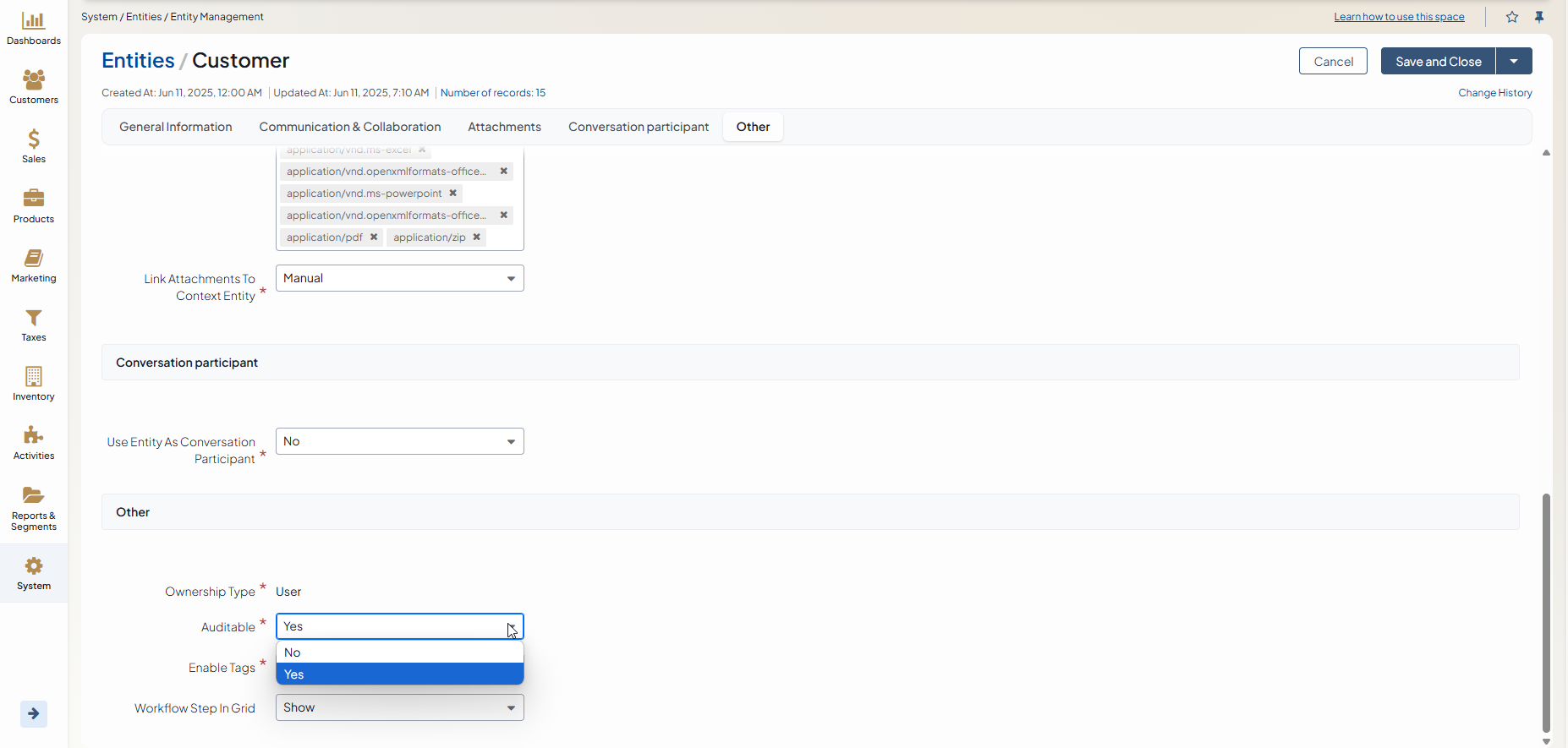
In the Other section, set the Auditable field to Yes.
Hint
For more information on entities, see the Create an Entity topic.
Click Save and Close.
Mark an Entity Field as Auditable
Marking an entity as auditable does not automatically track its fields. For instance, if the newArrival entity field of the Product entity has the Auditable field set to No, then no changes made to this field are going to be tracked.
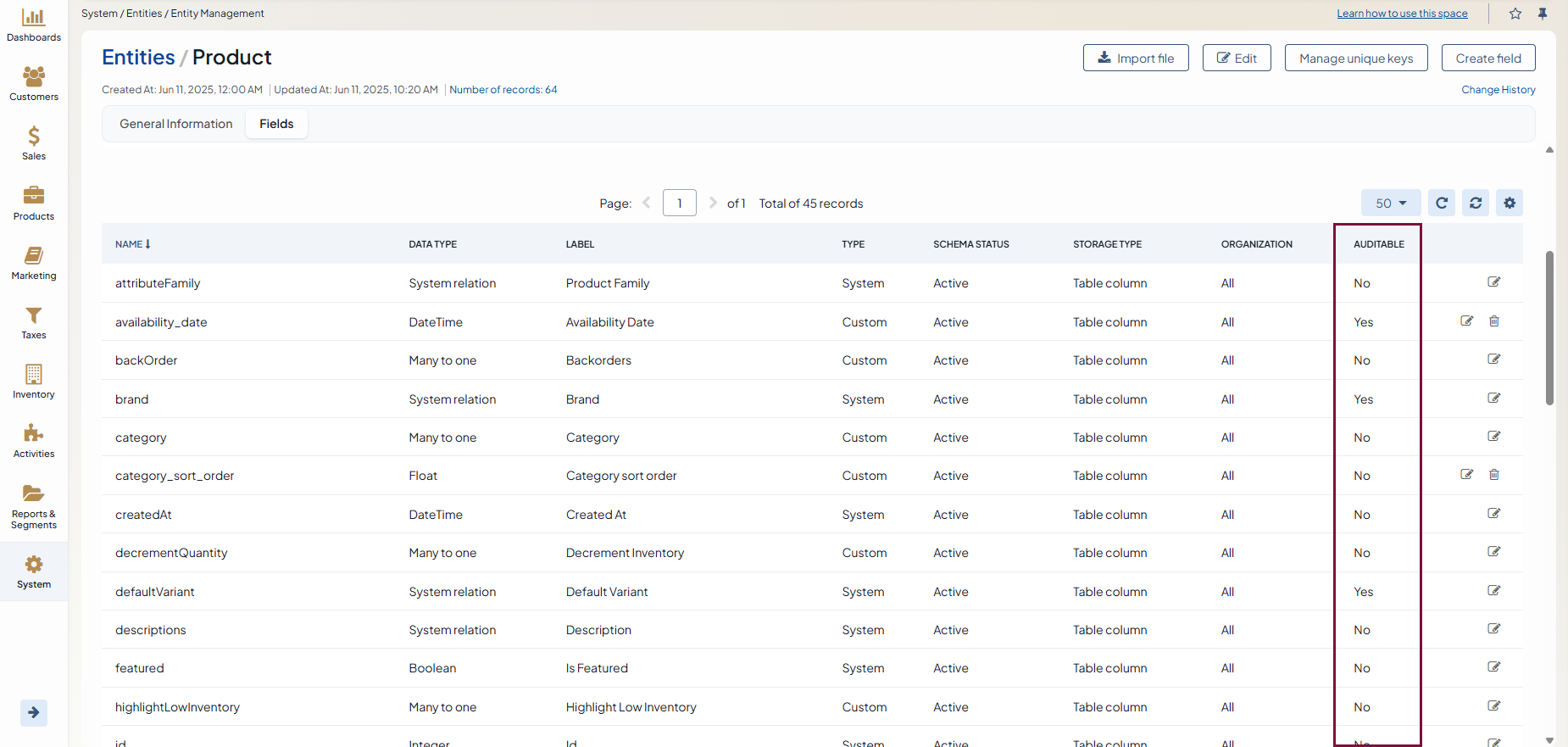
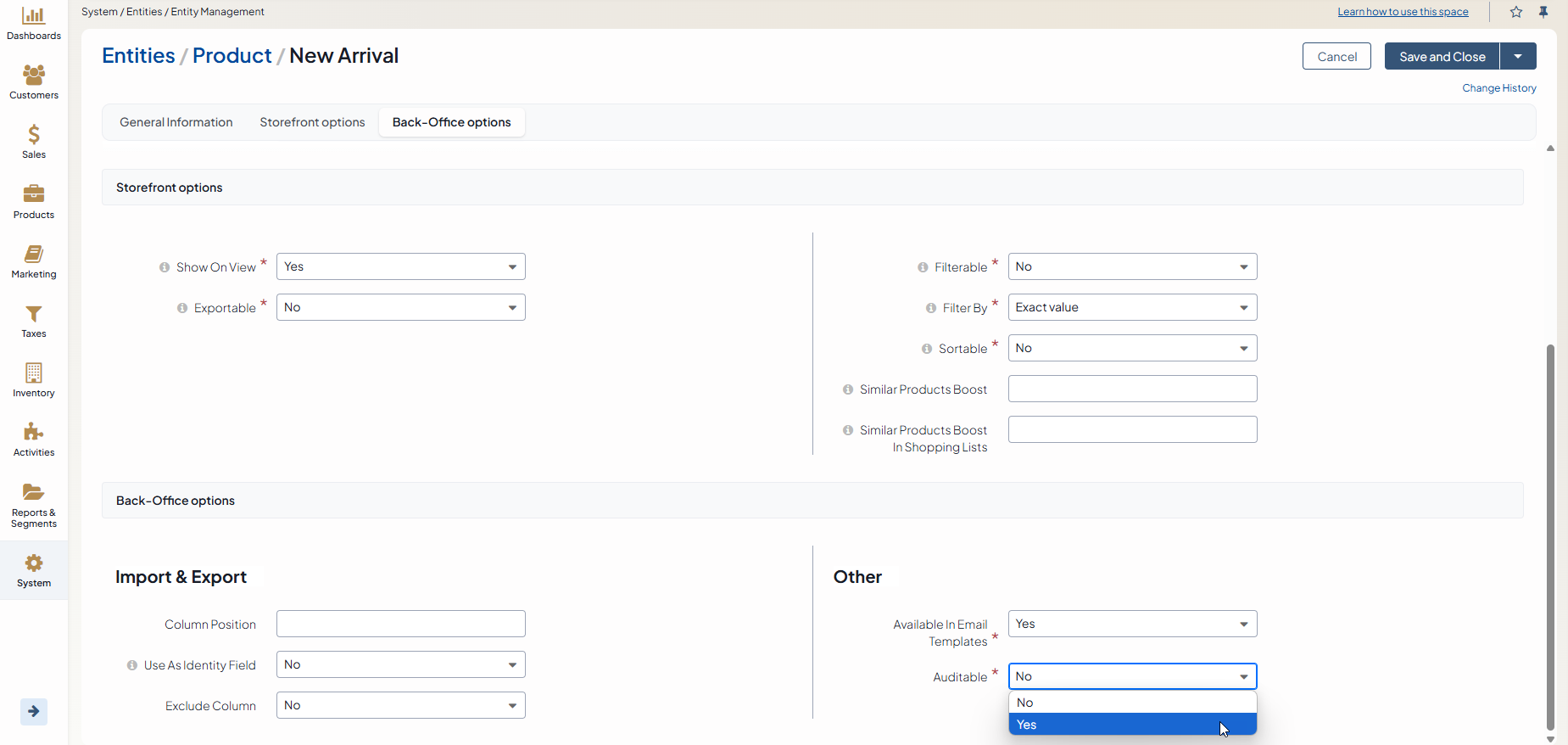
To set an entity field as Auditable:
Open its edit page.
In the Back-Office options section, select Yes from the drop-down list for the Auditable field.
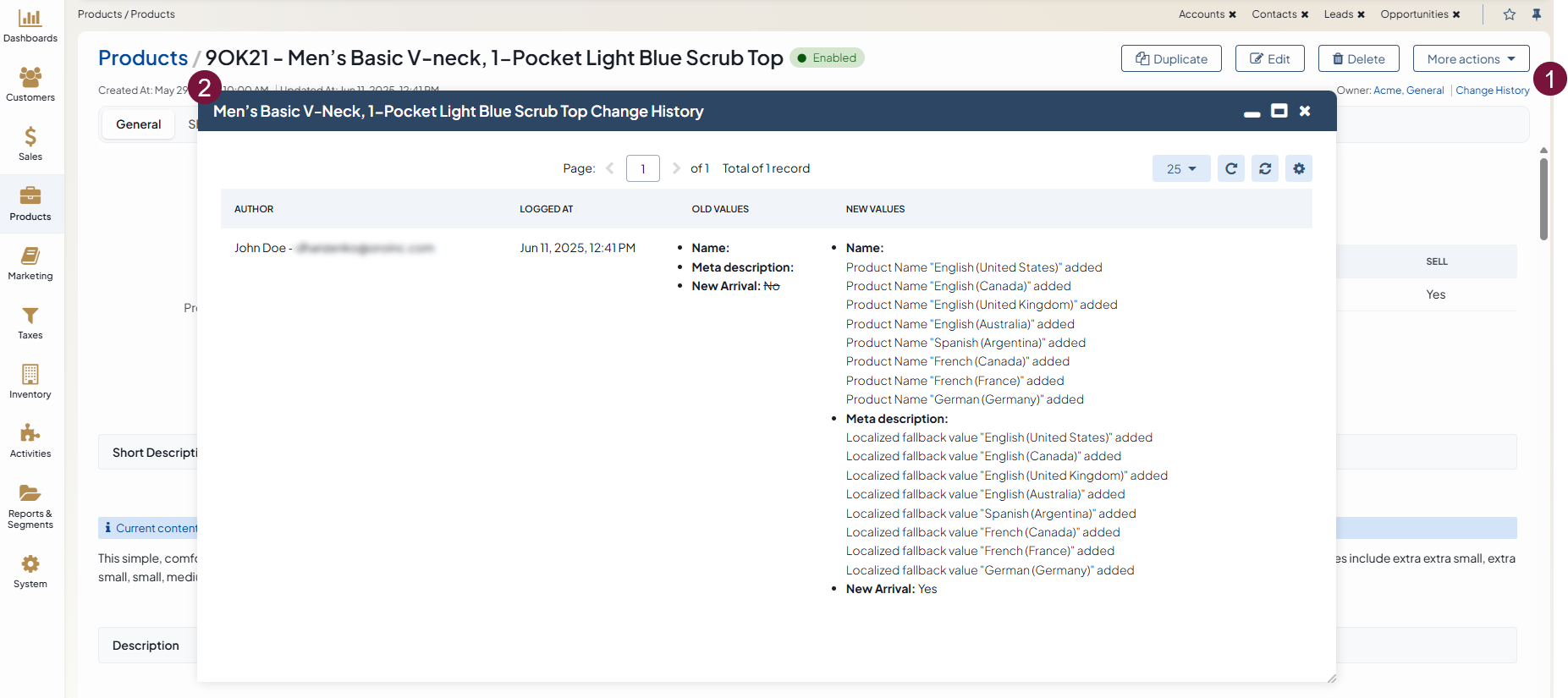
For instance, once you made the newArrival field as auditable, any changes to this field have become traceable, as illustrated in the screenshot below:
View Entity Change History
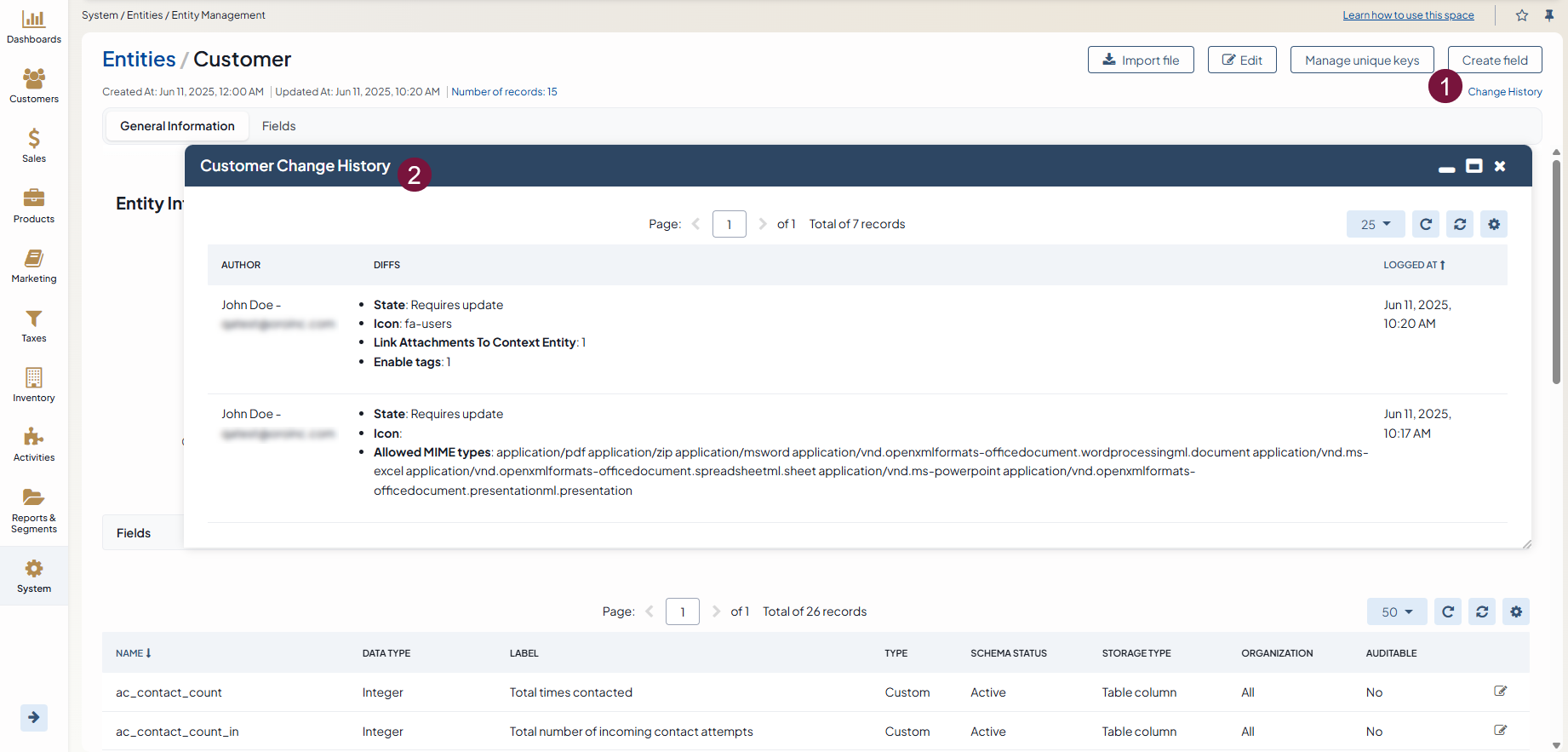
You can review the change history of an auditable entity on its view or edit page. Click Change History in the top-right corner of the page to open it.
The history includes the author and the time of the change, and the difference between the previous and the new values.
Make sure that both the entity and entity fields are marked as Auditable if you want to track the history of its changes.
View Configuration Settings Changes
Data Audit also tracks changes to configuration settings, not only to entities. This tracking works automatically for every setting, so you do not need to mark individual settings as auditable.
The application can store configuration settings at up to six levels: system (global), organization, website, customer group, customer, and user (My Configuration).
Whenever someone changes a configuration setting at any of these levels, the application creates an audit record for that change. You can find this record on the same System > Data Audit page that lists entity changes.
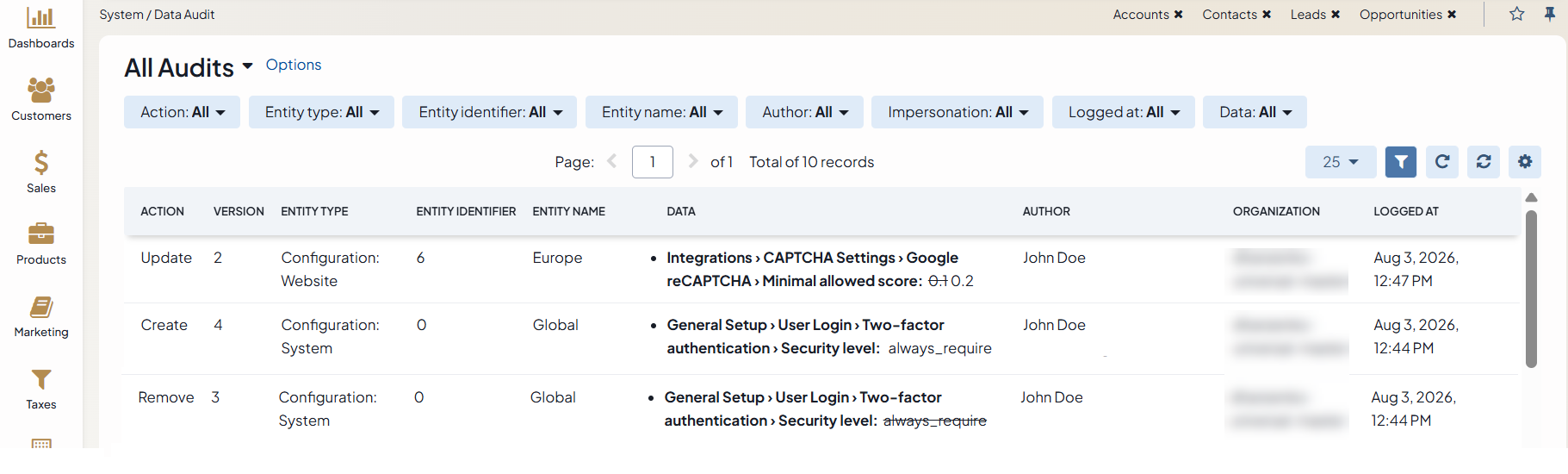
If a single save changes several settings at once, the application creates one audit record for all of them. When the record mixes different kinds of change, for example one setting was created and another was updated, the application labels the entire record as Update.
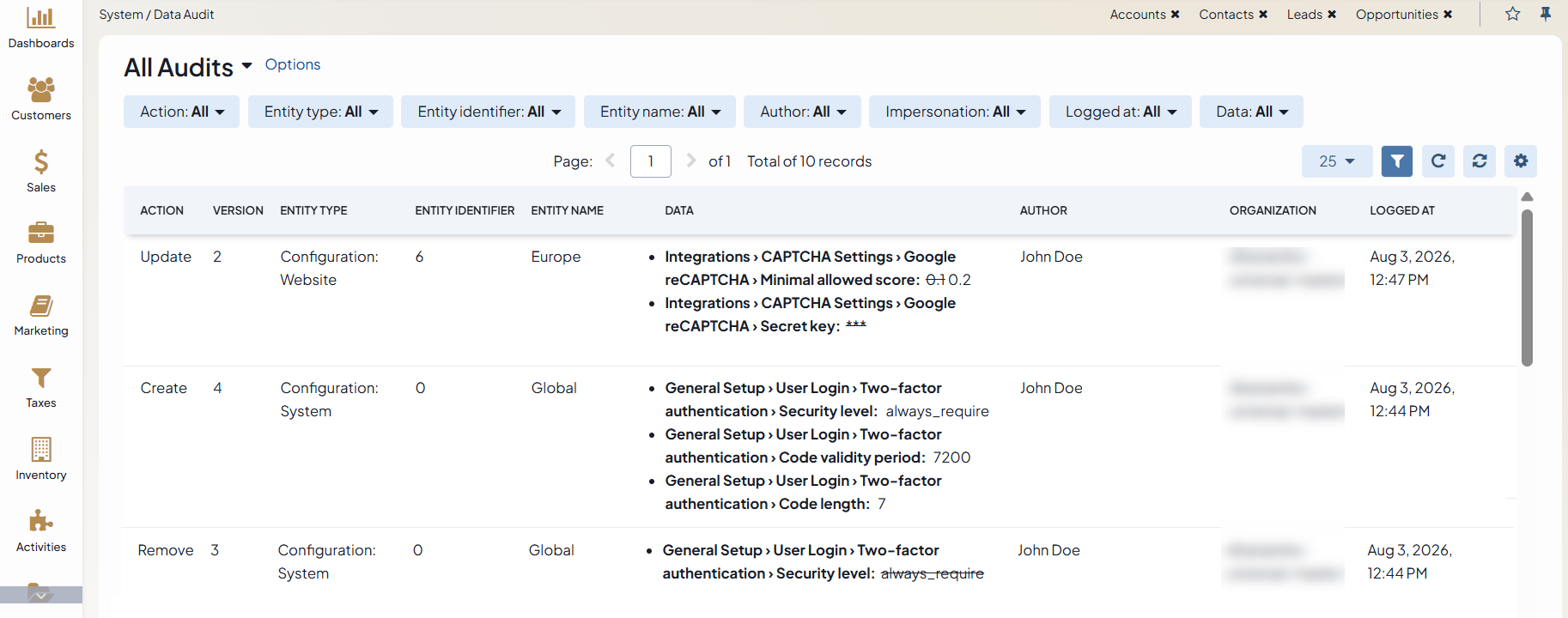
Use the Data filter to find a match in the name of the changed setting or its location, for example User Login or always_require.
Important
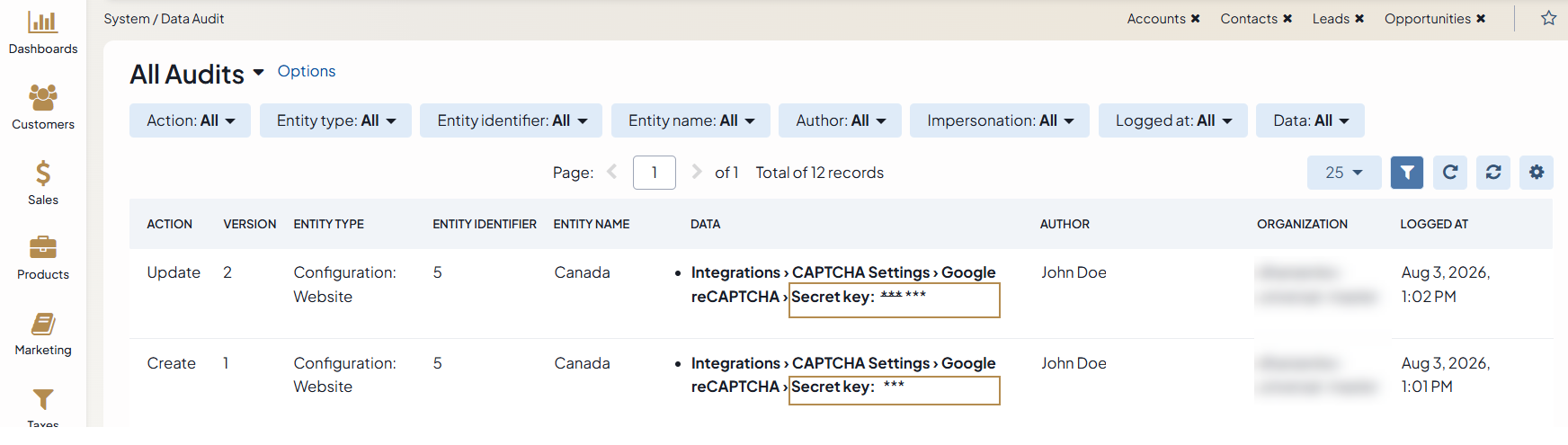
If a setting stores sensitive information, such as a password or a client secret, the application does not display its value in the audit record. Instead, the record shows ***. You can still see who changed the setting and when they changed it.
View Menu Changes
Note
The ability to audit changes to back-office and storefront menus is available as of OroCommerce version 6.1.11.
Data Audit also tracks the changes made to the back-office menus under System > Menus and to the storefront menus under System > Storefront Menus. This tracking works automatically for every menu item, so you do not need to mark individual menu item as auditable. Every level at which a menu can be customized is a separate entity type, so you can filter the levels independently:
for back-office menu: Back-Office Menu: Global, Back-Office Menu: Organization, and Back-Office Menu: User;
for storefront menu: Storefront Menu: Global, Storefront Menu: Organization, Storefront Menu: Website, Storefront Menu: Customer Group, and Storefront Menu: Customer.
Whenever someone changes a menu item at any of these levels, the application creates an audit record for that change. You can find this record on the same System > Data Audit page that lists entity changes.
Every change creates one record for each changed menu item:
ENTITY NAME shows the menu and the item, for example, frontend_menu / Personal Address.
ENTITY IDENTIFIER identifies the item within its menu and the level at which the item was customized.
DATA shows the changed properties with their old and new values.
One action can also affect other child menu items. Data Audit records these related changes as well. For example:
When you hide a menu item, Data Audit also records the child items that become hidden.
When you delete a menu item, Data Audit also records its child items because deleting the parent item moves its child items to the top level of the menu.
Data Audit records all changes from a single action under one transaction.
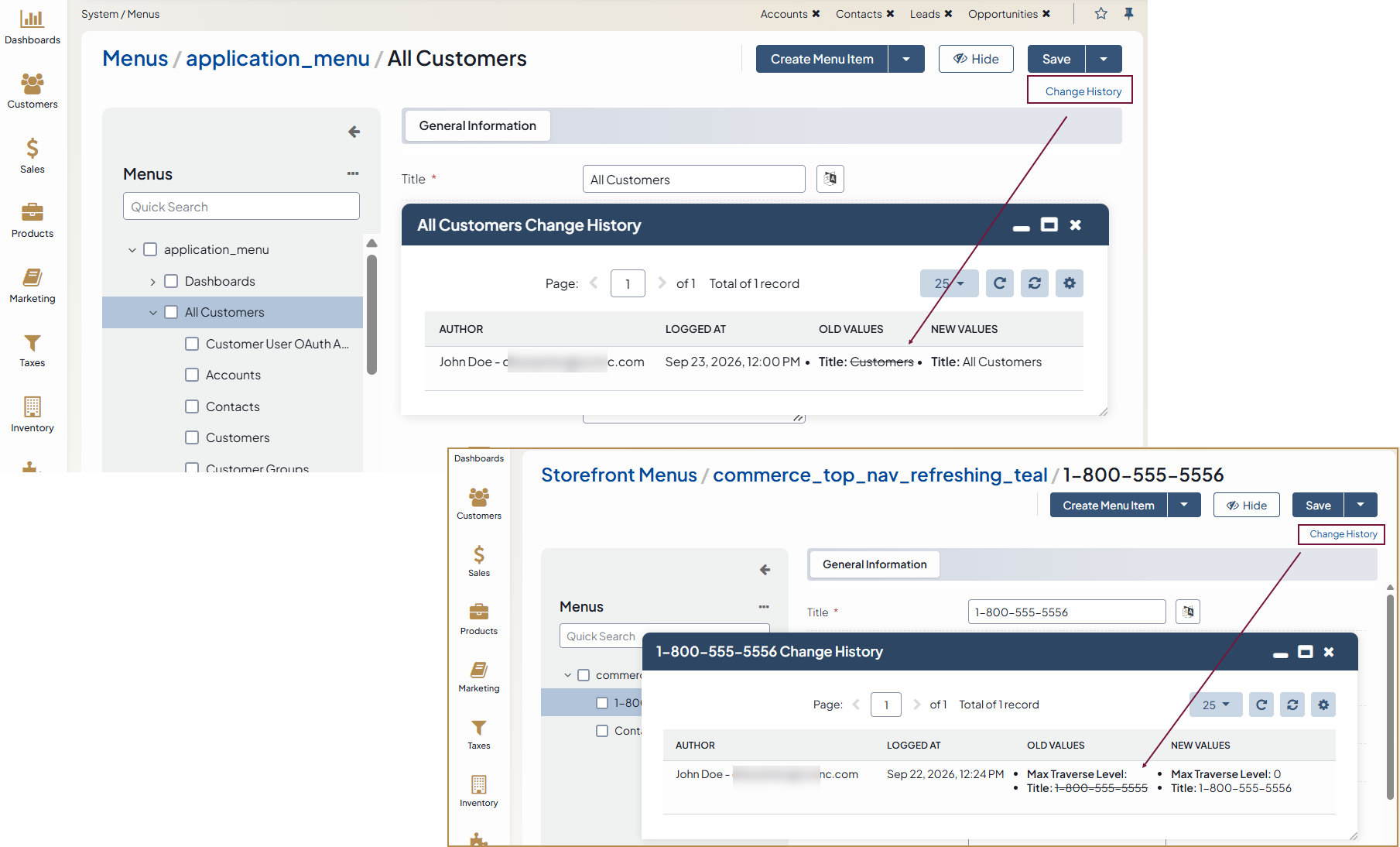
To view the history of a single menu item, open the item in System > Menus or System > Storefront Menus, and click Change History.
Create a Data Audit Report
You can create reports based on the changes that have taken place in auditable entities.
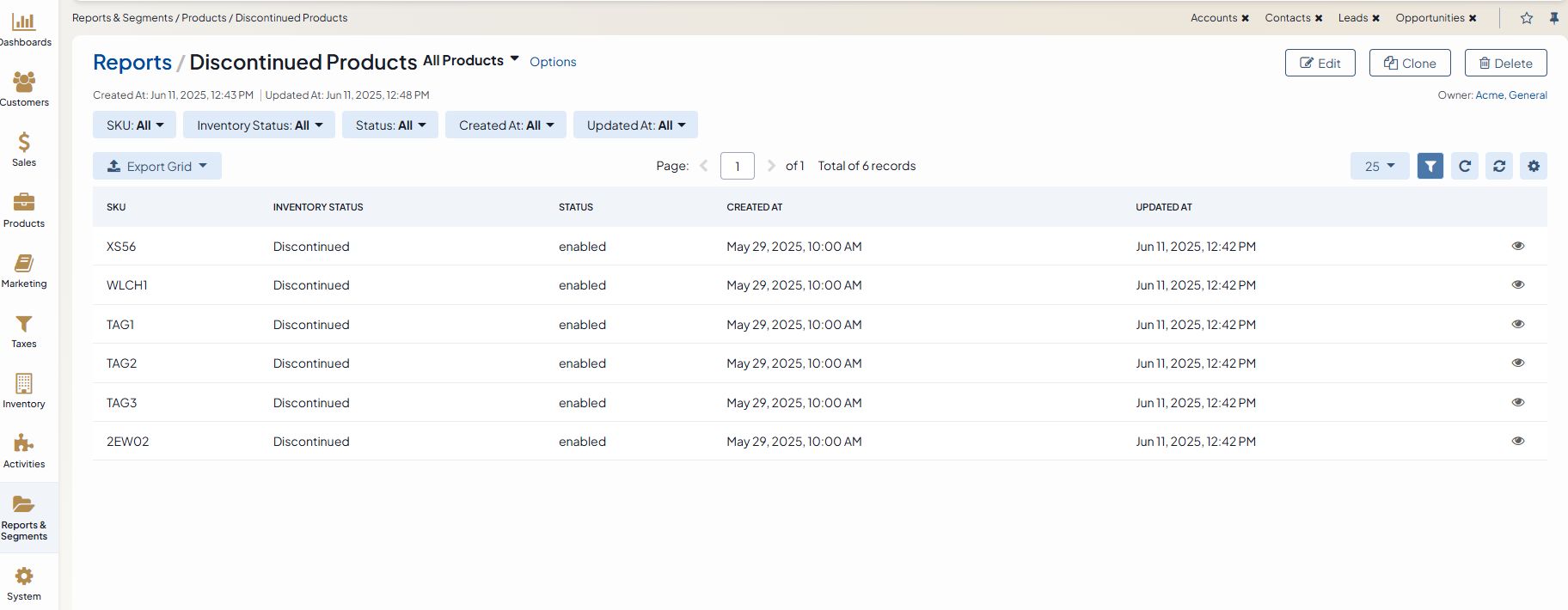
As an illustration, we are going to create a report of products that have been discontinued this year, i.e., the items that have Inventory Status changed to Discontinued.
Hint
First, make sure that the Inventory Status entity field is auditable.
Navigate to Reports & Segments > Manage Custom Reports.
Click Create Report
Provide the following key details in the General section:
Name — Give the report a name.
Entity — Select Product for entity type.
Report Type — Select Table.
In Filters, drag and drop the Data Audit field to the area on the right.
Set the following conditions:
Product > Inventory Status
Has been changed to > is any of > Discontinued
Interval equals > today
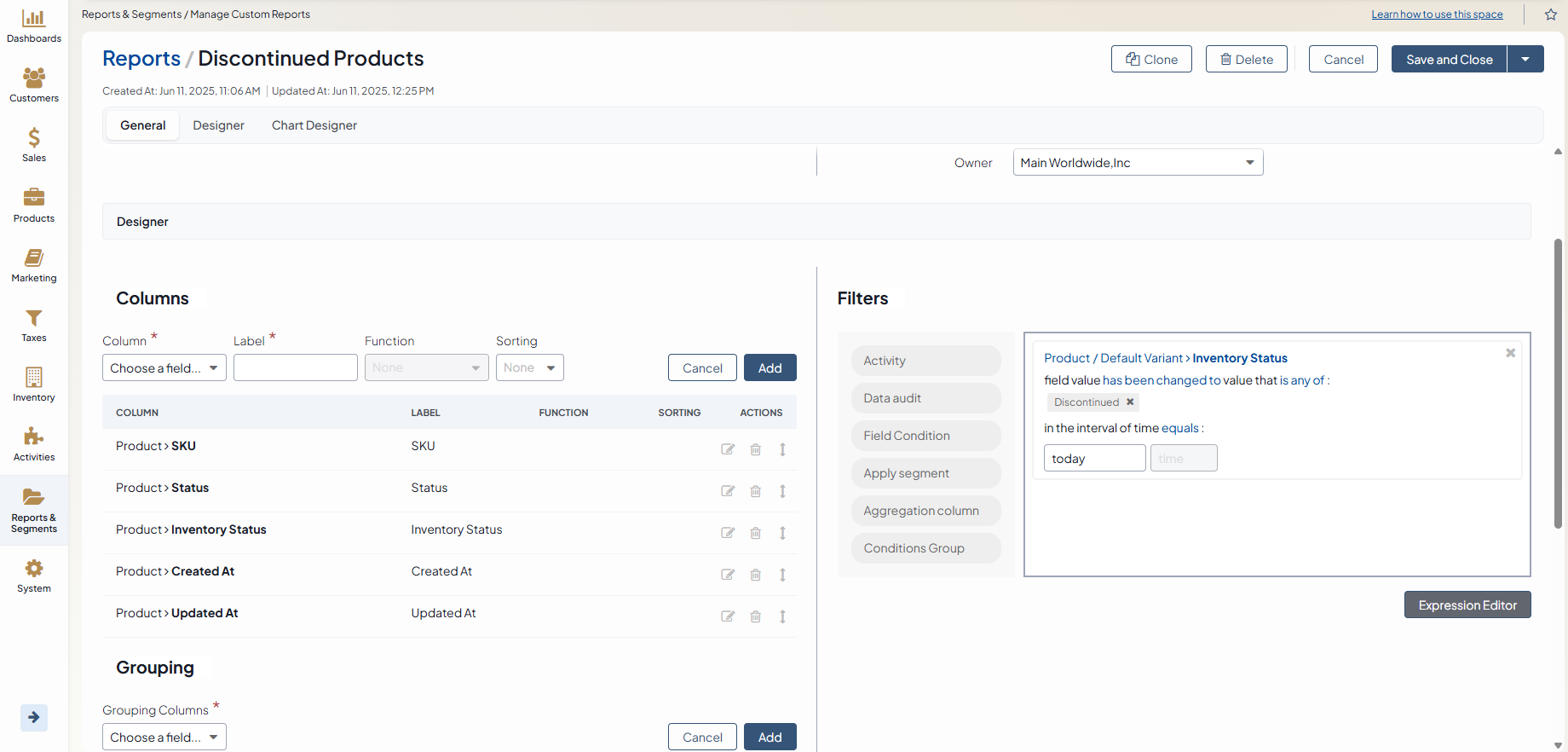
Add the following columns to the table:
SKU
Inventory Status
Created At
Update At
Click Save and Close.
Audit of Login Attempts
Note
This is a Platform Enterprise feature.
To simplify investigation of any security-related incidents, the application keeps track of all back-office login attempts and the following related security events:
Successful login
Unsuccessful login
Account is locked
Autodeactivation email has been sent
Reset password email has been sent
The log is stored in the security log channel.
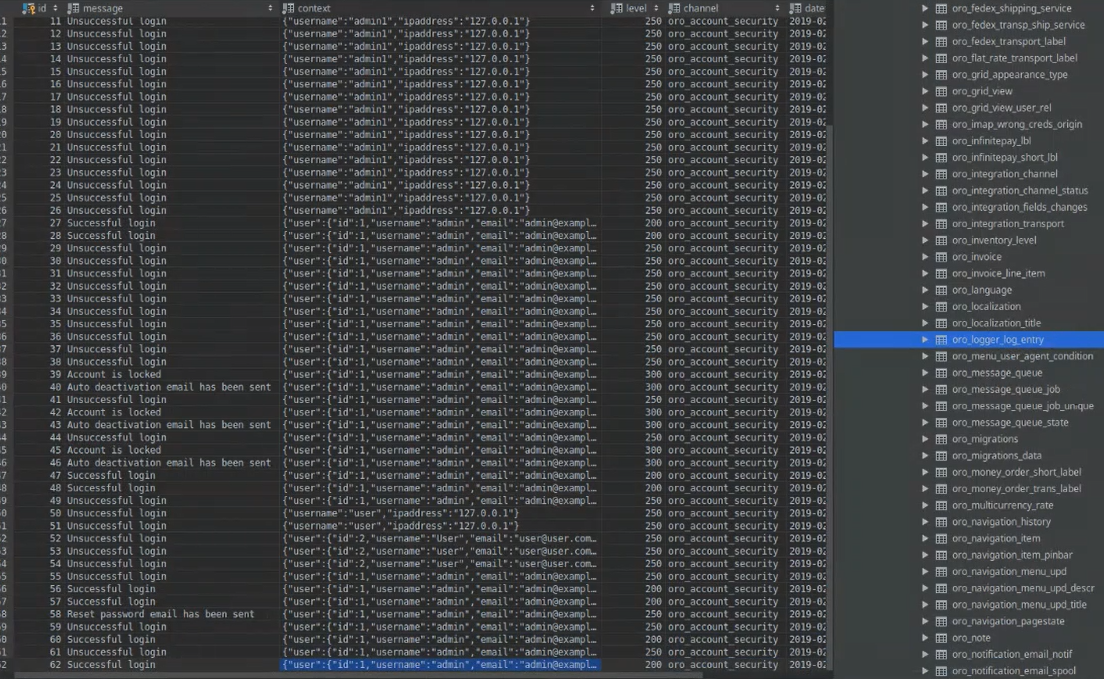
In addition to the type of the security event, the following details are recorded in the table:
user ID
username
email
full name
user status (enabled or disabled)
last login date and time
user creation date and time
IP address
Login attempts can be accessed from the back-office UI. See Login Attempts UI for more information.
Related Topics