Manage Recurring Orders in the Back-Office
Note
This is an OroCommerce Enterprise feature, introduced in version 6.1.7.
Recurring Orders allow customers in the storefront to automatically place repeat orders based on previously submitted orders and a predefined schedule. Each recurring order defines the frequency, start date, and optional end date for order generation. On each scheduled date, the system automatically creates a new standard order, while back-office users can monitor and manage recurring orders throughout their lifecycle under Sales > Recurring Orders in the back-office menu.
Note
Recurring orders functionality must be enabled in the back-office system configuration on the required level by the system administrator.
Recurring Orders Grid
The Recurring Orders grid displays all recurring orders available within the current organization and provides the following information:
Order Number — The unique identifier of the recurring order.
Status — The current status of the recurring order (for example, Active, Completed, Canceled, Suspended, or Failed).
Start Date — The date when the recurring order schedule starts.
Repeat — The frequency at which orders are scheduled to be generated.
Generating Orders — Indicates whether the recurring order is currently generating new orders.
Next Scheduled Order — The date of the next scheduled order, if applicable.
End Date — The date when the recurring order ends, if specified.
Created Orders Count — The number of orders generated from the recurring order.
Currency — The currency used for generated orders.
Customer User — The customer user who created the recurring order.
Customer — The customer account associated with the recurring order.
Actions — Available actions for managing the recurring order.
Use filters, sorting, and grid views to locate specific recurring orders.
View and Manage Recurring Orders
From the Actions menu, back-office users can perform a variety of operations, depending on the recurring order status, for example:
View — Opens the recurring order details page.
Suspend — Suspends the recurring order and stops further order generation. An optional suspension reason can be provided.
Resume — Reactivates a suspended recurring order and allows order generation to continue according to the original schedule.
Cancel — Cancels the recurring order and prevents any further order generation. An optional cancellation reason can be provided.
Delete - Deleted the recurring order.
Orders that have already been generated are not affected by suspending or canceling a recurring order.
Create a Recurring Order
Back-office users can create a recurring order based on an existing order.
To create a recurring order:
Navigate to Sales > Orders.
Open the page of the required order.
Click Schedule Recurring Order.
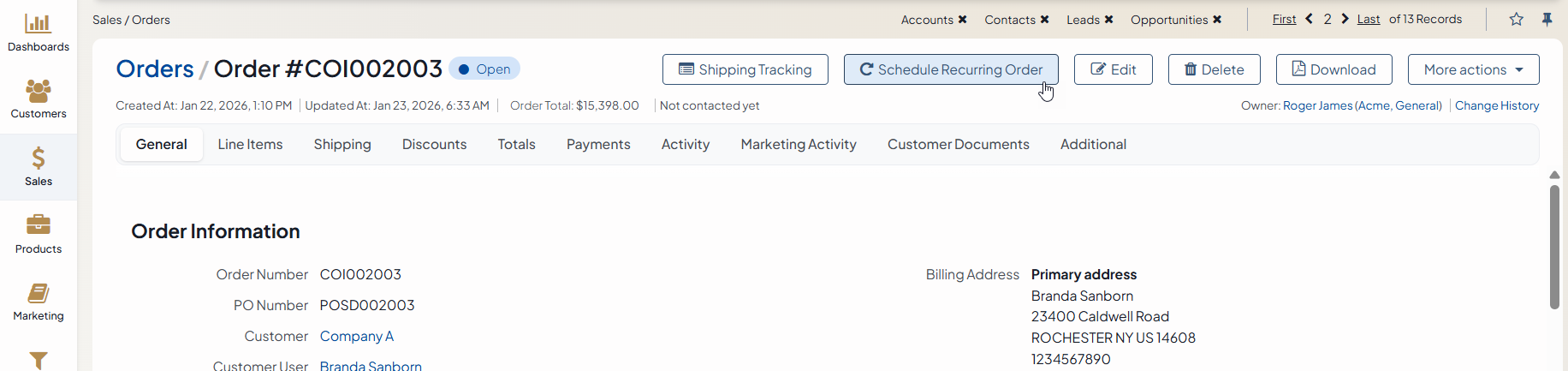
Alternatively, a recurring order can be created directly from the Orders grid by selecting Schedule Recurring Order from the More Actions menu for the corresponding order.

Related Topics