Configure OpenID Connect Integrations in the Back-Office
Hint
This section is part of the Identity Management Concept Guide topic that provides a general understanding of external identity systems supported by OroCommerce.
Note
This feature is only available in the Enterprise edition.
The Oro application supports integration with OpenID Connect (OIDC) to enable Single Sign-On (SSO) through third-party identity providers such as Okta, Microsoft Entra ID, Google, and other systems that support the OpenID Connect standard.
Using OpenID Connect allows users to authenticate once with a trusted identity provider and then securely access Oro without entering a separate username and password.
Note
Only the systems that return the email field in the ID token are supported. This field is required to map an Oro User or Customer User to the corresponding external account.
OpenID Integration Types
Oro provides 4 types of OpenID Connect integration to simplify configuration for common identity providers.
The following integration types are available:
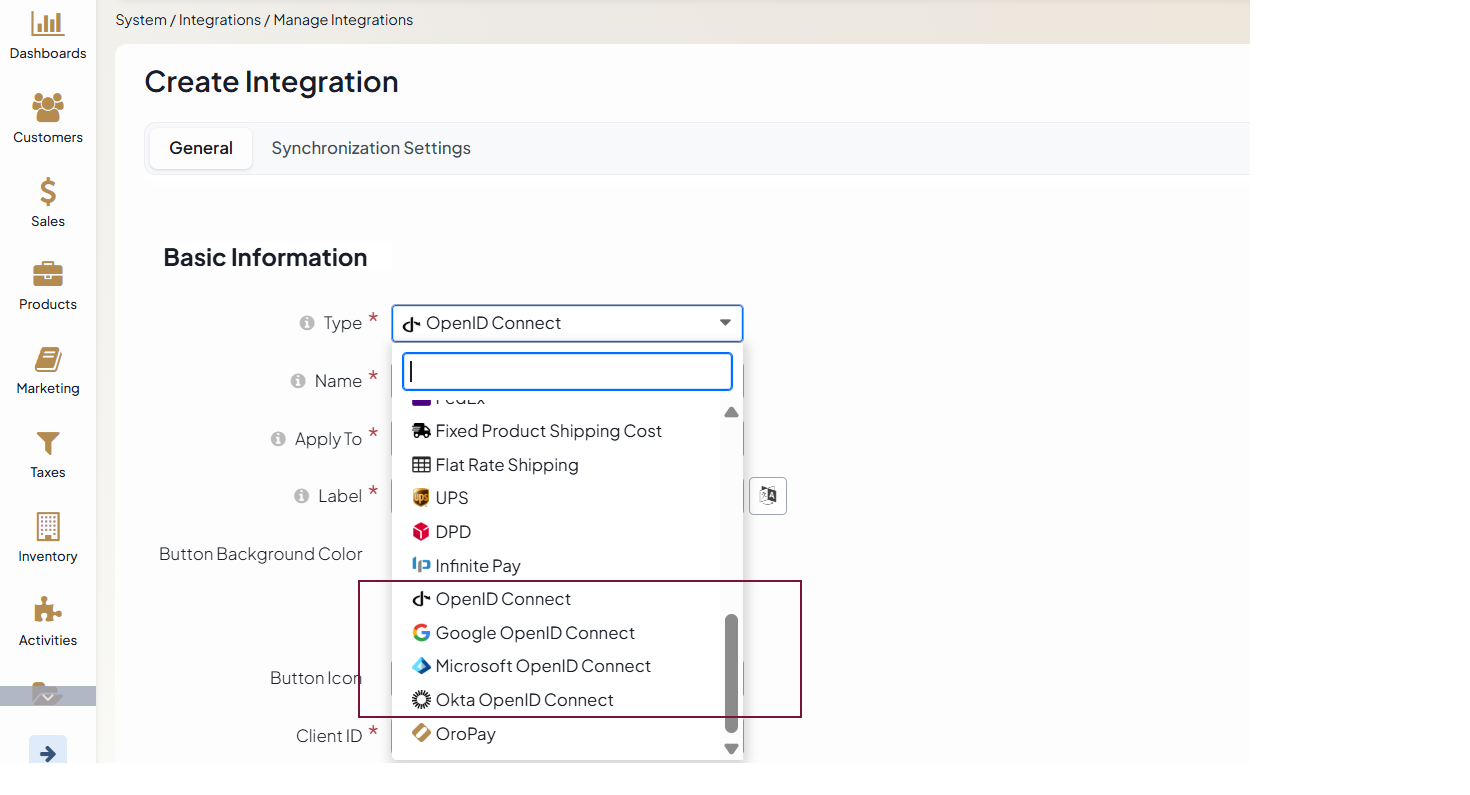
OpenID Connect - A generic configuration for any third-party system that supports OpenID Connect SSO and returns the email field in the ID token.
Google OpenID Connect - A simplified configuration for Google identity providers.
Microsoft OpenID Connect - A simplified configuration for Microsoft Entra ID. For this integration to work properly for the back-office users, enable SCIM Synchronization under System > Configuration > General Setup > User Settings and configure Microsoft Entra Provisioning Service.
Okta OpenID Connect - A simplified configuration for Okta. For this integration to work properly, enable SCIM Synchronization under System > Configuration > General Setup > User Settings and configure Okta Provisioning Service.
Create OpenID Integration
To create an integration with OpenID Connect, Google OpenID Connect, Microsoft OpenID Connect, or Okta OpenID Connect:
Navigate to System > Integrations > Manage Integrations in the main menu.
Click Create Integration on the top right and provide the required information.
The configuration options described below represent the full set of settings available for the generic OpenID Connect integration type.
If you select one of the provider-specific integrations (OpenID Connect, Google OpenID Connect, Microsoft OpenID Connect, or Okta OpenID Connect), the configuration may differ. Some fields are preconfigured or hidden, as they are automatically derived from the selected provider’s requirements. This simplifies setup and reduces the number of parameters that must be entered manually.
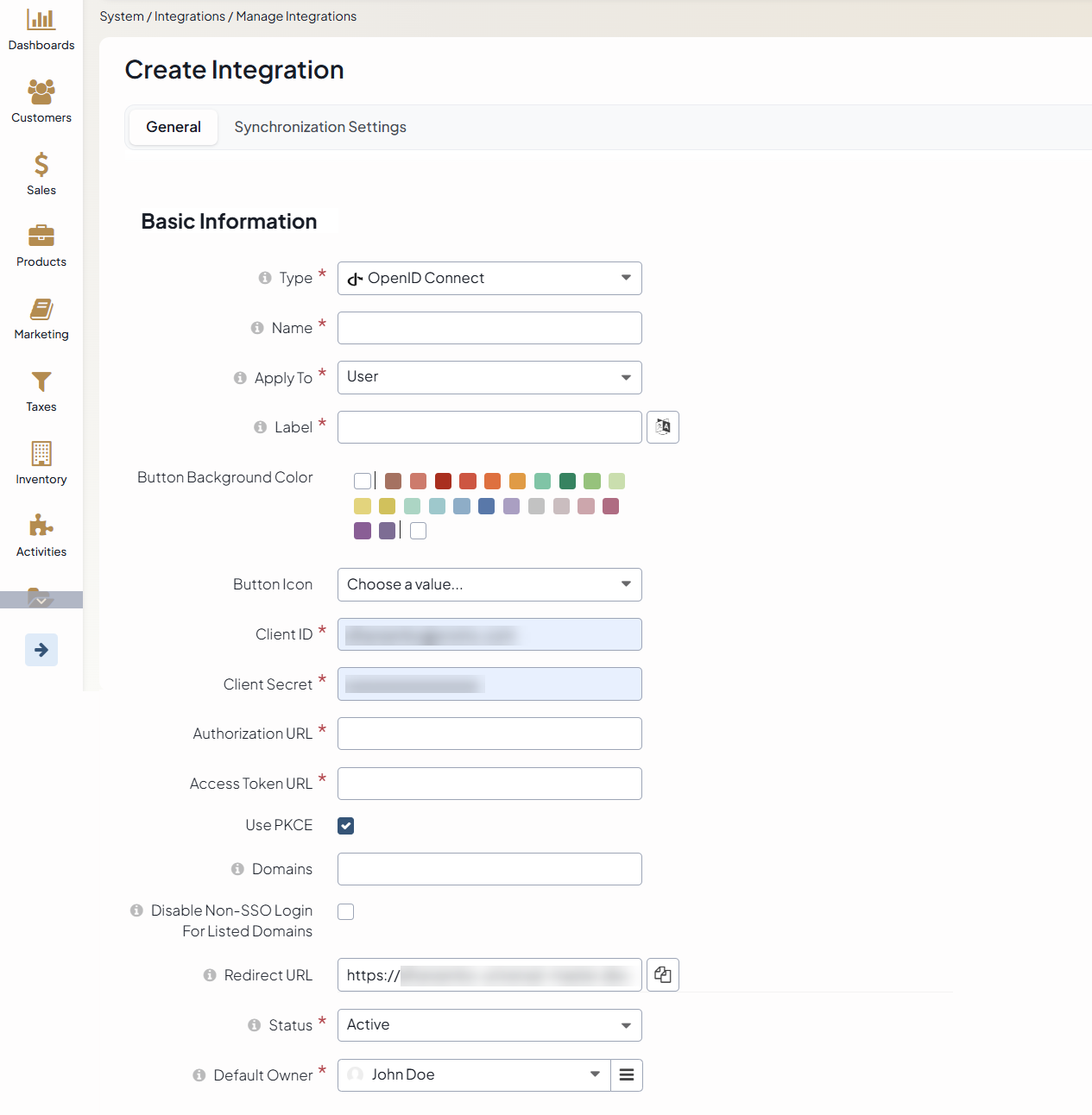
Name - The integration name displayed in the Integrations grid.
- Apply to - Available only when the Customer bundle is installed. The field allows to select the user type this integration will be used for:
User — The login button is displayed on the back-office login page.
Customer User — The login button is displayed on the storefront login page.
Label - The label displayed on the SSO login button.
Button Background Color - The background color of the SSO login button. If no color is specified, the default system background color is used.
Button Icon - The icon displayed on the login button in the back-office. The icon is shown only when User is selected in the Apply to field.
Client ID - The Client ID of the OAuth 2.0 application configured in the third-party identity provider.
Client Secret - The Client Secret of the OAuth 2.0 application configured in the third-party identity provider.
Authorization URL - The URL used to request an authorization code. The field is displayed only for the generic OpenID Connect type.
Access Token URL - The URL used to get an access token and an ID token. The field is displayed only for the generic OpenID Connect type.
Use PKCE - When enabled, the queries to 3rd party system will be protected with the PKCE (Proof Key for Code Exchange) data. The field is displayed only for the generic OpenID Connect type.
Domains - A comma-separated list of email domains allowed to use OIDC SSO (e.g., domains associated with your company). It limits SSO access to users with email addresses matching these domains. Leave the field empty to allow any domain.
Disable Non-SSO Login for Listed Domains - When enabled, users with email addresses matching the domains specified in the Domains field will be required to sign in using OIDC SSO only. Username and password login will be restricted for these users.
Redirect URL - READ-ONLY field, the value is auto-generated and should be added to the 3rd party OAuth 2 application configuration.
Status - The status of the OIDC SSO integration. If set to Inactive, users will not be able to log in using this OIDC SSO integration.
Additional fields are available for provider-specific integrations:
Directory (tenant) ID - The tenant ID value from the 3rd party OAuth 2 application configuration. Available only for the Microsoft OpenID Connect integration type.
Okta instance domain - The domain name of the Okta instance. Available only for the Okta OpenID Connect integration type.
Configure Okta OpenID Integration
To retrieve the Client ID and Client Secret values from the Okta app instance, you need to:
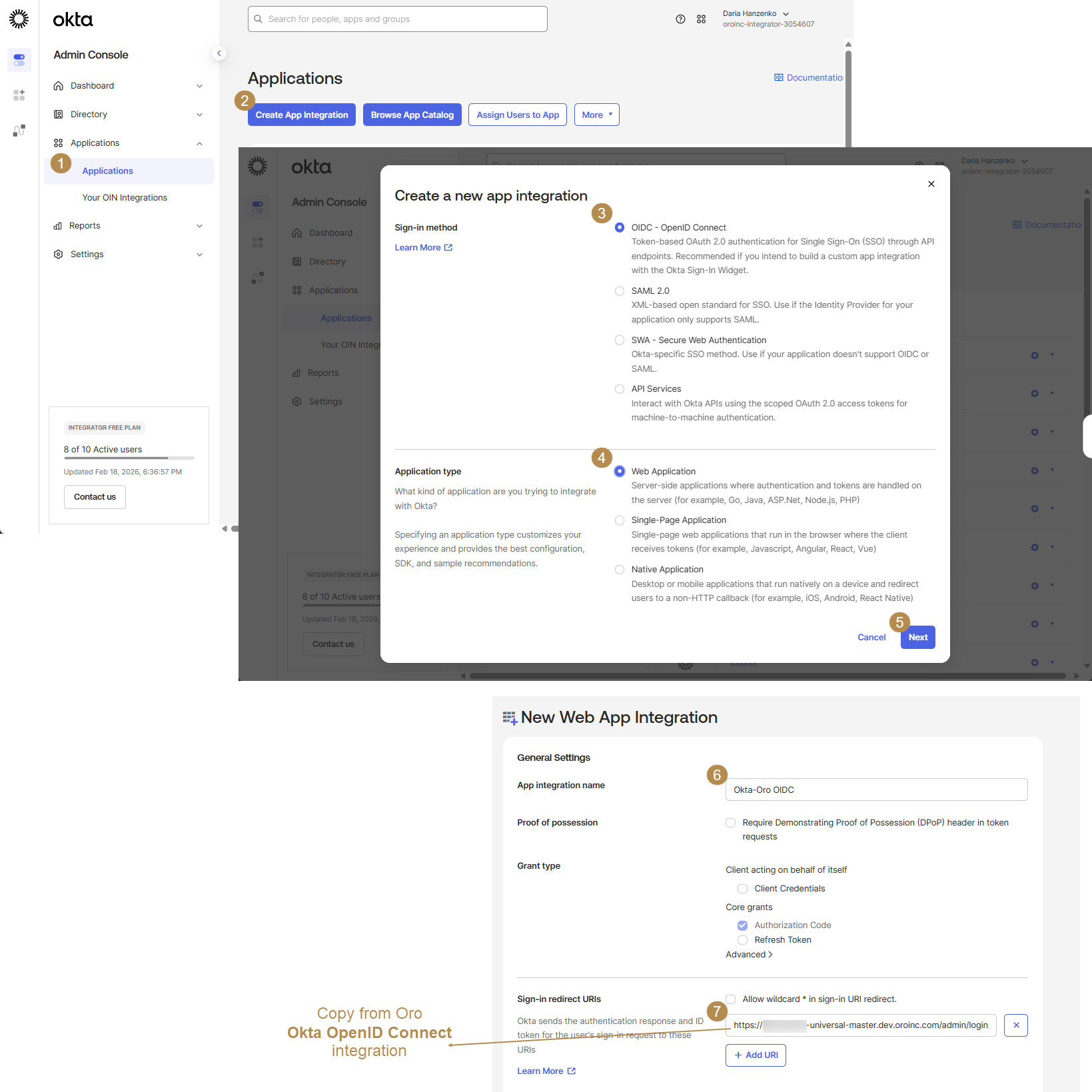
Log into your Okta Admin Console and navigate to Applications > Applications.
Click Create App Integration.
Select the OIDC-OpenID Connect sign-in method.
Select the Web Application application type.
Click Next.
Provide a name for the new application.
For the Sign-in redirect URIs, enter the Redirect URL value provided while creating an Okta OpenID Connect integration in the OroCommerce back-office and click Save.
Once the Okta OIDC app instance is created, the Client ID and Client Secret are generated. You can copy the values and paste them into the corresponding fields of the Okta OpenID Connect integration in the OroCommerce back-office.
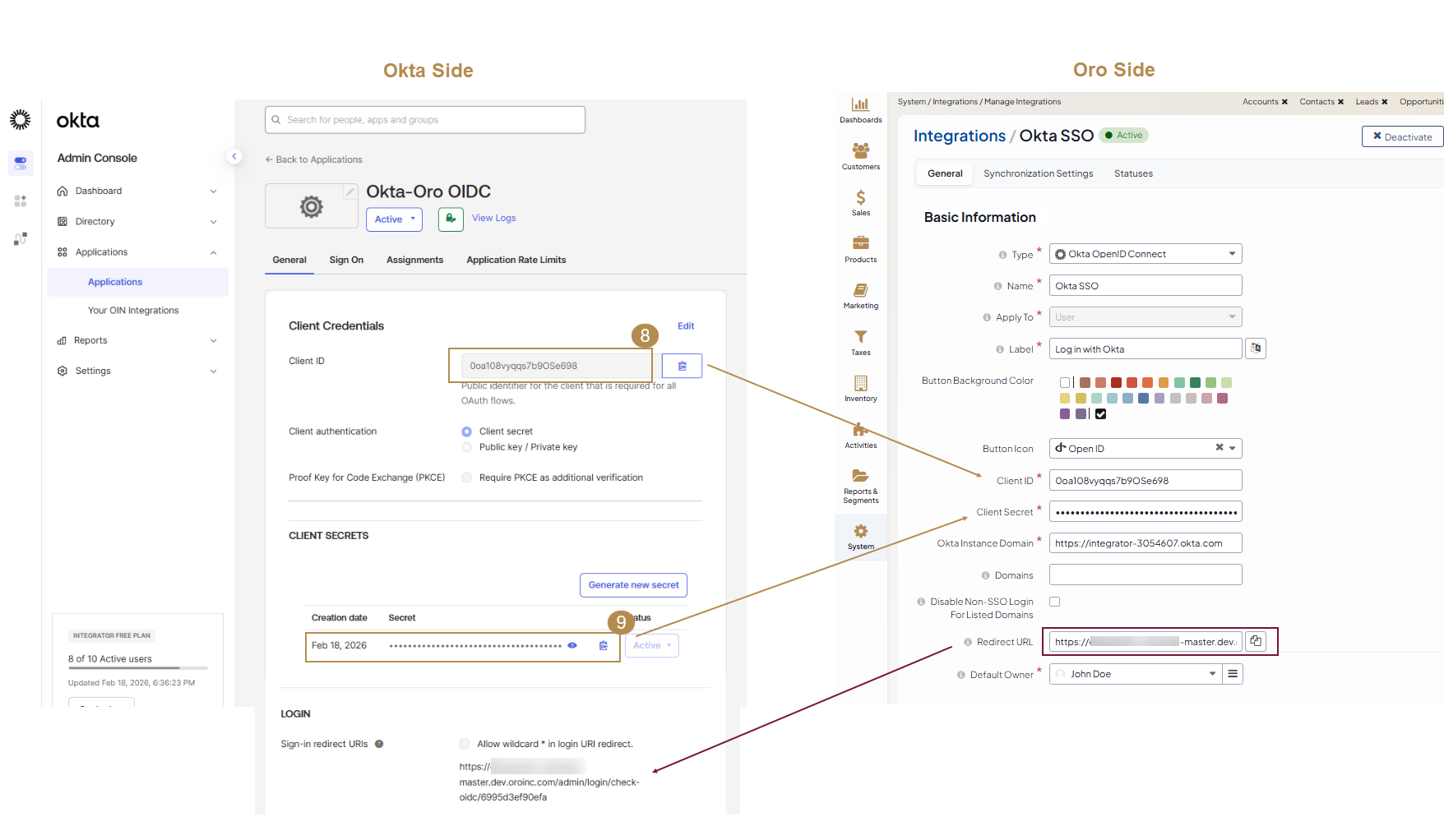
Users assigned to the Okta application instance you created can now sign in to the OroCommerce platform using Okta SSO. If the required users do not yet exist in OroCommerce, you can configure SCIM user provisioning to synchronize users from Okta.

Related Articles