Manage Recurring Orders in the Storefront
Note
This is an OroCommerce Enterprise feature, introduced in version 6.1.7.
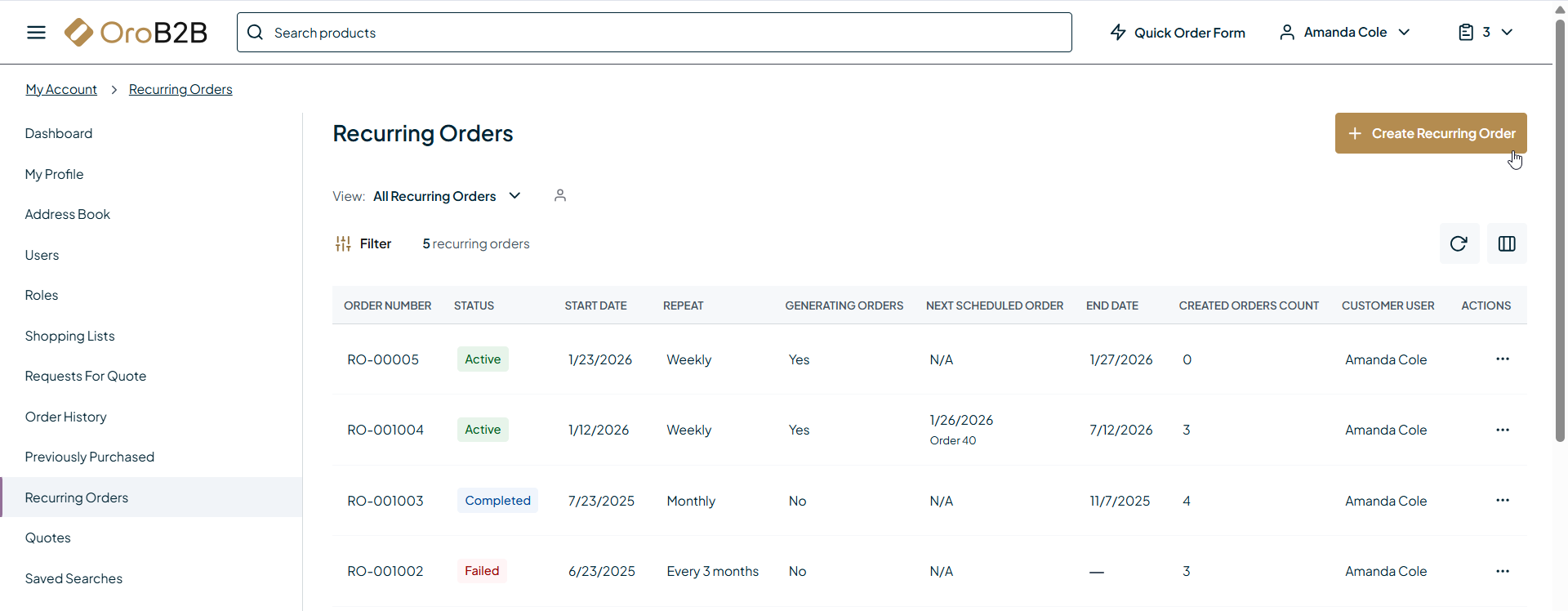
The Recurring Orders page in the storefront allows customer users to view, manage, and create recurring orders based on previously submitted orders. Recurring orders help automate repeat purchases by generating new orders on a predefined schedule.
To access the page, navigate to My Account > Recurring Orders.
Note
Recurring orders functionality must be enabled in the back-office system configuration on the required level by the system administrator.
Recurring Orders Page
The Recurring Orders page displays a list of all recurring orders available to the current customer user. The grid provides the following information:
Order Number — The unique identifier of the recurring order.
Status — The current status of the recurring order (for example, Active, Paused, Completed, Canceled, Suspended, or Failed).
Start Date — The date when the recurring order schedule starts.
Repeat — The frequency at which orders are generated.
Generating Orders — Indicates whether the recurring order is currently generating new orders.
Next Scheduled Order — The date of the next scheduled order, if applicable.
End Date — The date when the recurring order ends, if specified.
Created Orders Count — The number of orders generated from the recurring order.
Customer User — The customer user who created the recurring order.
Actions — Available actions for managing the recurring order (for example, View, Create Another Recurring Order, Pause, Cancel)
Use the available views and filters to narrow down the list and quickly find specific recurring orders.
Create a Recurring Order
To create a recurring order:
Navigate to My Account > Order History.
Open an existing order.
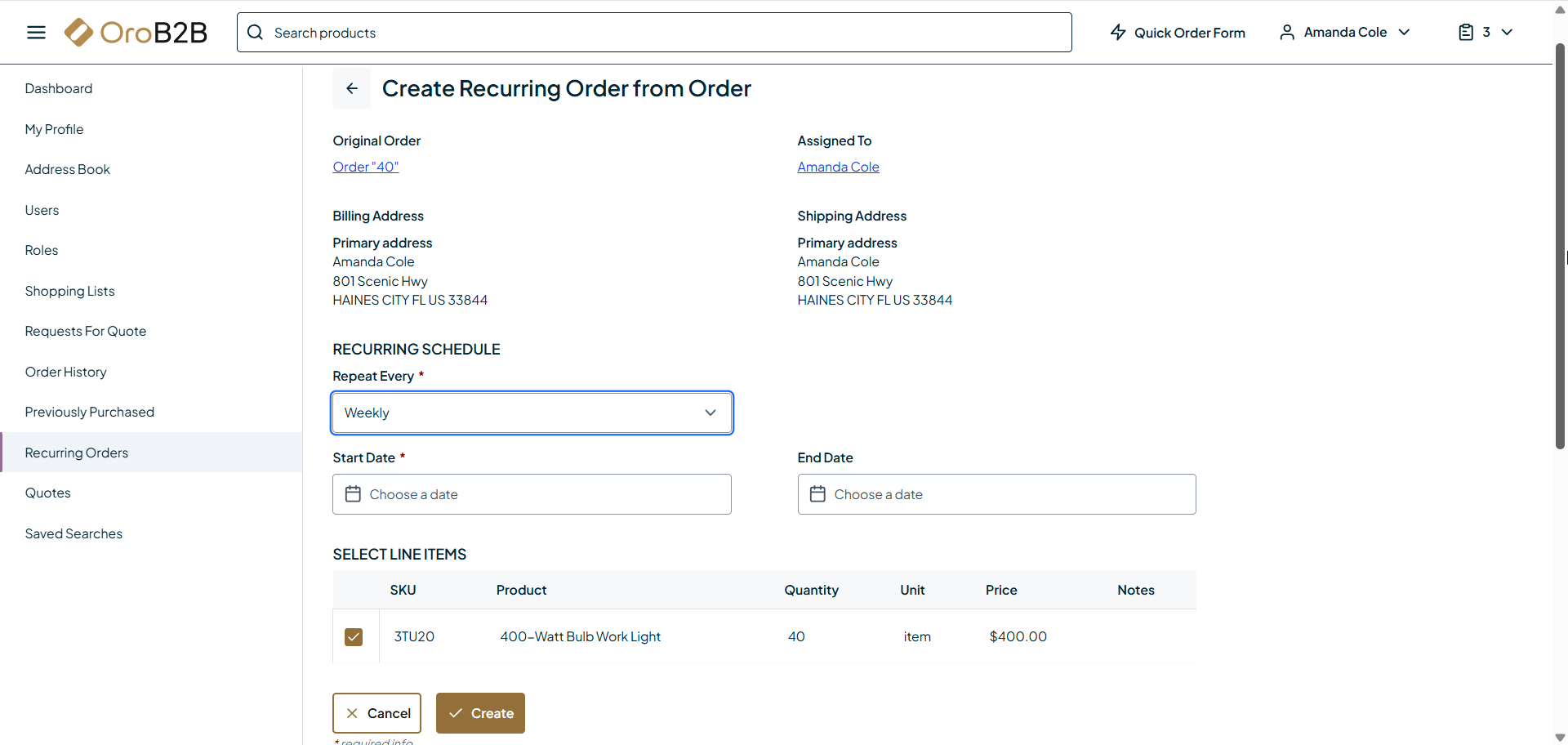
Click Create Recurring Order.
Configure the recurring schedule by selecting the repeat frequency, start date, and optional end date. You can also select which line items from the previous order you want to include.
Click Create to confirm.
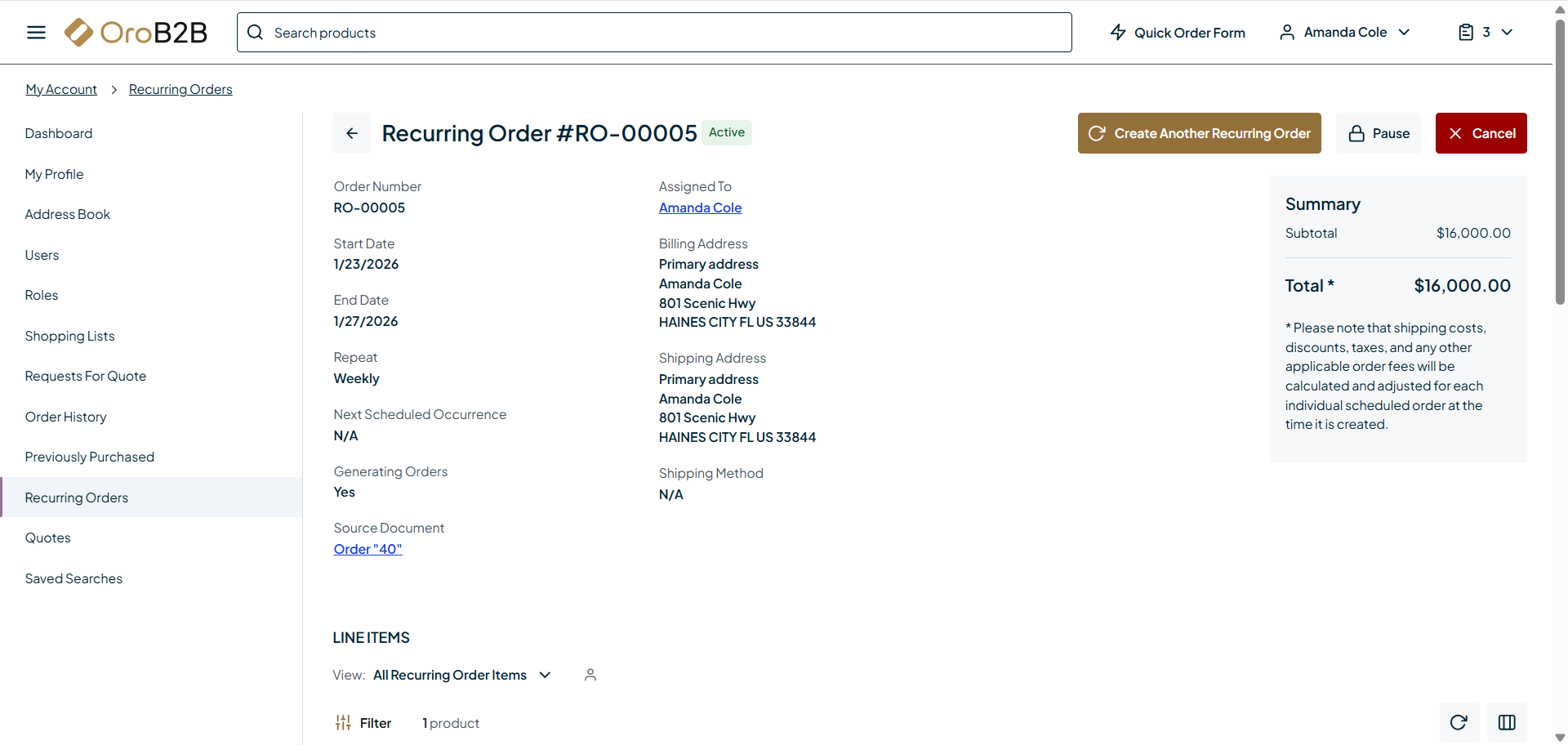
Once created, the recurring order appears on the Recurring Orders page.
You can also create a recurring order directly from the Recurring Orders page. Clicking the Create Recurring Order button redirects to the Order History page, from where you can proceed as described above.
Manage Recurring Orders
Customer users can manage their recurring orders directly from the Recurring Orders page.
Depending on the recurring order status, the following actions may be available:
Pause — Temporarily stops order generation. Scheduled dates occurring during the paused period are skipped.
Resume — Reactivates a paused recurring order. Order generation continues according to the original schedule.
Cancel — Permanently stops the recurring order and prevents further order generation.
Orders that have already been generated are not affected by pausing, resuming, or canceling a recurring order.
On each scheduled date, the system automatically generates a new standard order and notifies the customer according to the configured notification settings.
Related Topics