Important
You are browsing documentation for version 6.1 of OroCommerce, supported until 2029. Read the documentation for the latest LTS version to get up-to-date information.
See our Release Process documentation for more information on the currently supported and upcoming releases.
Google Cloud Platform
Google Cloud Platform deploys your Oro application instance in one click, with no manual software or settings configuration.
OroCommerce VM images come with demo data so you can test the application right away. This includes a preconfigured list of customers, products, submitted orders, quotes, the structured master, and web catalogs.
You can also explore the storefront using one of the pre-configured demo user roles. Sign in as a guest user, as a buyer (use BrandaJSanborn@example.org as both login and password), or as a manager (use AmandaRCole@example.org as both login and password).
Deploy the Solution
Navigate to Google Cloud Marketplace, click Explore the marketplace and then search for your solution provided by Oro Inc.
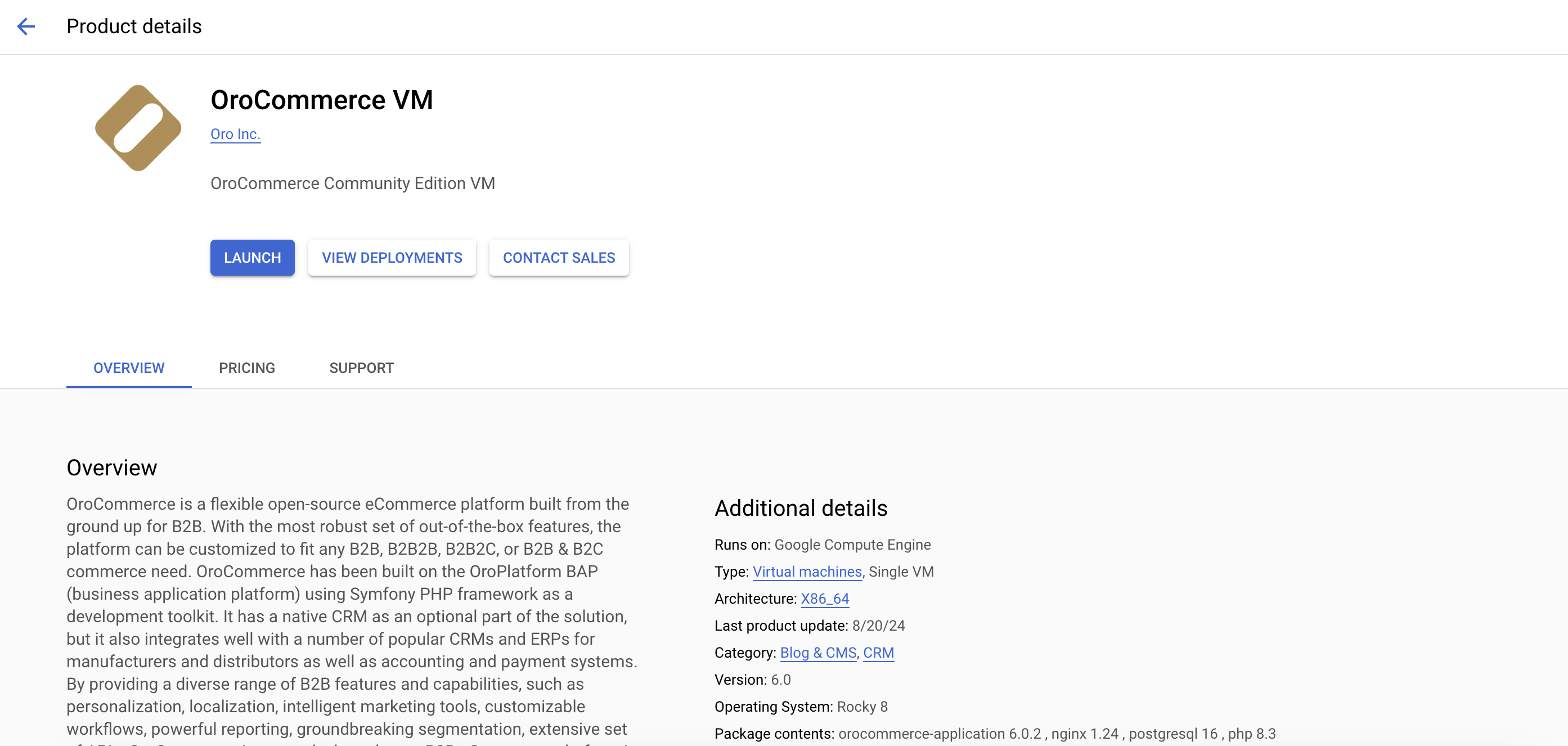
Click Launch.
The Oro solution deployment page displays the default settings (e.g., name, zone, machine type, boot disk type, networking interfaces, etc.). Accept them or customize them as needed.
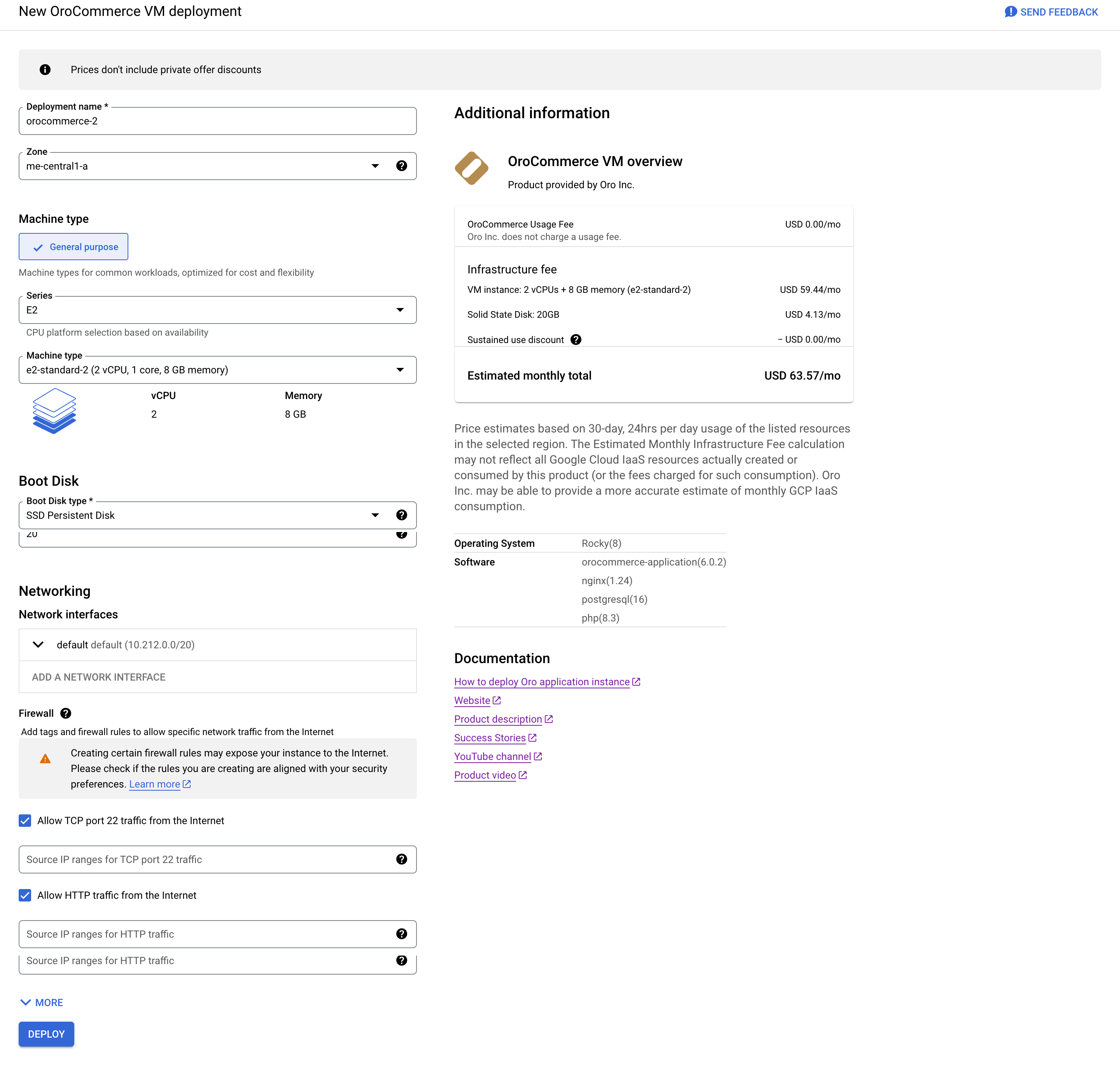
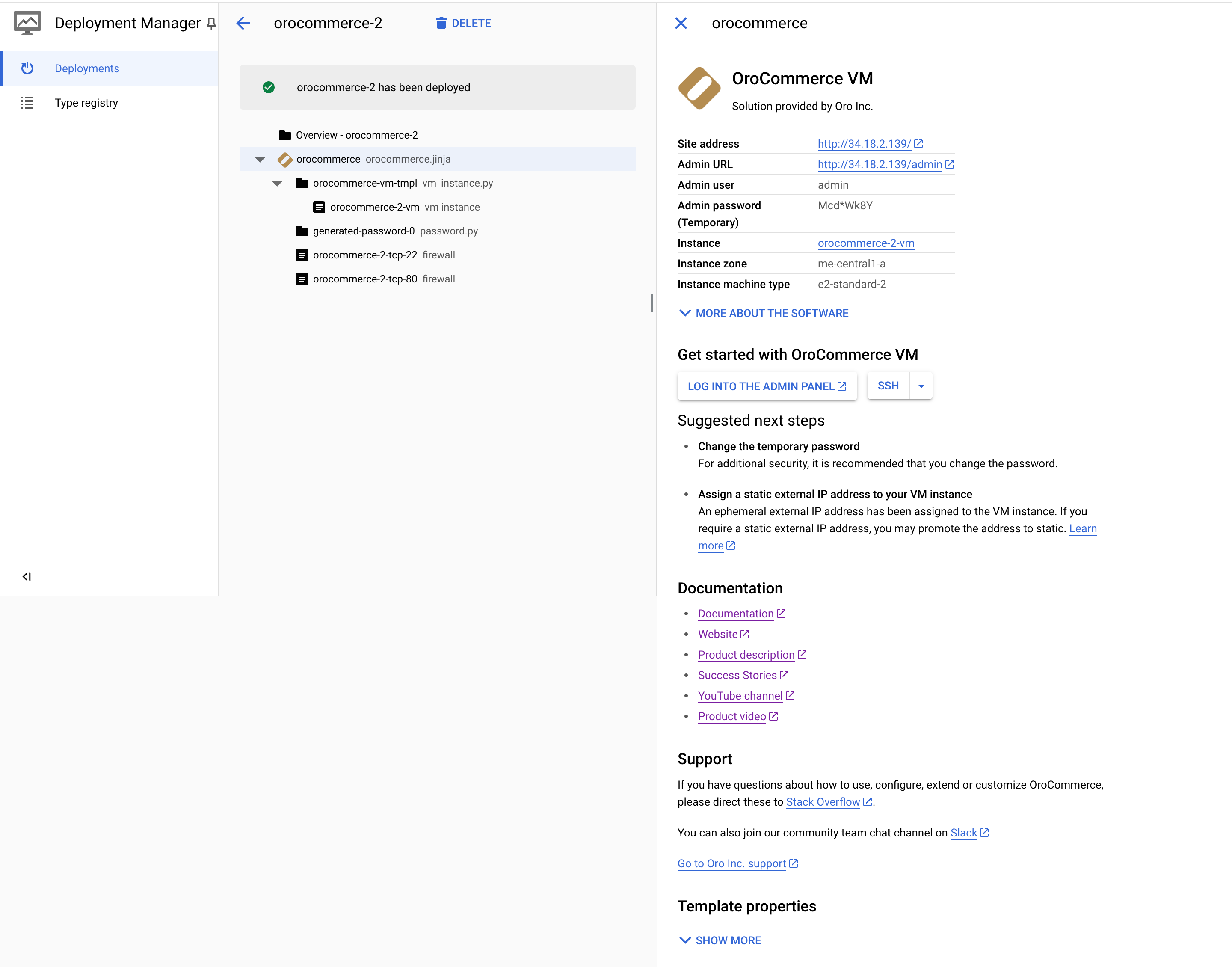
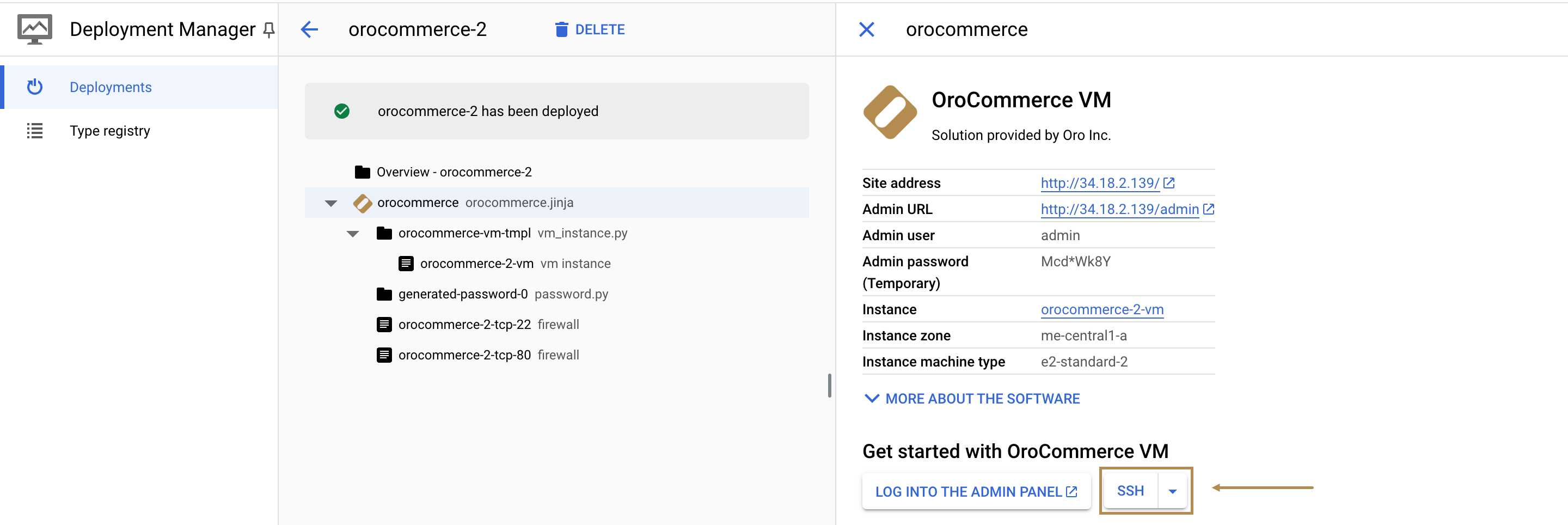
When complete, click Deploy at the bottom left to launch the deployment process. Once the deployment is finished, you should see the following information:
Access the Oro Application
Use the generated credentials to access your Oro application:
Site Address — a link to your Oro application storefront (only for OroCommerce).
Admin URL — a link to your Oro application back-office.
Admin user — a username used to log into the admin panel (back-office).
Admin password — a password used to log into the admin panel (back-office).
You can also access the VM instance over SSH by clicking SSH and selecting the option you need from the drop-down.
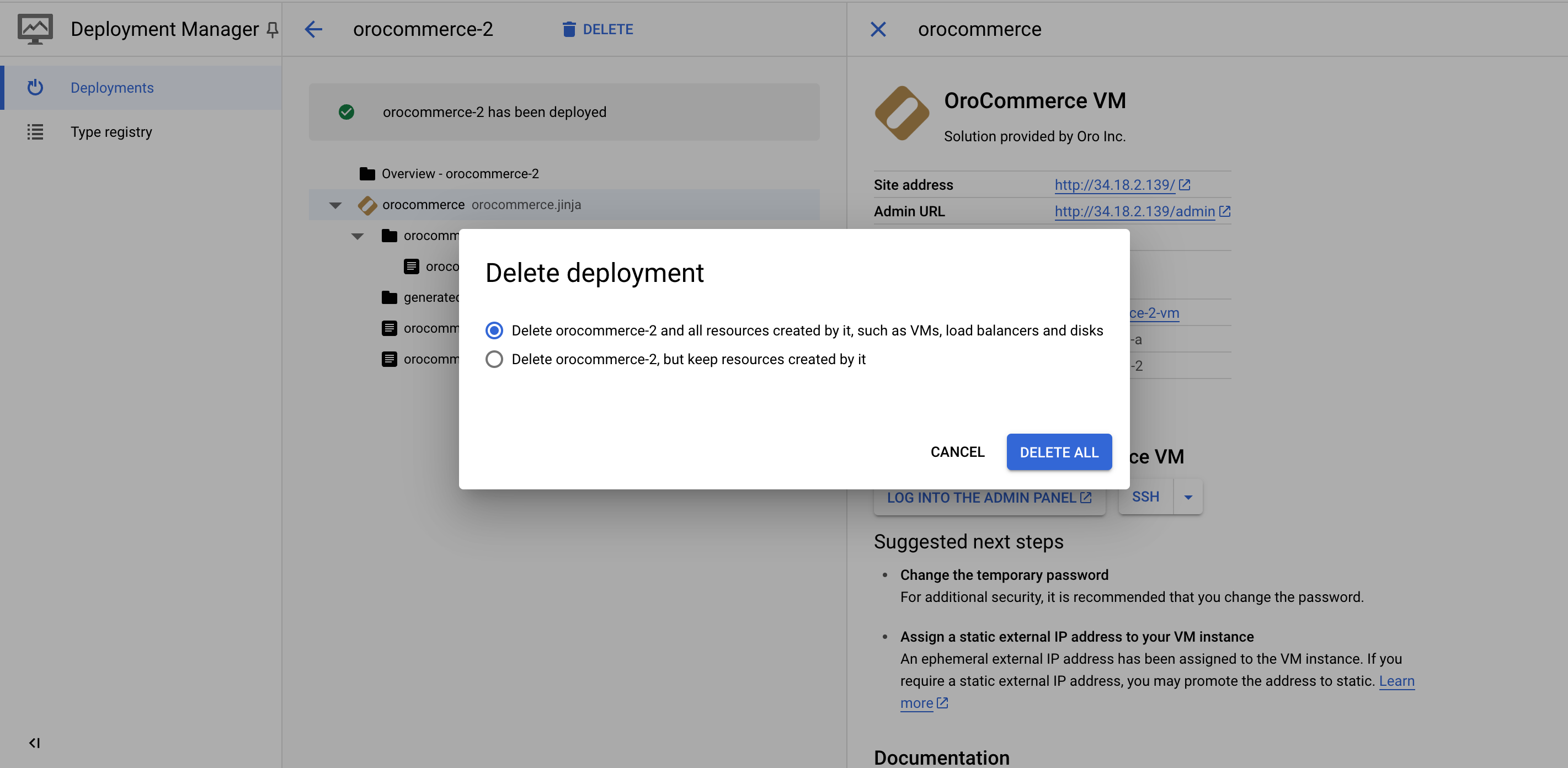
You can delete the deployment by clicking Delete on the upper left, next to the solution name. This also deletes the resources it created, including VM instances, disks, and firewalls.