Important
You are browsing documentation for version 6.1 of OroCommerce, supported until 2029. Read the documentation for the latest LTS version to get up-to-date information.
See our Release Process documentation for more information on the currently supported and upcoming releases.
Configure Global Order Draft Edit Mode Settings
Note
The Order Draft Edit Mode feature is available as of OroCommerce version 6.1.9 and can be enabled globally, per organization, and per website.
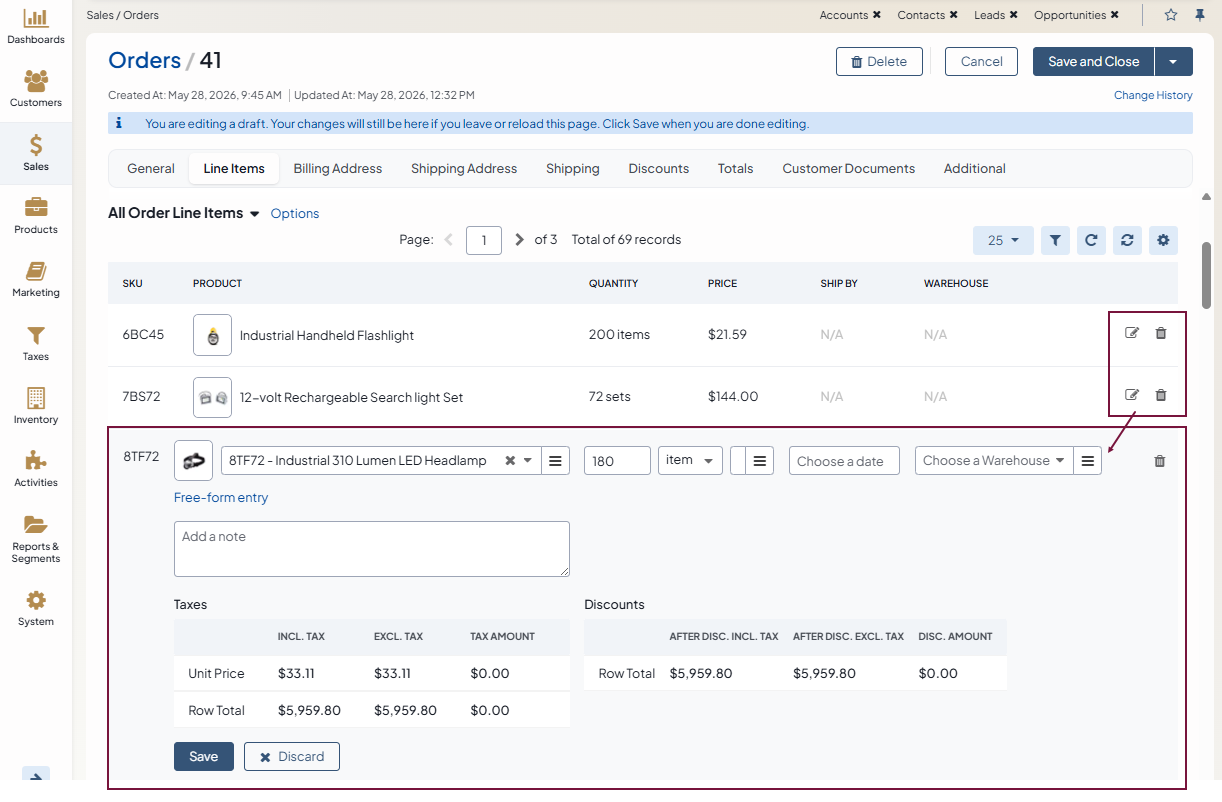
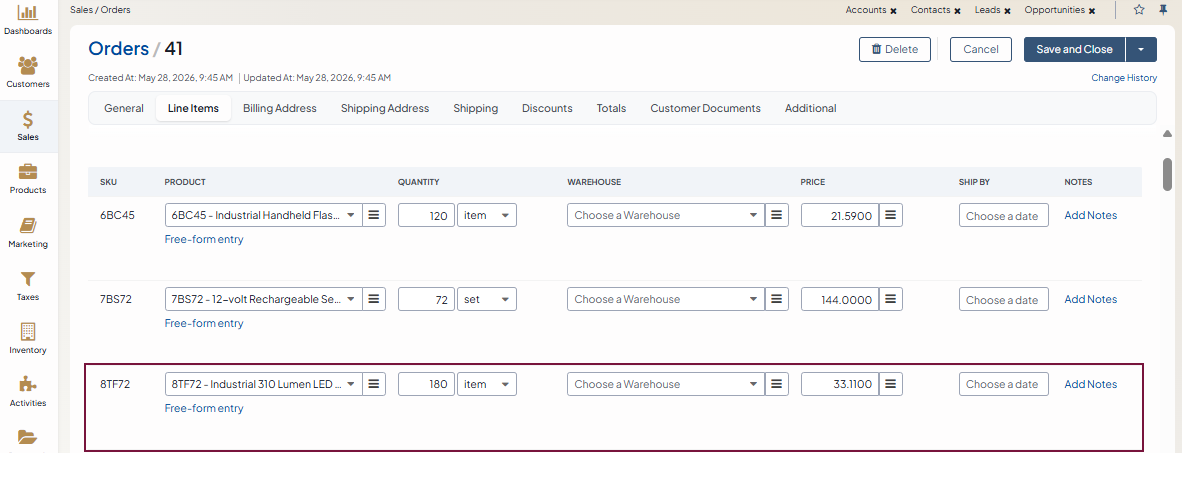
The Order Draft Edit Mode feature changes the way orders are edited in the back-office.
When enabled, the system creates a temporary draft version of the order during editing. Changes are stored in the draft until you save the order. The original order remains unchanged until all edits are explicitly saved.
When disabled, line items are edited inline directly in the order grid. Unsaved changes are lost if the page is reloaded or the browser session is interrupted.
Enable Order Draft Edit Mode
To enable this feature globally:
Navigate to System > Configuration in the main menu.
Select Commerce > Orders > Order Draft Edit Mode in the menu to the left.
Note
For faster navigation between the configuration menu sections, use Quick Search.
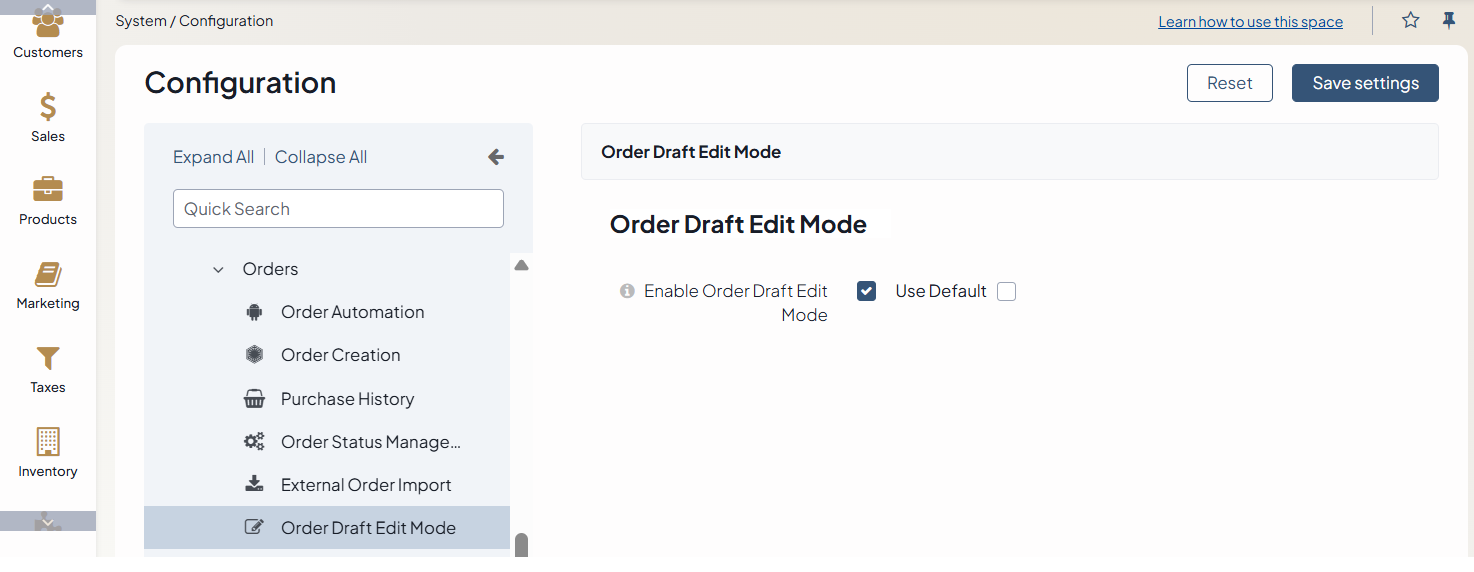
In the Order Draft Edit Mode section:
Clear the Use Default checkbox to adjust the system settings.
Select the checkbox next to Enable Order Draft Edit Mode to enable the feature.
Once enabled, the order edit page uses draft-based editing behavior for all order updates.
Click Save Settings.
Order Draft Editing Principle
When you open an order for editing in the back-office:
The system creates a draft copy of the order.
All changes are applied to the draft instead of the original order.
The draft stores all order modifications, including adding new line items, editing or removing the existing one, updating other order details.
The original order remains unchanged until you save the entire order.
Unused drafts are automatically cleaned up during the next scheduled system cleanup process.
Edit Order Line Items
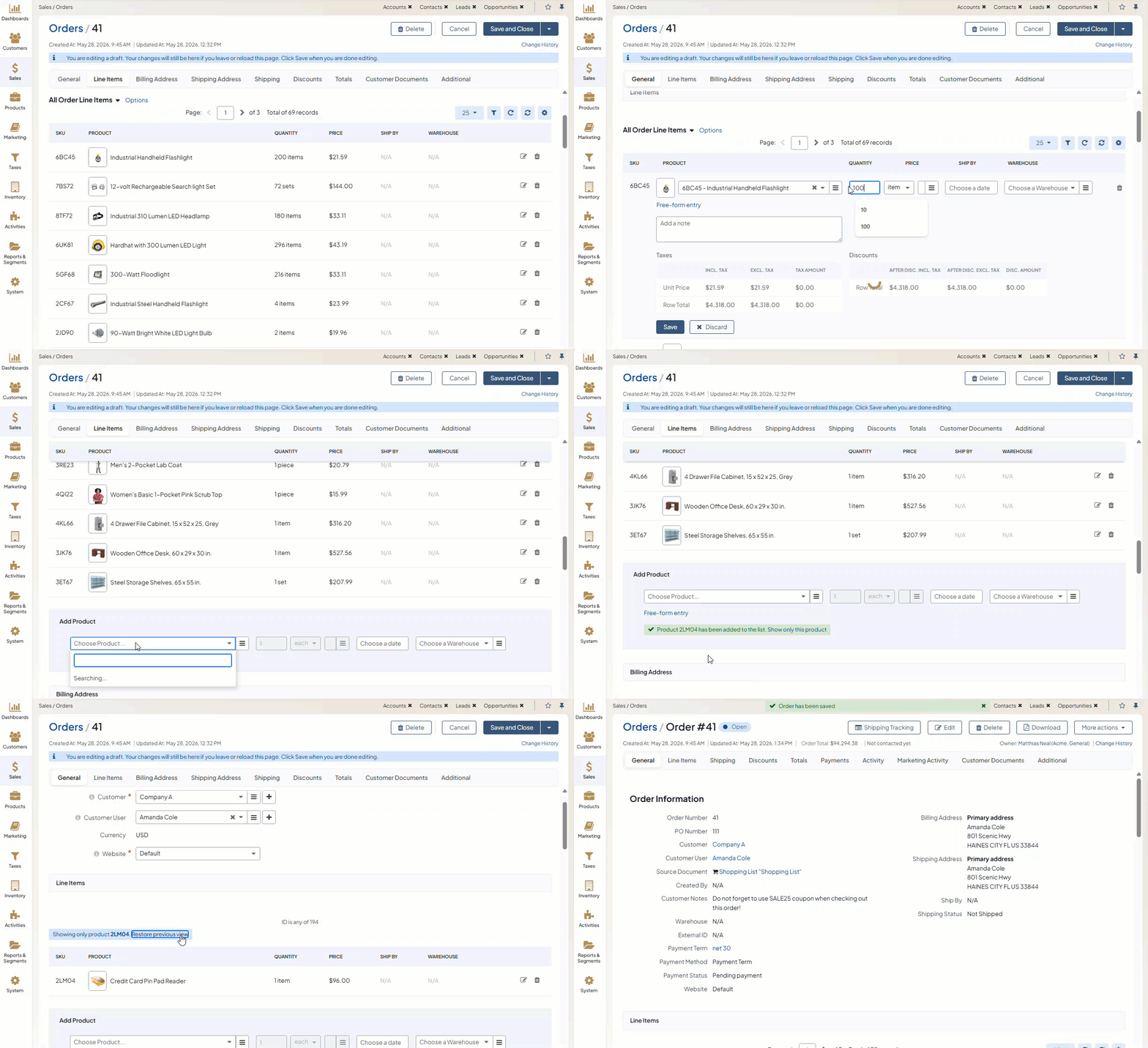
Each line item includes its own edit and delete icons, which enable you to manage each line item separately. Once modified, you can save the changes for specific line item. Keep in mind that these changes are still stored only in the draft version of the order until you save the entire order.
When a line item is modified, the system highlights the item in green to indicate that the line item has been changed.
To improve performance when working with large orders, the system displays line items using pagination. Only a limited number of line items are shown on a single page.
If changes are made to a line item that is not currently visible in the displayed list, the system shows a notification with a link to the modified line item preview so that you can quickly navigate to it.
Preserve Draft Changes
The order draft remains available during the editing session.
If you reload the page, close and reopen the browser unexpectedly, or experience a browser failure, the draft remains available, and you can continue editing later.
Save Changes
To apply all draft changes to the original order, click Save or Save and Close. Once the order is saved, the system applies all draft changes to the original order, and the draft is removed automatically.
Related Topics