Important
You are browsing documentation for version 5.1 of OroCommerce, supported until March 2027. Read the documentation for the latest LTS version to get up-to-date information.
See our Release Process documentation for more information on the currently supported and upcoming releases.
Debugging Behat Tests
Debugging behat tests is sometimes necessary for:
Identifying Test Failures. It pinpoints the exact cause of a failure and shows whether the issue lies in the application code or the test scenario itself.
Verifying Test Logic. Behat tests are written in a high-level language that mirrors user behavior. Debugging confirms that the test logic accurately represents the desired user actions and expected outcomes.
Handling Dynamic Elements. Modern web applications often contain dynamic elements such as AJAX-based content or dynamically generated IDs. Debugging lets you inspect these elements during test execution and confirm that your tests interact with the correct ones.
Troubleshooting Environment Issues. Debugging can identify environmental factors that affect test execution, such as server configuration, network connectivity, or compatibility issues with third-party dependencies.
How to Debug Behat Tests
Enable Very Verbose Output
To see more detail, increase the output verbosity by adding the -v, -vv, or -vvv option to php bin/behat.
These enable verbose, very verbose, or very very verbose output respectively.
-v, --verbose[=VERBOSE]– Increase verbosity of exceptions.
php bin/behat path/to/your.feature -vv
Review Error Messages
When a test fails, Behat provides error messages that reveal the cause. Analyzing these messages, stack traces, and exception details helps identify specific issues in your test scenarios or application code.
Isolate the Problem
When a test fails, reproduce the issue in isolation. Simplify the scenario or remove unnecessary steps to find the specific step or condition causing the failure. This narrows down the problem and focuses your debugging efforts.
Logging and Dumping Variables
Behat supports logging and variable dumping during test execution. Add logging statements or use built-in functions like dump() to inspect the values of variables, objects, or page elements at specific points in your scenarios. This helps you understand the state of the application while the test runs.
Interactive Debugging
Behat integrates with debugging tools like Xdebug or Zend Debugger. Once you configure your environment and IDE, you can set breakpoints in your test code and step through it line by line. This lets you inspect variables, execution flow, and overall test behavior in real time.
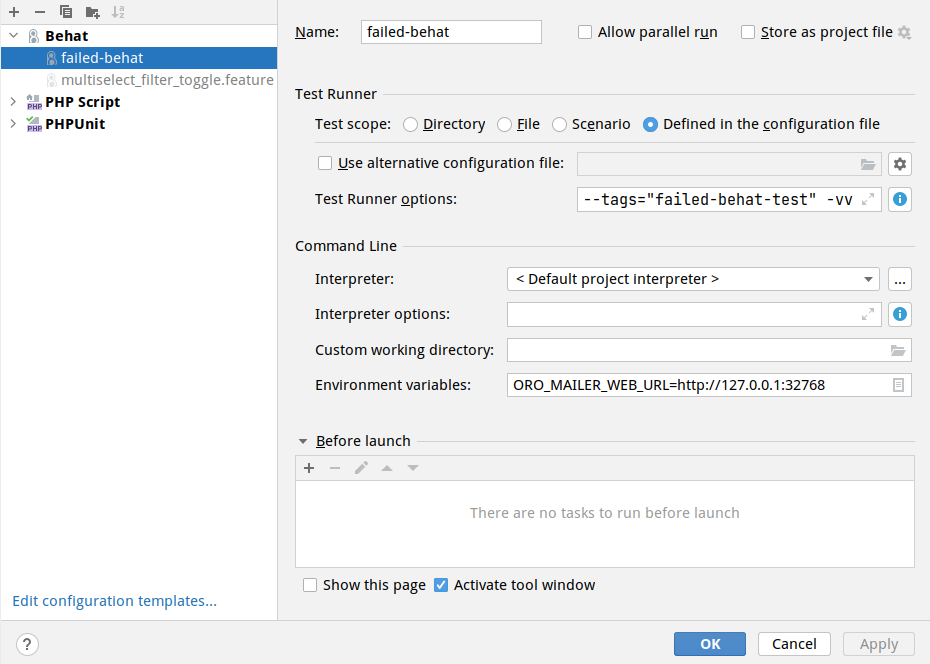
An example of setting up a debugging environment:

Running a Group of Behat Tests
You can also run a group of tests. Mark them with a tag (for example, @failed-behat-test) and run Behat with that tag.
Taking Screenshots
To see the browser page state at a given moment, capture a screenshot during a Behat scenario with the following step:
And I take screenshot
This step captures a snapshot of the current page.
Scenario: Create new user
  Given I login as administrator               # Oro\Bundle\TestFrameworkBundle\Tests\Behat\Context\OroMainContext::loginAsUserWithPassword()
  And go to System/User Management/Users       # Oro\Bundle\TestFrameworkBundle\Tests\Behat\Context\OroMainContext::iOpenTheMenuAndClick()
  And I take screenshot                        # Oro\Bundle\TestFrameworkBundle\Tests\Behat\Context\OroMainContext::iTakeScreenshot()
    │ Screenshot: http://commerce-crm-ee.loc/media/behat/image6479bdb28341c221899532.png
  And click "Create User"                      # Oro\Bundle\TestFrameworkBundle\Tests\Behat\Context\OroMainContext::pressButton()
  When I fill "User Form" with:                # Oro\Bundle\FormBundle\Tests\Behat\Context\FormContext::iFillFormWith()
    | Username          | userName       |
    | Password          | Pa$$w0rd       |
    | Re-Enter Password | Pa$$w0rd       |
    | First Name        | First Name     |
    | Last Name         | Last Name      |
    | Primary Email     | email@test.com |
    | Roles             | Administrator  |
    | Enabled           | Enabled        |
  And I save and close form                    # Oro\Bundle\FormBundle\Tests\Behat\Context\FormContext::iSaveAndCloseForm()
  Then I should see "User saved" flash message # Oro\Bundle\TestFrameworkBundle\Tests\Behat\Context\OroMainContext::iShouldSeeFlashMessage()
For more precise results, take screenshots in other Contexts steps by using the ScreenshotTrait and calling its ScreenshotTrait::takeScreenshot method.
Scenario: Create new user
  Given I login as administrator               # Oro\Bundle\TestFrameworkBundle\Tests\Behat\Context\OroMainContext::loginAsUserWithPassword()
    │ Screenshot: http://commerce-crm-ee.loc/media/behat/image6479bdaf3b968129573073.png
  And go to System/User Management/Users       # Oro\Bundle\TestFrameworkBundle\Tests\Behat\Context\OroMainContext::iOpenTheMenuAndClick()
  And click "Create User"                      # Oro\Bundle\TestFrameworkBundle\Tests\Behat\Context\OroMainContext::pressButton()
  When I fill "User Form" with:                # Oro\Bundle\FormBundle\Tests\Behat\Context\FormContext::iFillFormWith()
    | Username          | userName       |
    | Password          | Pa$$w0rd       |
    | Re-Enter Password | Pa$$w0rd       |
    | First Name        | First Name     |
    | Last Name         | Last Name      |
    | Primary Email     | email@test.com |
    | Roles             | Administrator  |
    | Enabled           | Enabled        |
  And I save and close form                    # Oro\Bundle\FormBundle\Tests\Behat\Context\FormContext::iSaveAndCloseForm()
  Then I should see "User saved" flash message # Oro\Bundle\TestFrameworkBundle\Tests\Behat\Context\OroMainContext::iShouldSeeFlashMessage()
Stop the Execution of the Behat Script at a Required Place
To stop the Behat script at a certain point, use the I wait for action step. This helps when you have steps that are not implemented and want to click through them manually before continuing, or when you need to see the position of an element on the page.
And I wait for action
The console running the test displays the message “Press [RETURN] to continue…”. After you perform the necessary actions, the Behat script resumes. Run these tests only locally, for debugging purposes.
Debugging Behat tests is an essential skill for ensuring the reliability and effectiveness of your BDD test suite.
Hint
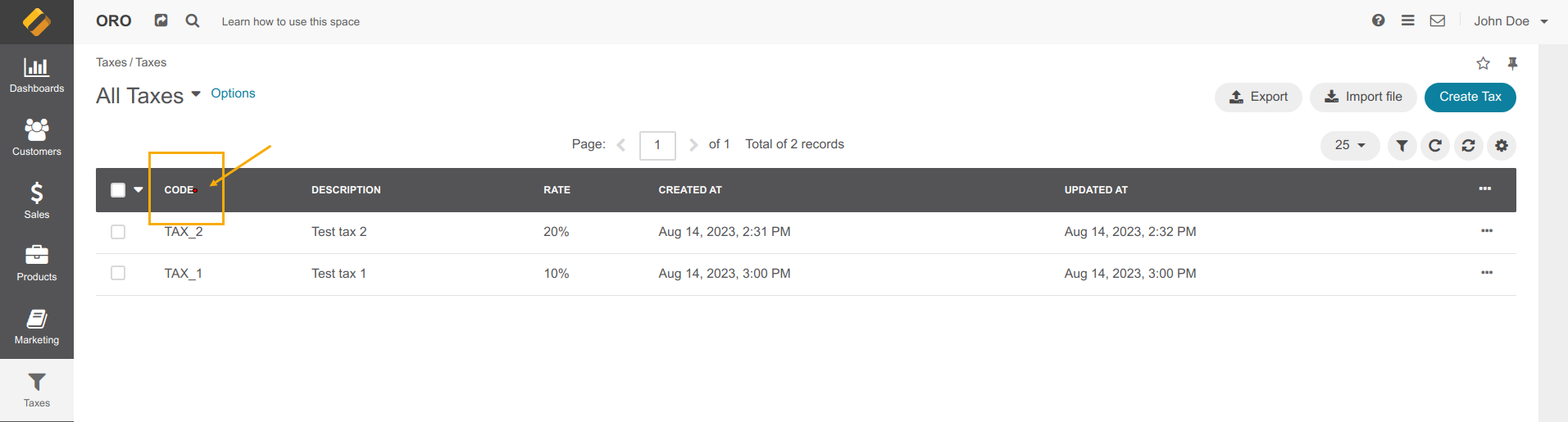
Screenshots taken during failed Behat tests include the last cursor position from moving the mouse, except when there are alerts on the page. This helps identify where the failure occurred, so you can take corrective action more quickly.