Important
You are browsing upcoming documentation for version 7.1 of OroCommerce, scheduled for release in 2027. Read the documentation for the latest LTS version to get up-to-date information.
See our Release Process documentation for more information on the currently supported and upcoming releases.
Manage Customer Part Numbers in the Back-Office
A Customer Part Number (CPN) is a product identifier that a specific customer uses internally to refer to one of your products. For example, the SKU from the customer’s own purchase system or catalog. Customer part numbers let your sales and customer service teams recognize and look up products the way each customer already does, which speeds up order processing and reduces mismatched-SKU errors when customers place orders by phone, email, or purchase order. They also let your customers search for and filter products in the storefront using their own numbering system, instead of having to know your product SKUs.
Each customer part number links one product to one customer and stores the number the customer uses for that product. A single product can have different part numbers for different customers, and a single customer can have part numbers defined for as many products as needed.
Customer part numbers are private to the customer they belong to: only signed-in users of that customer can see or search by them, both in the storefront and when back-office staff build an order on the customer’s behalf. Guests and other customers never see them.
Create a Customer Part Number
To create a new customer part number:
Navigate to Products > Customer Part Numbers in the main menu.
Click Create Customer Part Number.
Fill in the following fields:
Product — Start typing a product SKU or name and select the product from the list.
Customer — Start typing a customer name and select the customer this part number belongs to.
Part Number — Type in the identifier the customer uses to refer to this product.
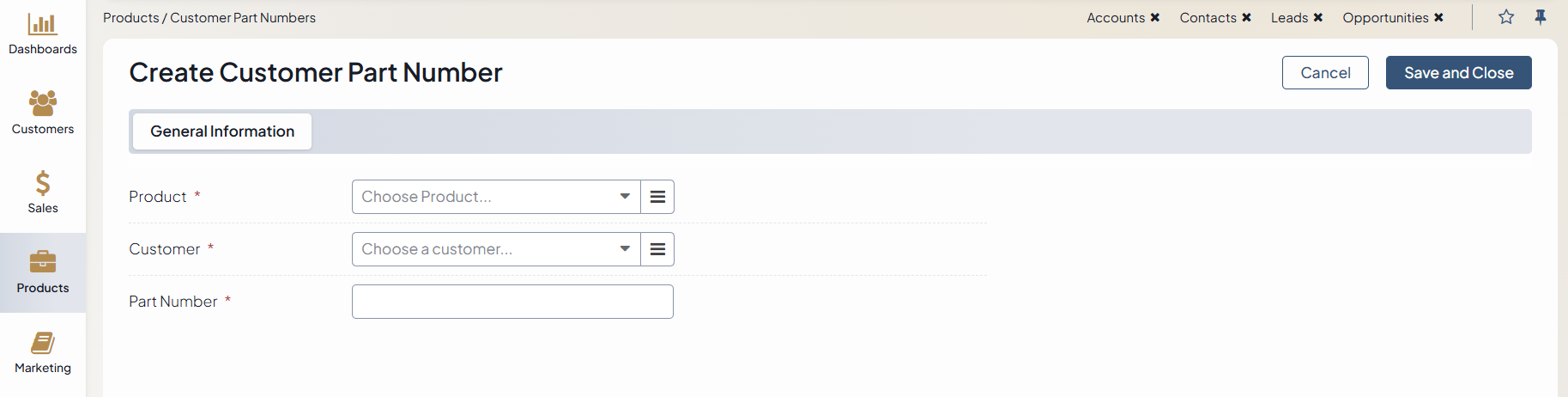
Click Save and Close.
The new customer part number now appears in the customer part numbers grid.
Manage Customer Part Numbers
To view all customer part numbers, navigate to Products > Customer Part Numbers in the main menu.
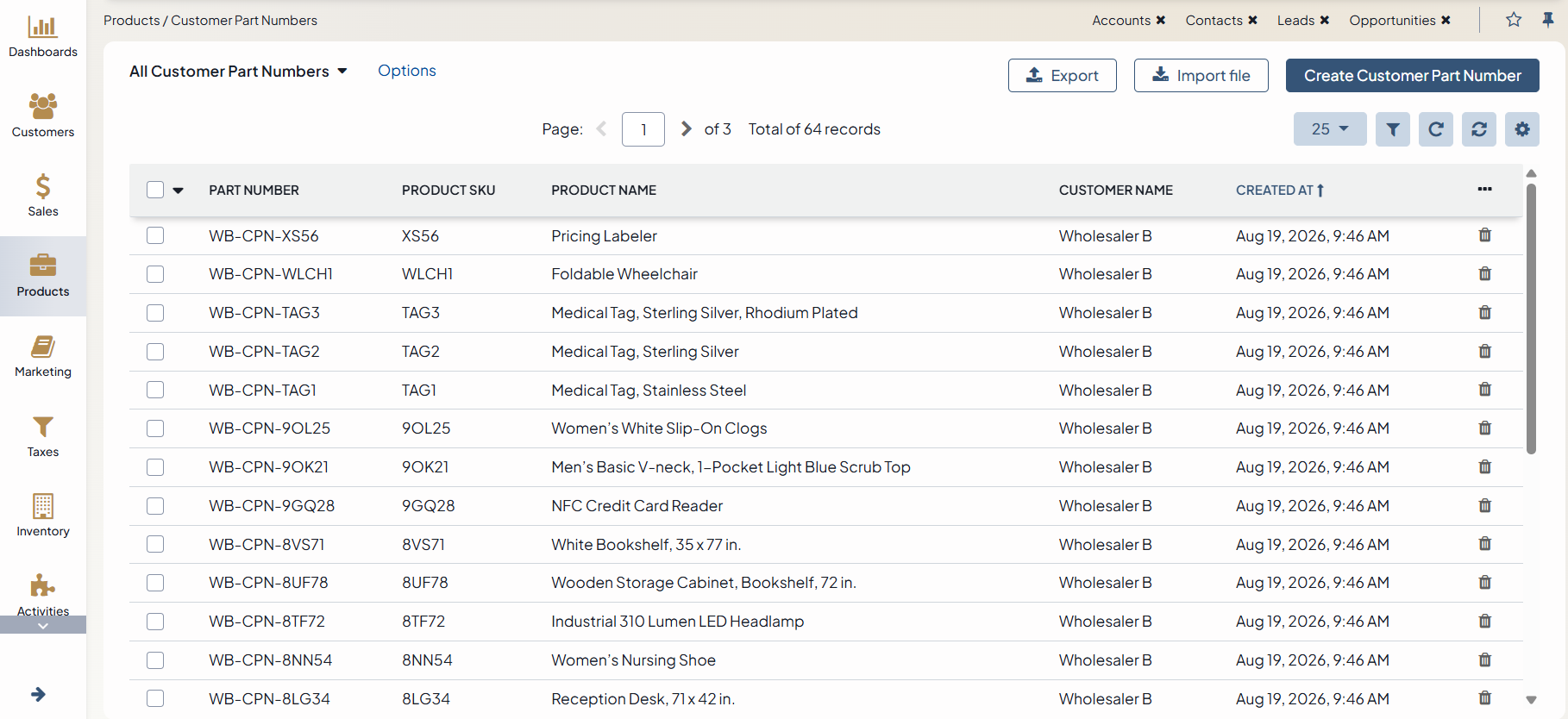
The grid displays the following information for each record:
Part Number — The identifier the customer uses for the product.
Product SKU — The SKU of the linked product in your catalog.
Product Name — The name of the linked product.
Customer Name — The customer this part number belongs to.
Created At — The date and time the record was created.
Note
To handle a large volume of records, use the page switcher, increase View Per Page, or apply filters (click Filter in the top right of the grid) to narrow down the list to the records you need. Click Settings in the top right of the grid to control which columns are displayed.
From the grid, you can:
Create a new customer part number by clicking Create Customer Part Number in the top right.
Delete a customer part number by clicking the
 icon at the end of its row, or select the checkboxes next to several records and use the bulk Delete action.
Export and Import customer part numbers in bulk (see below).
Import and Export Customer Part Numbers
Customer part numbers can be imported and exported in bulk from the customer part numbers grid, following the same import and export flow used across the Oro back-office.
To export customer part numbers:
Navigate to Products > Customer Part Numbers in the main menu.
Click Export in the top right of the grid.
Once the export job completes, download the generated file from the notification or from System > Jobs.
To import customer part numbers:
Navigate to Products > Customer Part Numbers in the main menu.
Click Import file in the top right of the grid.
Select the import file, the strategy, and the customer, and click Import File.
Review the import results notification for the number of records added, updated, or skipped due to errors.
For more information, see Data Import Concept Guide.
Use Customer Part Numbers in Orders
When creating or editing an order, back-office users can look up and add order line items using a customer part number in addition to the standard product SKU. This lets sales reps and customer service agents key in orders directly from a customer purchase order without needing to translate CPNs to your internal SKUs manually.
Important
A customer part number is always specific to one customer. The same part number value can point to different products (or to nothing at all) depending on which customer it belongs to. Because of this, the order must already have a customer selected before its customer part numbers become available to search by. Until a customer is selected, product lookup falls back to standard SKUs and names only.
To add a line item to an order using a customer part number:
Navigate to Sales > Orders in the main menu, and open an existing order for editing, or click Create Order to start a new one.
In the Customer field, select the customer the order is for. This step is required first: the line items grid uses the selected customer to determine which customer part numbers are valid to search by.
In the line items section, click Choose Product and start typing in the product search field.
Type in the customer’s part number instead of (or in addition to) the SKU or product name. The matching product is found and can be added to the order the same way as a regular SKU-based lookup.
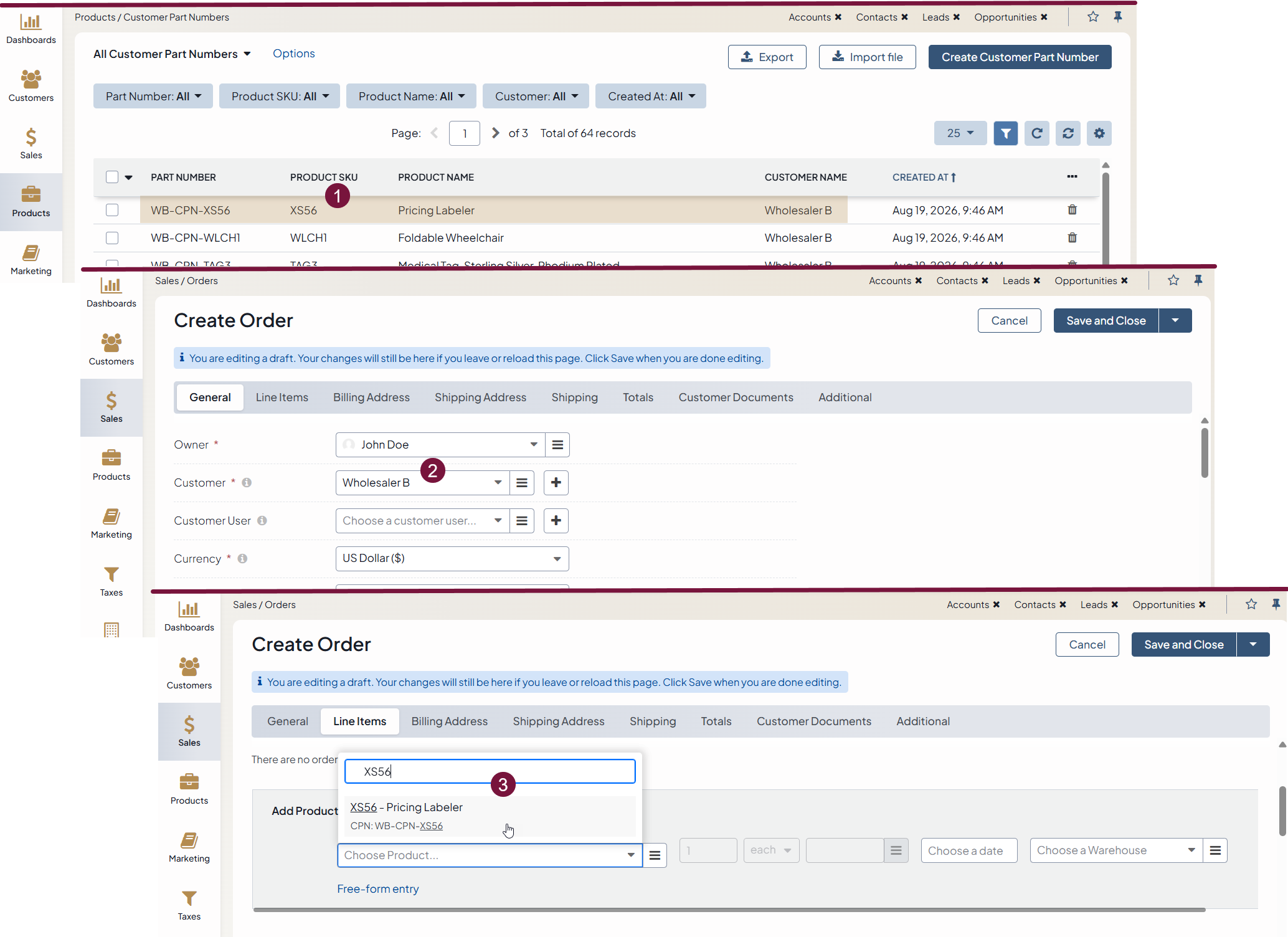
Complete the rest of the line item details (quantity, unit, price) as usual and continue building the order.
If the selected customer has no customer part numbers defined, or a typed-in value does not match any of that customer’s part numbers, the product search behaves as it normally does and returns matches by SKU or name only.