Important
You are browsing upcoming documentation for version 7.1 of OroCommerce, scheduled for release in 2027. Read the documentation for the latest LTS version to get up-to-date information.
See our Release Process documentation for more information on the currently supported and upcoming releases.
Accept an Invitation to the Storefront
When a customer user or an administrator invites you to join their customer account, you receive an invitation email. Use the link in this email to create your account in the storefront. You do not need to sign up or wait for a confirmation email.
Note
If you are signed in to the storefront, sign out before you open the invitation link.
To accept an invitation:
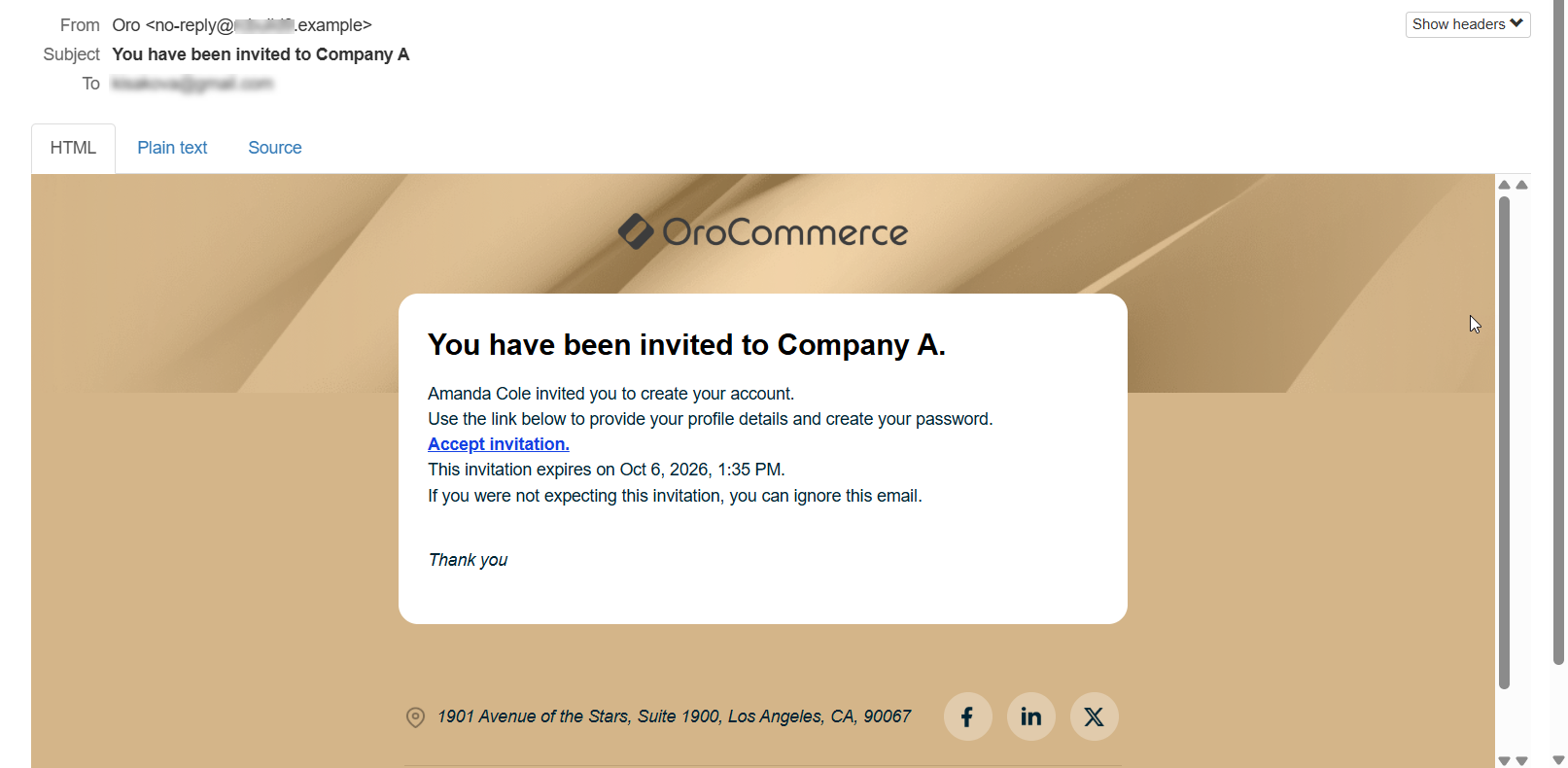
Open the invitation email and click Accept invitation. The email shows the date and time when the invitation expires.
On the Complete Your Account page, enter your First Name and Last Name. The Email field displays the address the invitation was sent to. You cannot change it.
Enter your password in the Password and Confirm Password fields. These fields are displayed only if password login is enabled.
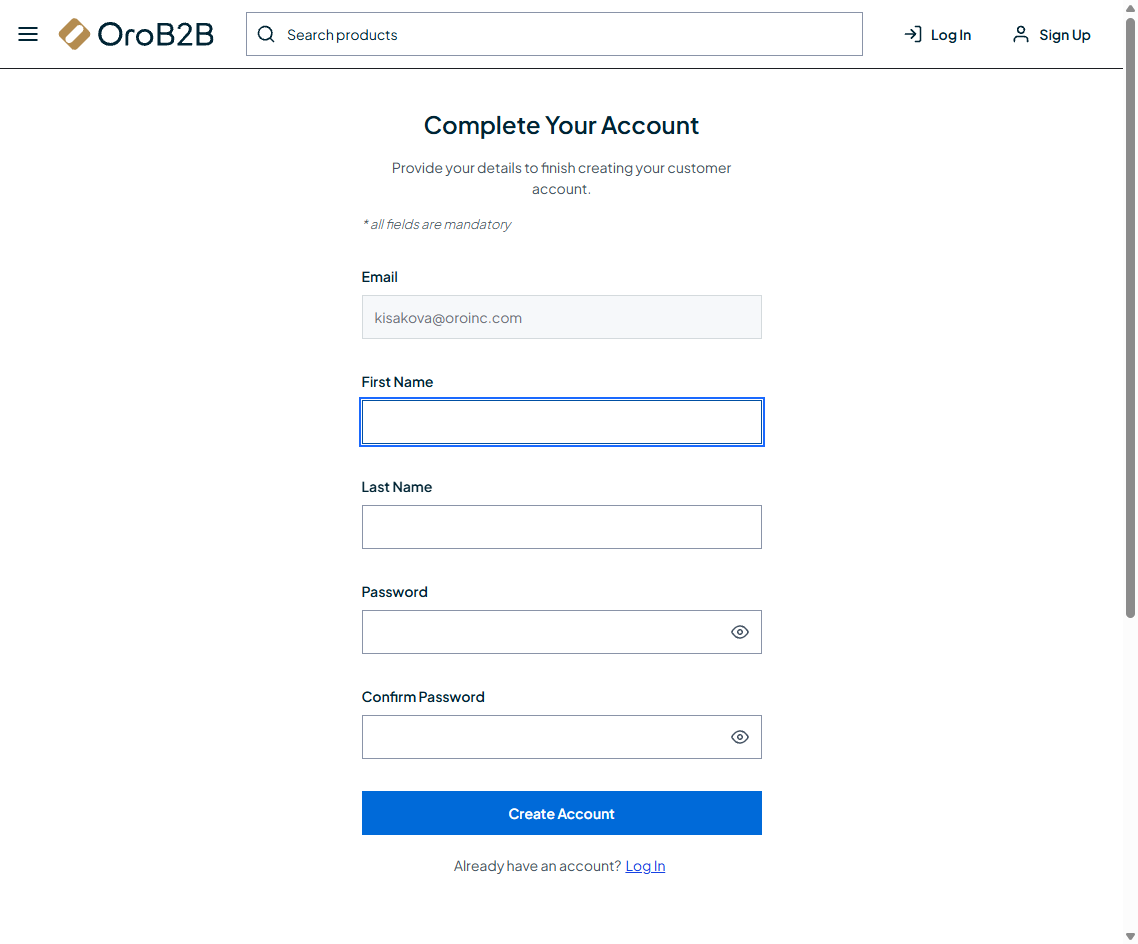
Click Create Account.
Your account is created and confirmed automatically, and you are signed in to the storefront. You have access to the customer account and the roles that were selected for you in the invitation.
The invitation link can be used only once. If the invitation has expired or has been revoked, the link no longer works. Ask the user who invited you to resend the invitation or send a new one.
Related Topics