Configure Zendesk Integration in the Back-Office
Oro applications support out-of-the-box integration with Zendesk, enabling you to load data from your Zendesk account and process it in the Oro application.
As of version 7.0.3, OroCommerce supports two authentication methods for Zendesk integration:
Basic — authenticate using a Zendesk account email and API token.
OAuth — use OAuth 2.0 for secure, delegated authorization.
Generate API Token in Zendesk
If you plan to use Basic as the Authorization Type, generate an API token in Zendesk first.
To retrieve your API token on the Zendesk side:
Open your account profile.
Click the cog icon in the panel to the left to open the Admin menu.
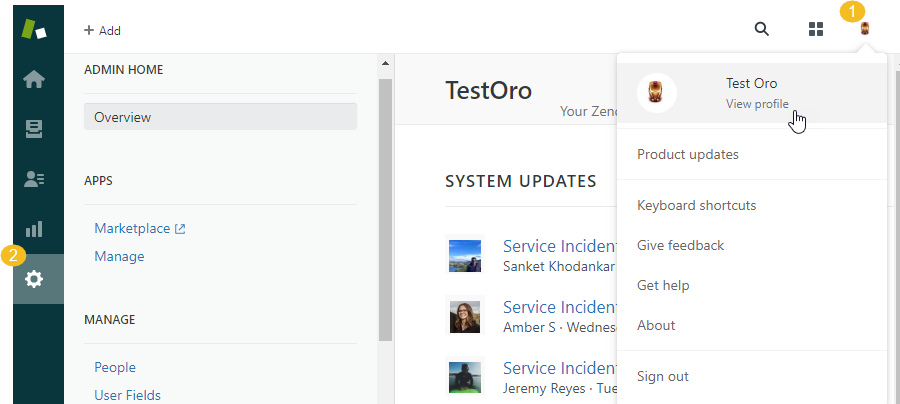
Navigate to Apps & Integrations > API Configuration.
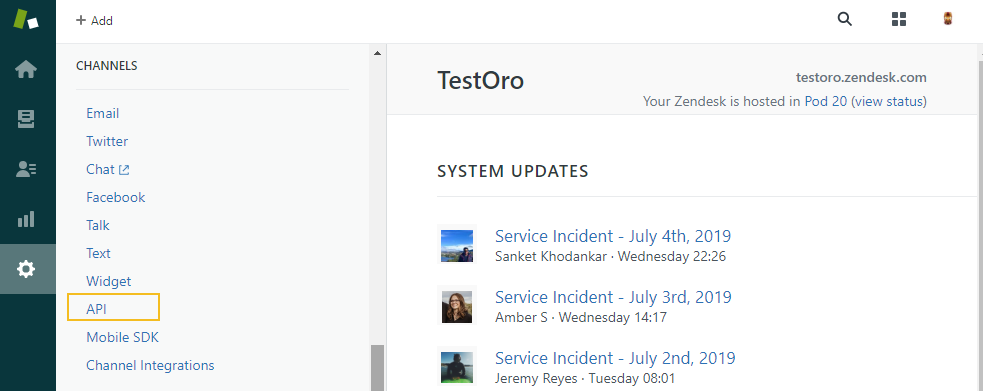
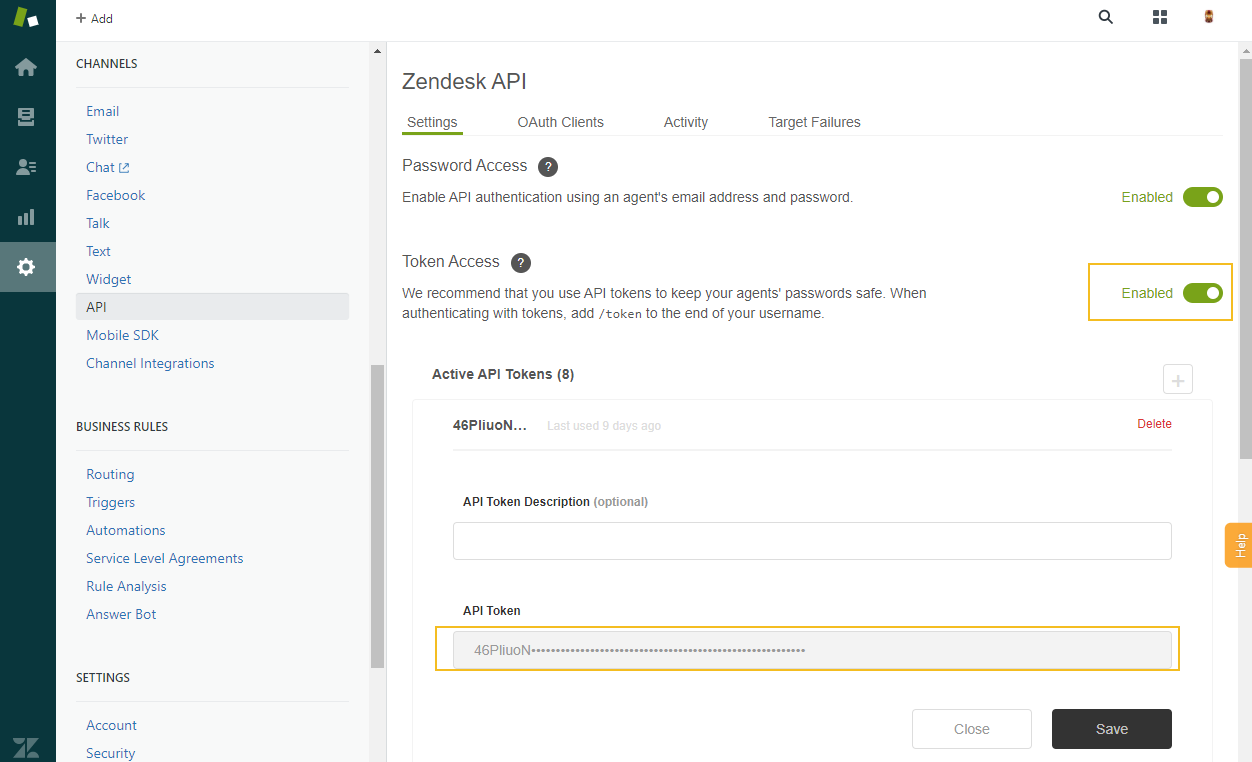
Make sure the Token Access is enabled.
Click API Tokens in the panel to the left to open the API Tokens page.
Click Add API Token to create a new one.
Provide a description for the new token, and click Save. This will prompt generation of a new token.
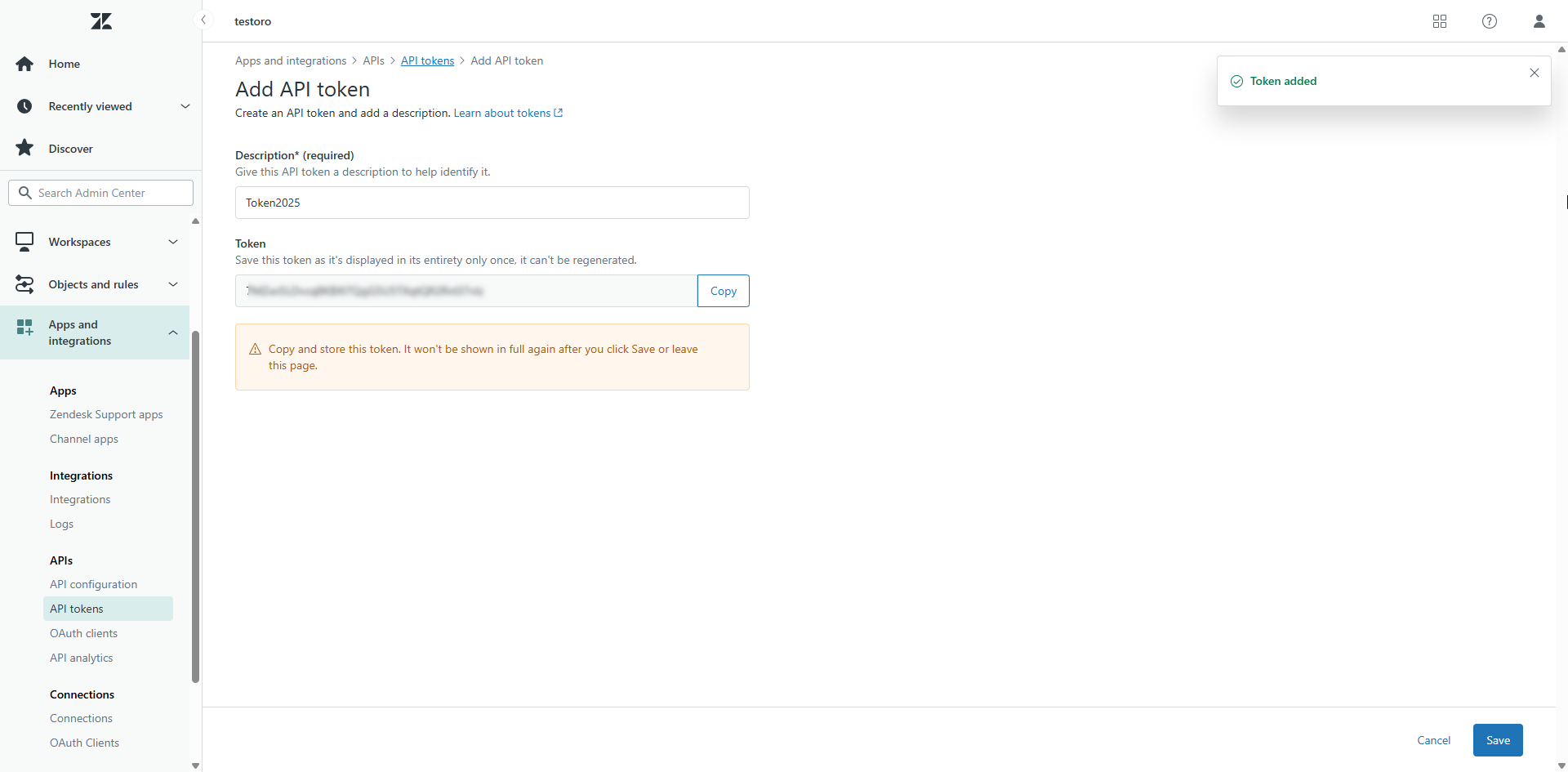
Copy and store the token as you will need it to connect to OroCommerce. Please be aware that it will not be shown again after you click Save.
Add OAuth Client in Zendesk
If you plan to use OAuth as the Authorization Type, add an OAuth client in Zendesk first.
To add your OAuth client on the Zendesk side:
Open your account profile.
Click the cog icon in the left panel to open the Admin menu.
In the left sidebar, navigate to Apps and integrations > OAuth clients.
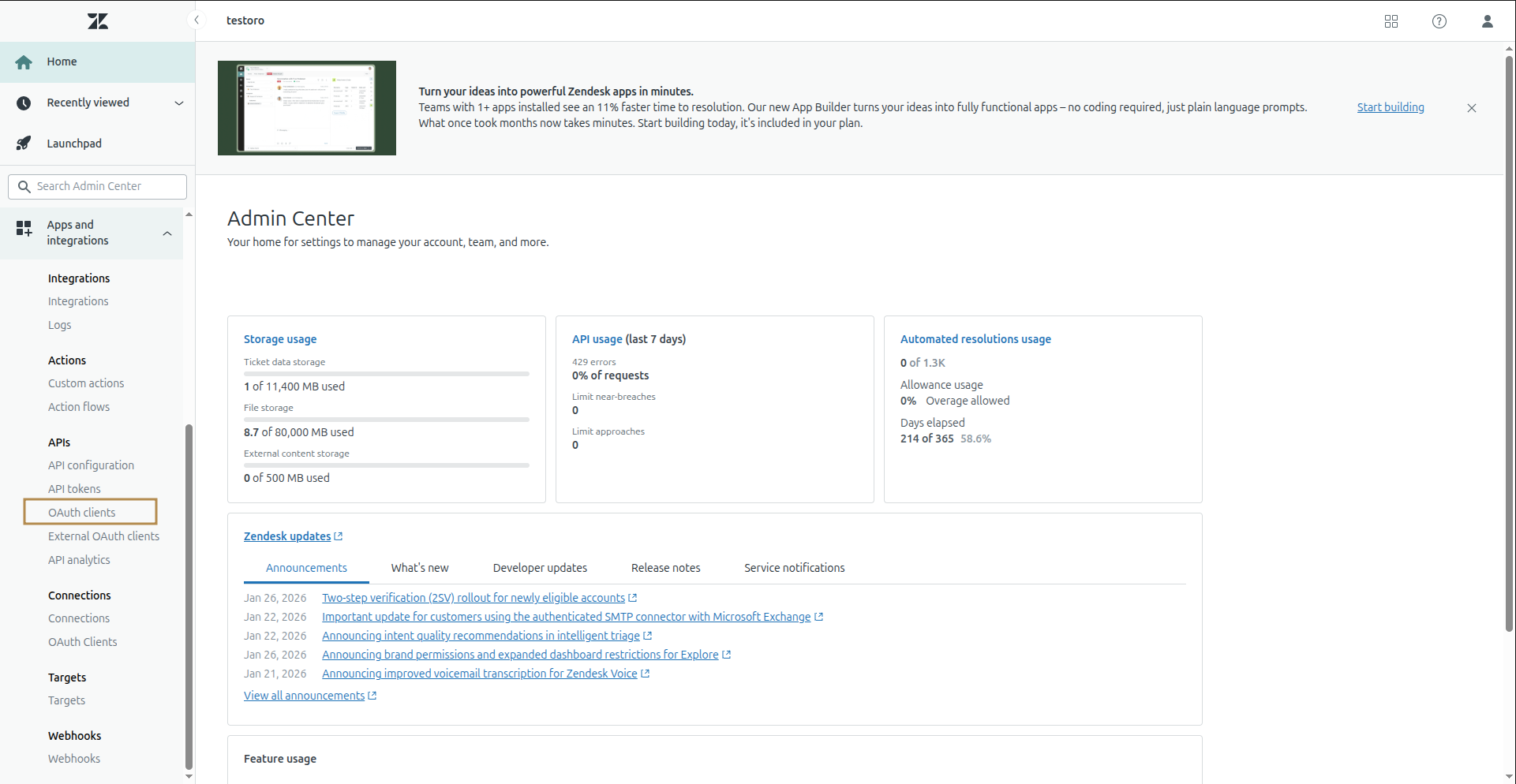
Click Add OAuth client.
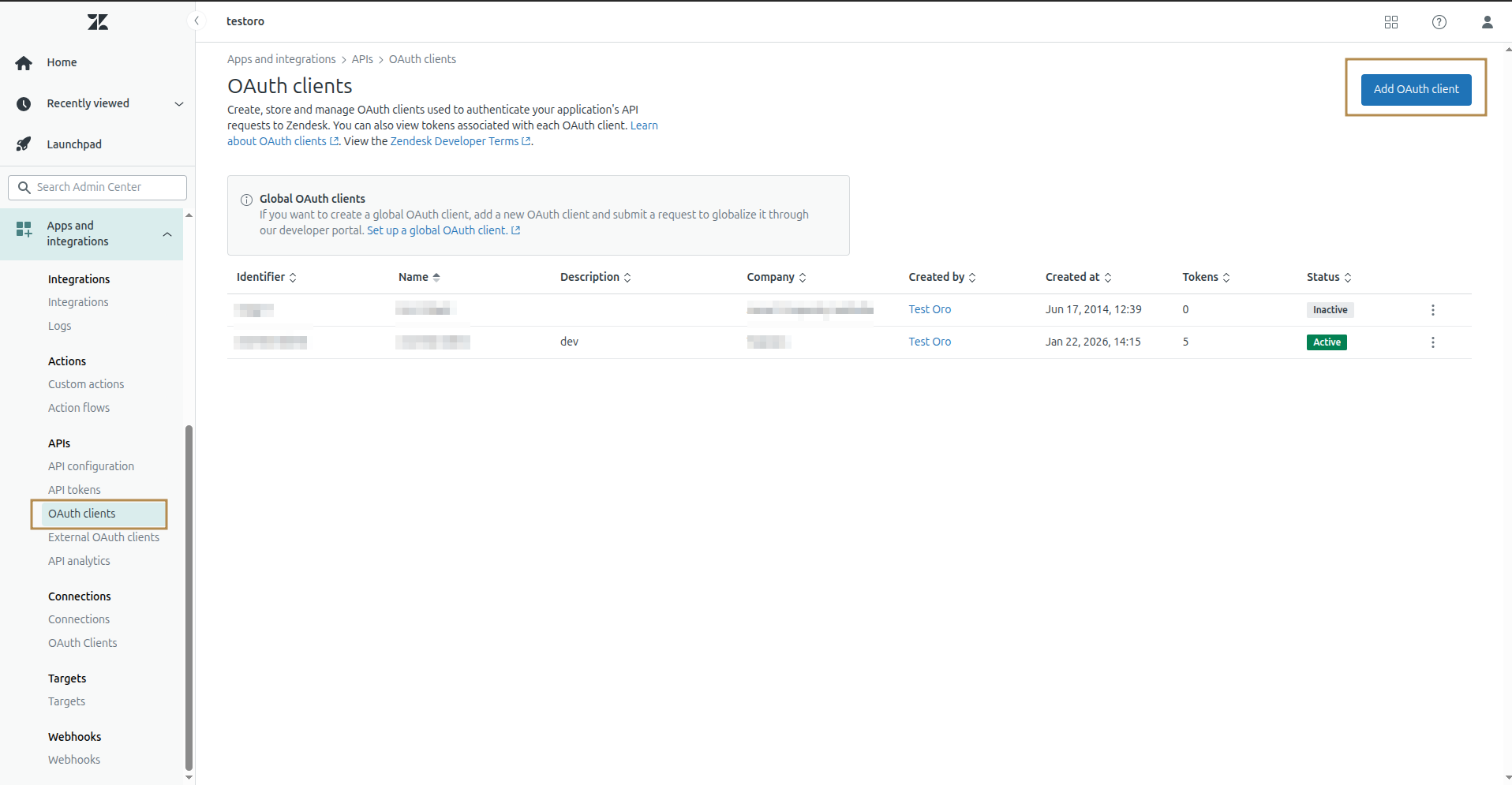
Fill in the required fields and click Save. This generates a new secret for the client. When filling in the form, keep the following in mind:
Set the Client kind field to Public.
Use the Identifier value as the OAuth Client ID in the OroCommerce integration.
Copy the OAuth Callback URL from the OroCommerce integration page and paste it into the Redirect URLs field in Zendesk.
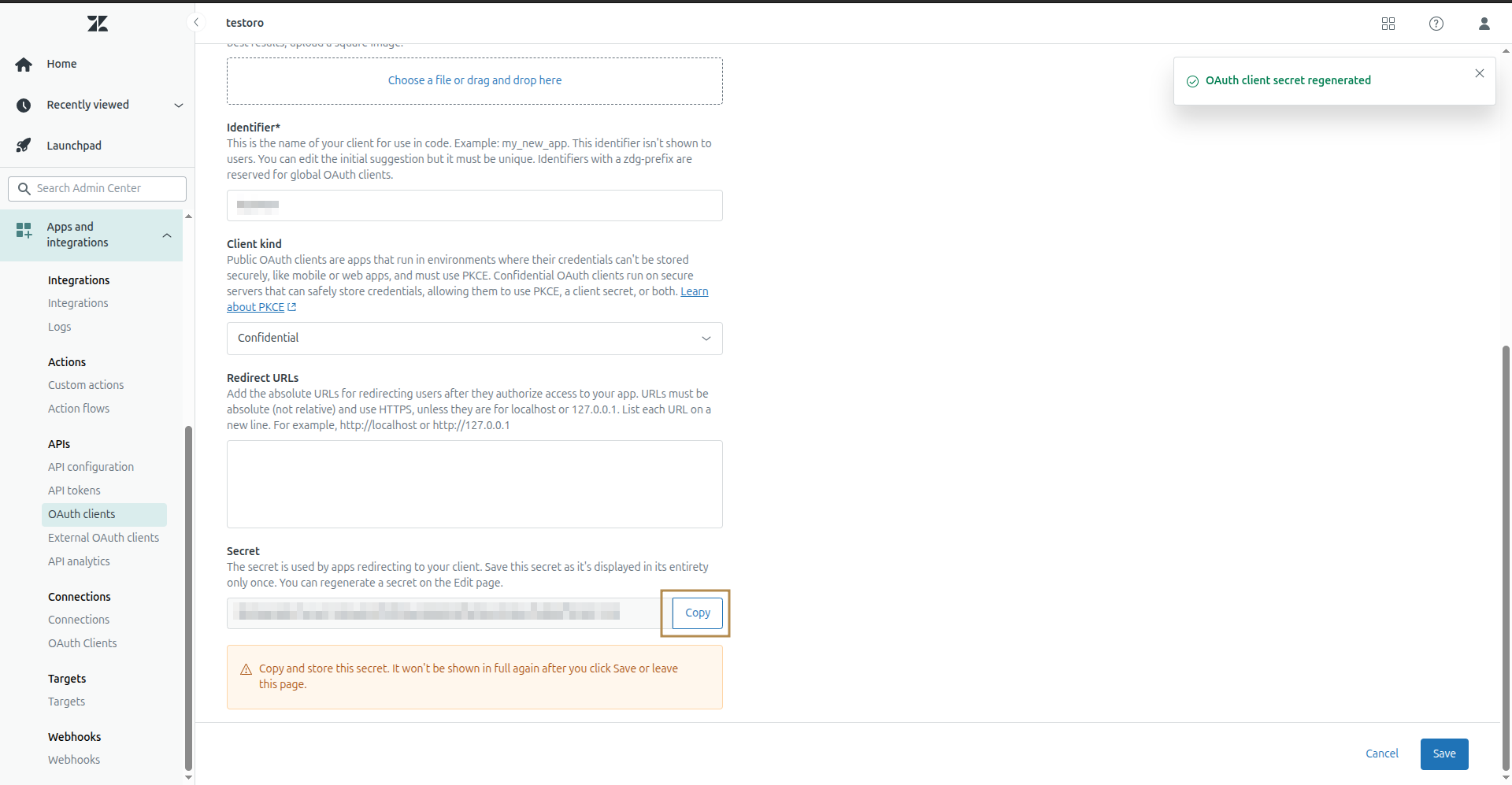
Create a New Integration
To create an integration with Zendesk:
Navigate to System > Integrations > Manage Integrations in the main menu.
Click Create Integration at the top right.
On the Create Integration page, set the integration type to Zendesk.
In the General section, define the following mandatory details:
Field
Description
Type*
The integration type. Must be set to Zendesk.
Name*
The integration name used to refer to the integration within the system.
URL*
A URL of your Zendesk account (e.g.,
https://username.zendesk.com).Authorization Type*
The authentication method to use when connecting to Zendesk. Select Basic to authenticate using a Zendesk email address and API token, or OAuth to use OAuth 2.0 authorization.
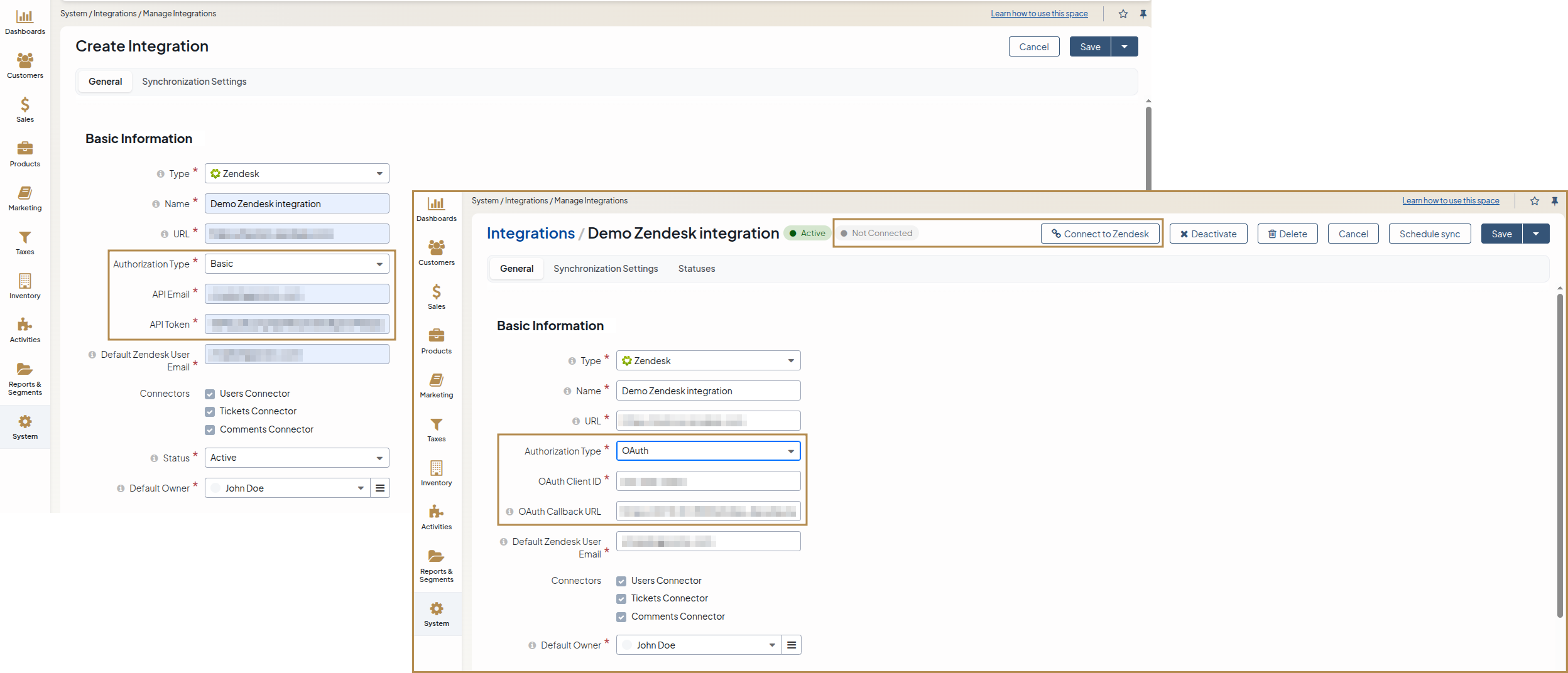
API Email*
(Basic only) The email address used to register your Zendesk account.
API Token*
(Basic only) The API token generated in your Zendesk account.
OAuth Client ID*
(OAuth only) The unique identifier of the OAuth client registered in Zendesk.
OAuth Callback URL
(OAuth only, read-only) The callback URL for OAuth authorization. Copy this URL and paste it into the Redirect URLs field when configuring your OAuth client in Zendesk.
Default Zendesk User Email
User with this email will be assigned tickets that come from the Oro application and for which there are no Zendesk users with a matching email address.
Owner
Limits the list of users that can manage the integration, subject to the access and permission settings etc.) Used as an Oro application user for Zendesk tickets if there are no users with a matching email address.
In the Synchronization Settings section, enable/disable the two-way synchronization.
Select the Enable Two-Way Sync checkbox if you want to download data both from Zendesk to your Oro application and back.
If the box is left unselected, data from Zendesk is loaded into the Oro application, but changes performed within it are not loaded back into Zendesk.
Note
If using OAuth, changing the Enable Two-Way Sync setting later requires you to authorize the connection again so the access scope is updated.
If the two-way synchronization is enabled, define the priority used for the conflict resolution (e.g., if the same customer details were edited from both Oro application and Zendesk):
Remote wins — Zendesk data is applied to both Zendesk and the Oro application.
Local wins — Oro application data is applied to both Zendesk and the Oro application.
Note
In the Synchronization Settings section, select the Log Warnings checkbox if you want all synchronization errors to be written into the application log.
Click Save to save the integration.
If you selected OAuth as the Authorization Type, make sure the Zendesk OAuth client is configured as described in the Add OAuth Client in Zendesk section above, and then proceed to the Authorize OAuth Connection to Zendesk section below to complete the authorization.
Authorize OAuth Connection to Zendesk
Note
This section applies only when Authorization Type is set to OAuth.
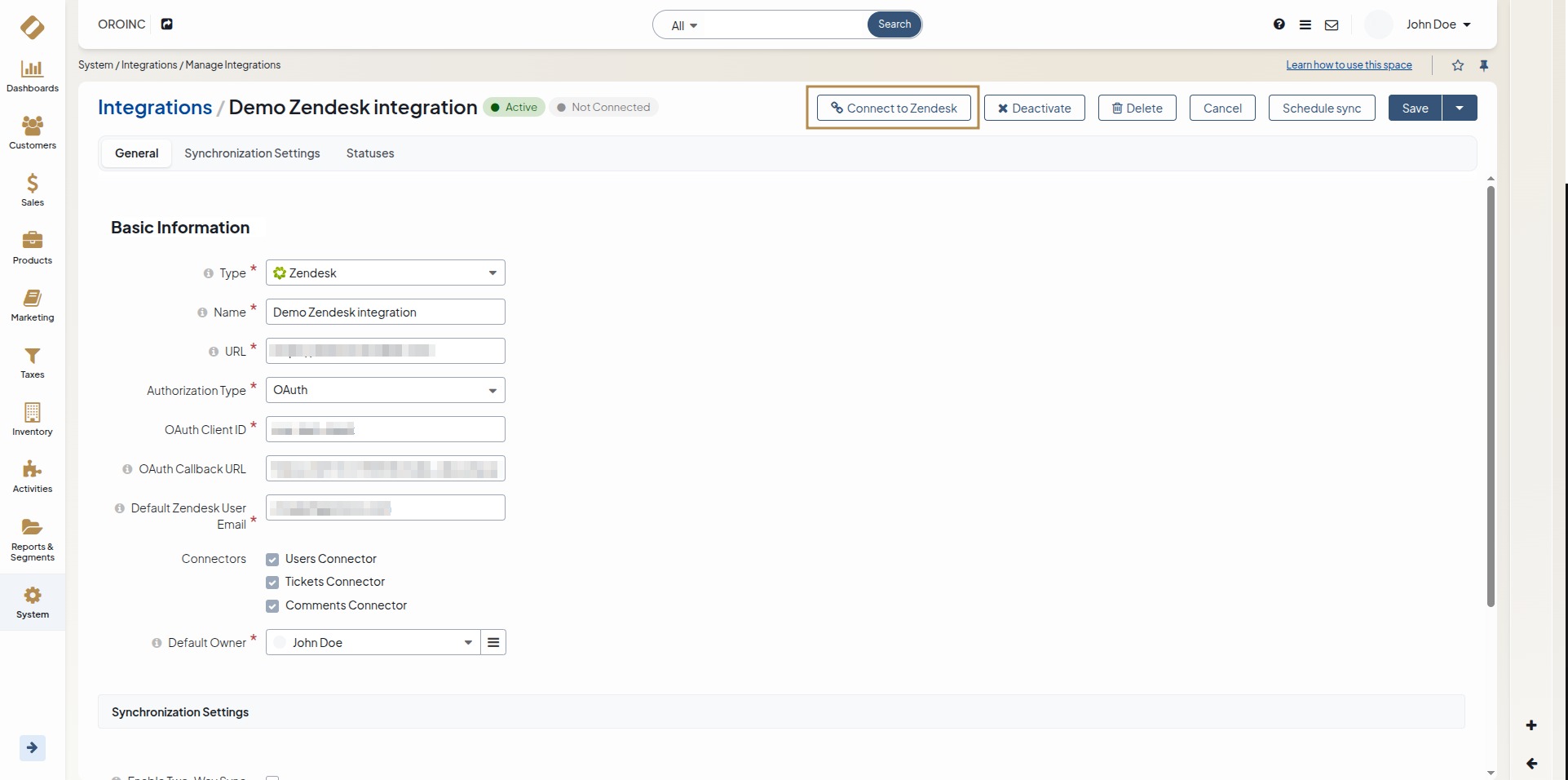
To authorize connection to Zendesk, click the Connect to Zendesk button at the top of the integration form.
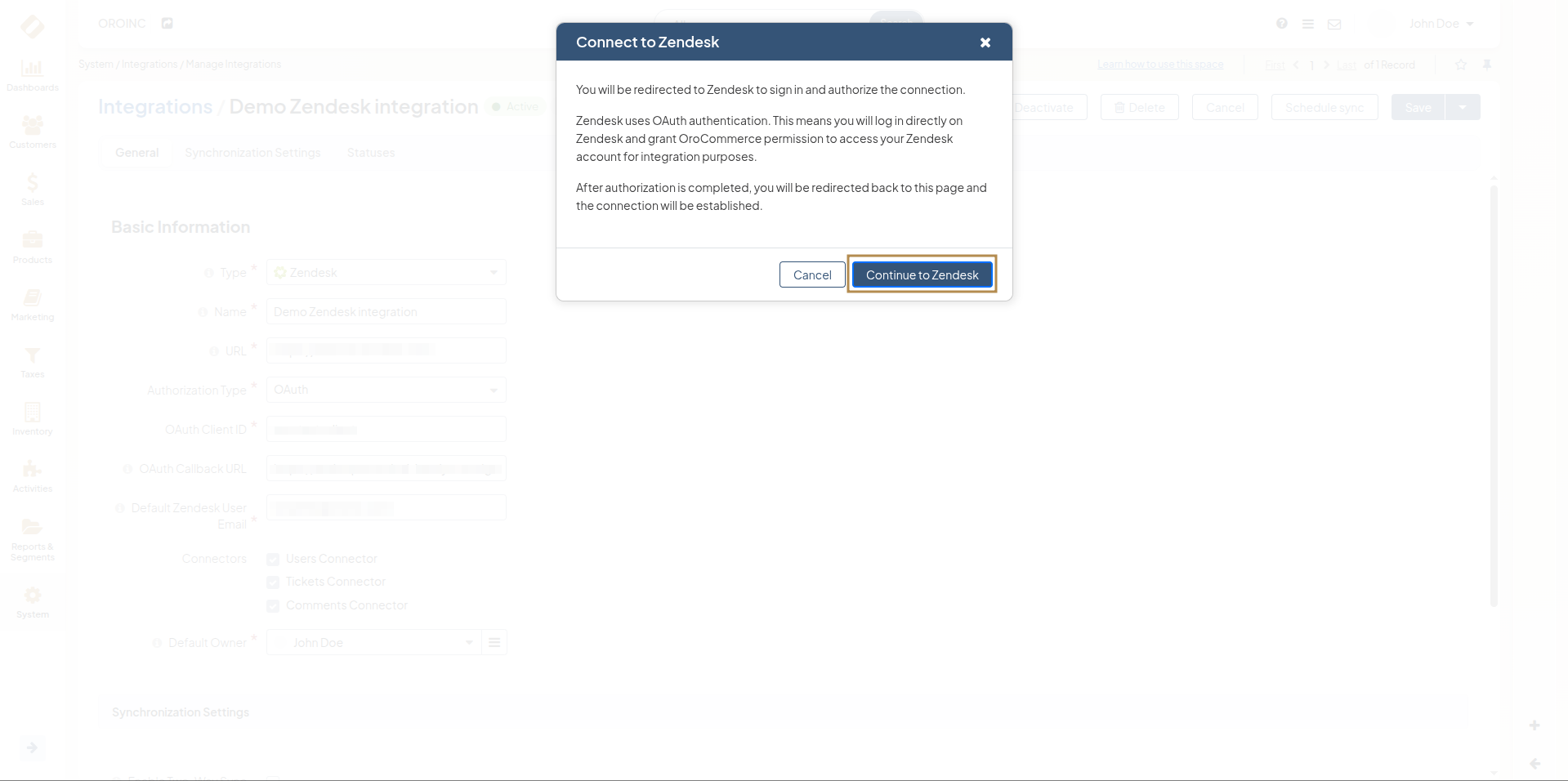
Once you see a pop-up message about redirection to Zendesk click Continue to Zendesk to proceed:
Next, sign in to your Zendesk account.
On the Zendesk authorization page, review the permissions that OroCommerce is requesting:
If Enable Two-Way Sync is disabled: OroCommerce requests Read access only.
If Enable Two-Way Sync is enabled: OroCommerce requests Read and Write access.
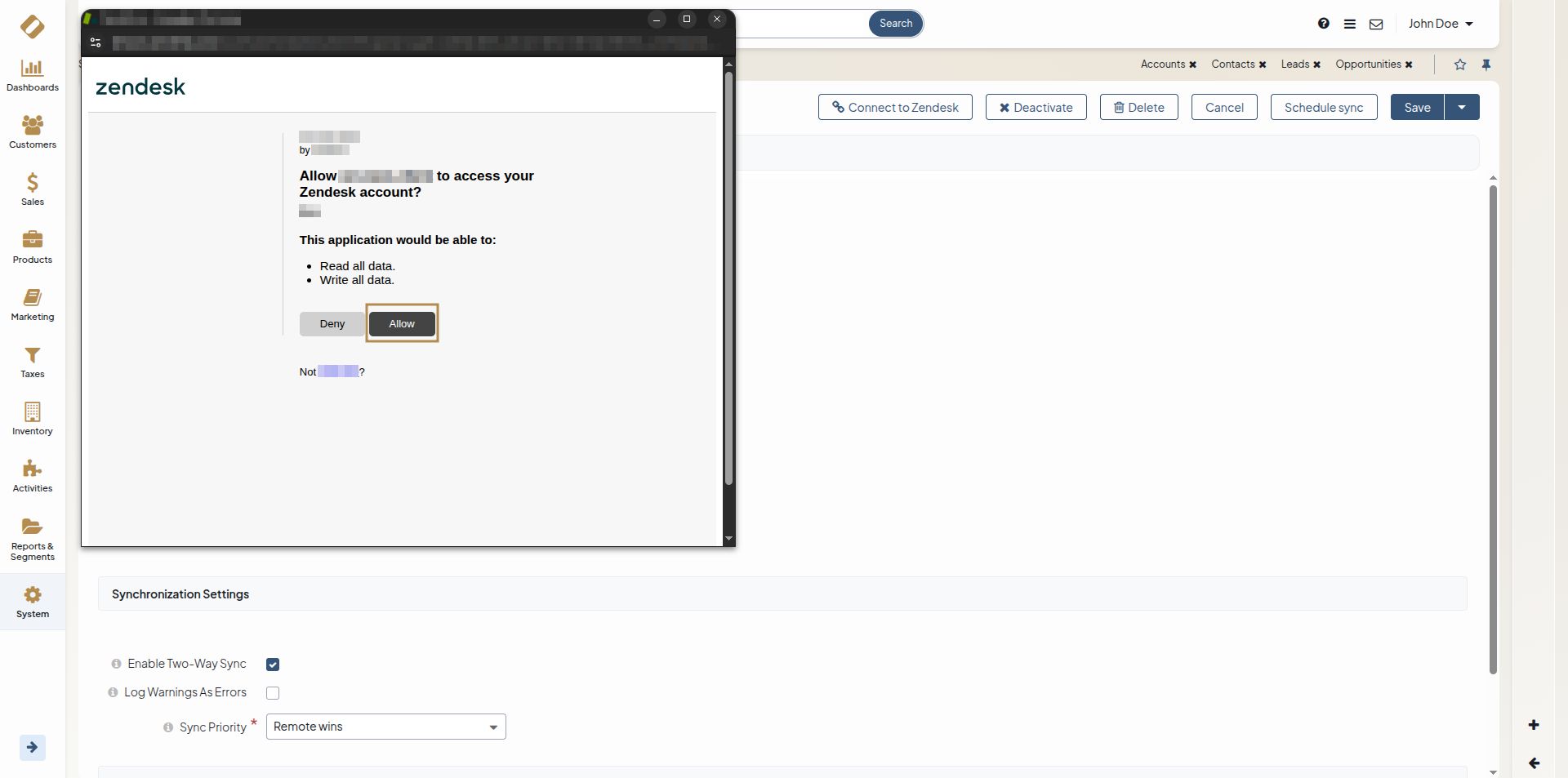
Click Allow to authorize OroCommerce to access your Zendesk account.
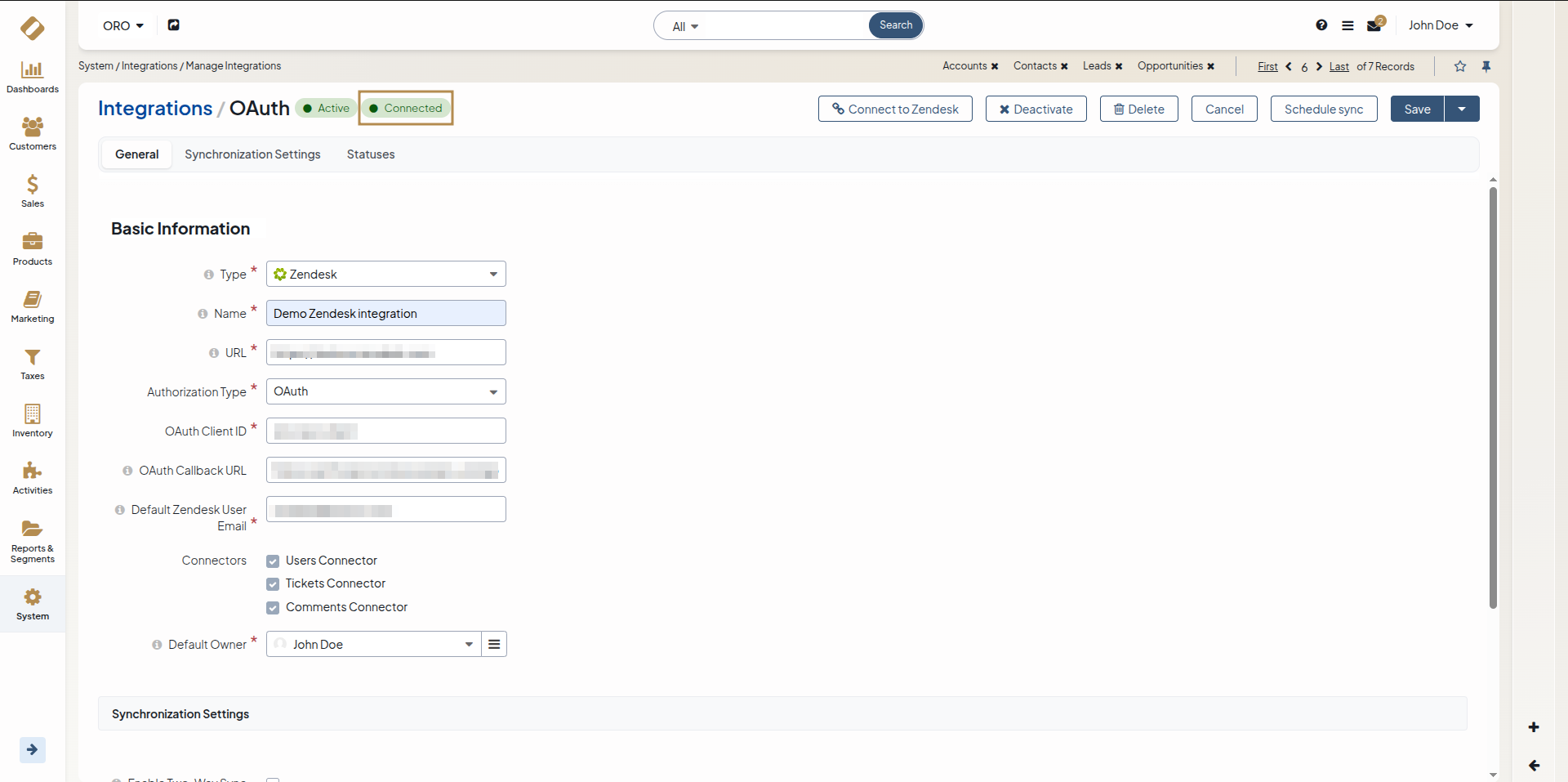
The authorization window will close automatically, and the label on the integration form will update from Not Connected to Connected, confirming that the connection has been authorized.
Manage the Integration
As an illustration, we have created a sample Zendesk integration with two-way synchronization enabled and sync priority set to Remote Wins. This means that if the same data is changed from both Zendesk and Oro application, Zendesk changes take precedence.
Initially the integration is inactive. In order to activate it, click Activate on the integration details page.
Note
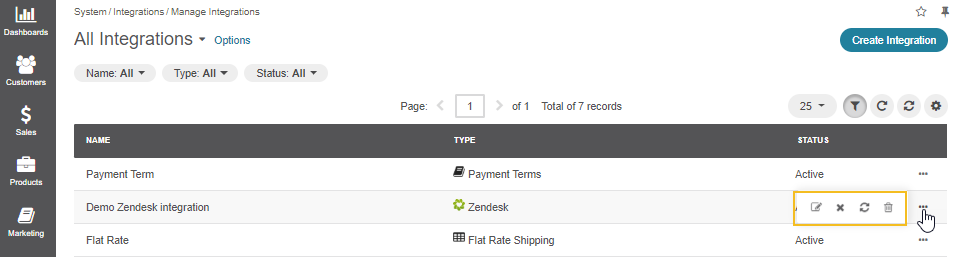
To edit, deactivate, schedule sync or delete the integration, navigate to the page with all integrations System > Integrations > Manage Integrations.
Synchronize Data
Once integration has been created, the data is automatically synchronized.
To start the synchronization manually:
Navigate to System > Integrations > Manage Integrations in the main menu.
For the integration with Zendesk, hover over the More Options menu to the right and click to schedule sync.
Note
Alternatively, open the integration details page and click Schedule Sync at the top right.
Wait for data to synchronize. Click the Check progress link to see the synchronization status.
Sync from Zendesk to the Oro Application
A new case is created in the Oro application for every Zendesk ticket. The ticket fields are mapped in the Oro application case fields as follows:
Zendesk Field |
Oro application case field |
Comments |
||||||||||
|---|---|---|---|---|---|---|---|---|---|---|---|---|
Subject |
Subject |
Can be used to find the ticket/case in the grid |
||||||||||
Description |
Description |
Is also added as the first public comment for both the Oro case and the Zendesk ticket |
||||||||||
Assignee |
Assigned to |
The email address of the assignee is checked against primary emails of the Oro application User records:
|
||||||||||
Priority |
Priority |
The values are mapped as follows:
|
||||||||||
Status |
Status |
The values are mapped as follows:
|
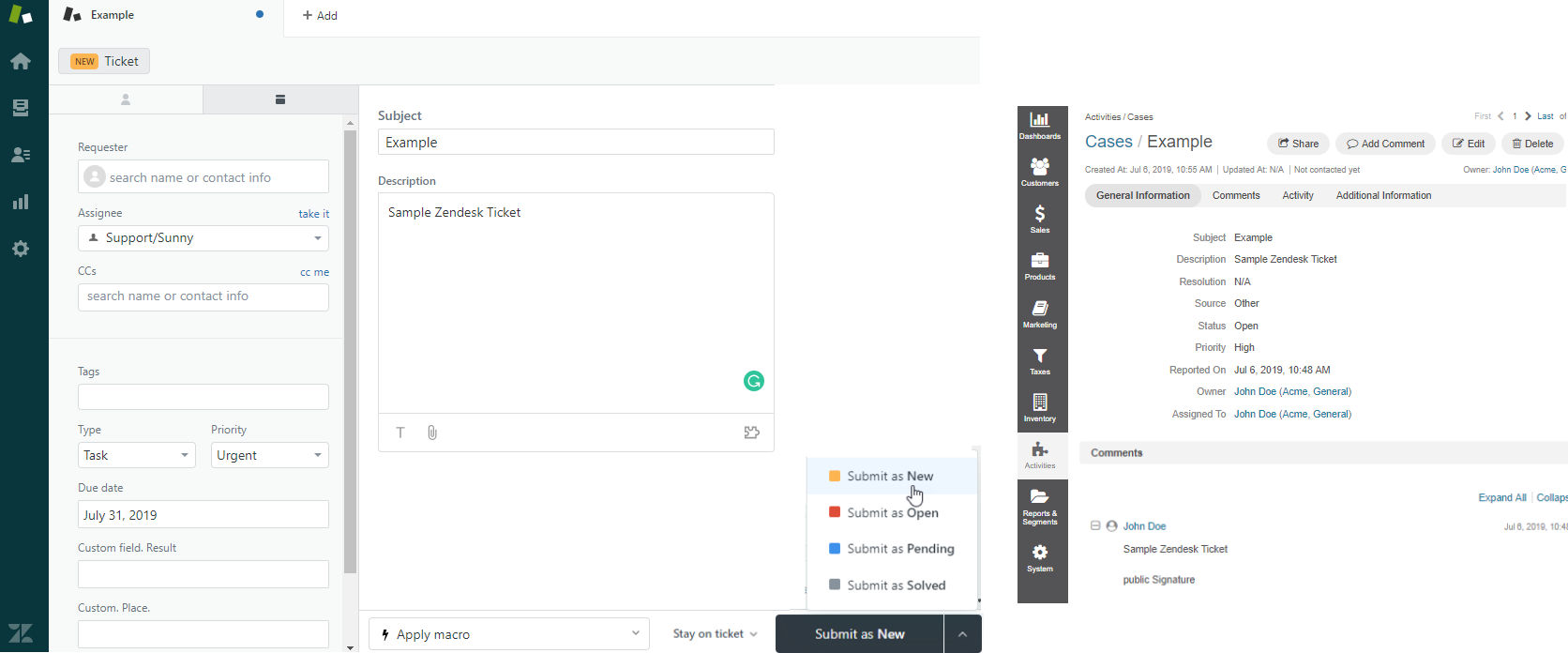
For each case created as a result of synchronization with Zendesk, a ticket is created in the Oro application.
The following field values are defined as follows:
Oro Application Ticket Field |
Description |
|---|---|
Ticket Number |
Zendesk ticket number. Used to determine if an existing case/ticket must be updated or if a new one must be created. |
Recipients Email |
Same as the Recipients Email field in the Zendesk ticket. |
Status |
Same as the Status field in the Zendesk ticket.(Does not map to the Oro application statuses). |
Type |
Same as the Type field in the Zendesk ticket. |
Submitter |
A contact or user. There are two possible cases:
|
Assignee |
The email address of the assignee is checked against primary emails of the Oro application User records:
|
Requester |
An Oro application Contact record is tied to it, as follows:
|
Priority |
Same as the Priority field of the Zendesk ticket (Does not map to the Oro priorities). |
Problem |
Same as the Problem field in the Zendesk ticket. |
Collaborators |
Same as the Collaborators field in the Zendesk ticket. |
Sync from the Oro Application to Zendesk
If two-way synchronization is enabled, the Publish to Zendesk button is available on the Case details page. Click the button to submit the case to Zendesk.
The case fields are mapped to the Zendesk ticket fields as follows:
Oro case field |
Zendesk field |
Comments |
||||||||||
|---|---|---|---|---|---|---|---|---|---|---|---|---|
Subject |
Subject |
Can be used to find the ticket/case in the grid |
||||||||||
Description |
Description |
Is also added as the first public comment for the both Oro case and Zendesk ticket |
||||||||||
Assigned to |
Assignee |
The email address of the Assigned to user is checked against the emails of Zendesk users:
|
||||||||||
Priority |
Priority |
The values are mapped as follows:
|
||||||||||
Status |
Status |
The values are mapped as follows:
|
After the ticket has been created in Zendesk, its details are saved in the Ticket related to the case in the Oro application.
Review Further Sync Rules
If some ticket details of a Zendesk ticket have been changed after the initial synchronization, the corresponding Oro application case details will also be updated in the course of the nearest synchronization.
If some ticket details of an Oro application case have been changed after the initial synchronization, the corresponding Zendesk ticket details will also be updated automatically (if the two-way synchronization is enabled).
If the same details have been updated in a related Zendesk ticket and Oro application case, and the two-way synchronization is enabled, the synchronization priority settings will be applied.