Configure Global Invoice Settings
The Invoices feature enables customer users to view, download, and pay invoices directly in the OroCommerce storefront. In the back-office, administrators can access and manage invoice records. The feature supports one-click payments for individual invoices. It also provides the ability to import and manage invoices generated by external systems within the OroCommerce interface.
You can configure invoice-related sales globally, per organization, website, customer group and customer.
Navigate to System > Configuration in the main menu.
Select Commerce > Sales > Invoices in the menu to the left.
Note
For faster navigation between the configuration menu sections, use Quick Search.
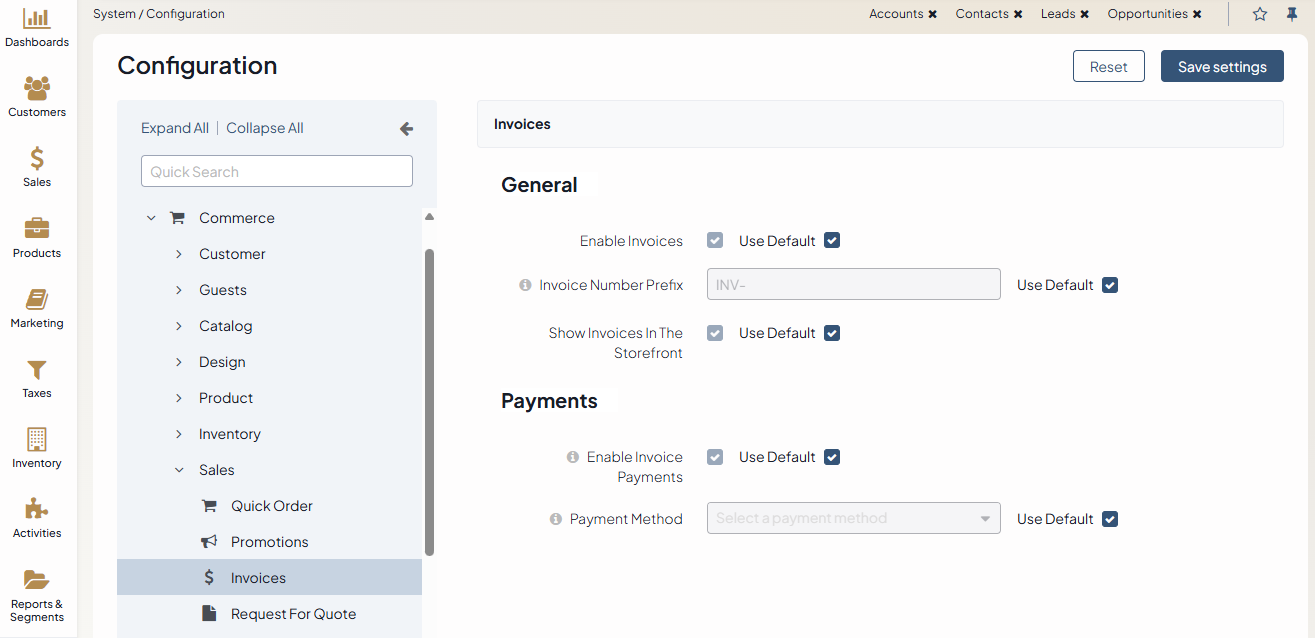
In the General section, toggle the following options:
Enable Invoices — Enable this option to activate the Invoices feature in the back-office. Once enabled, you can access it via Sales > Invoices in the main menu.
Invoice Number Prefix — Define the prefix to be used when generating invoice numbers (e.g., INV-).
Show Invoices in the Storefront — Enable this option to display invoices in the storefront.
In the Invoice PDF section, configure the following options:
Generate PDF When Invoice Becomes Posted — Enable the option to generate a PDF file when the invoice is marked as Posted. Once created, the PDF will not be re-created, even if the invoice is modified later.
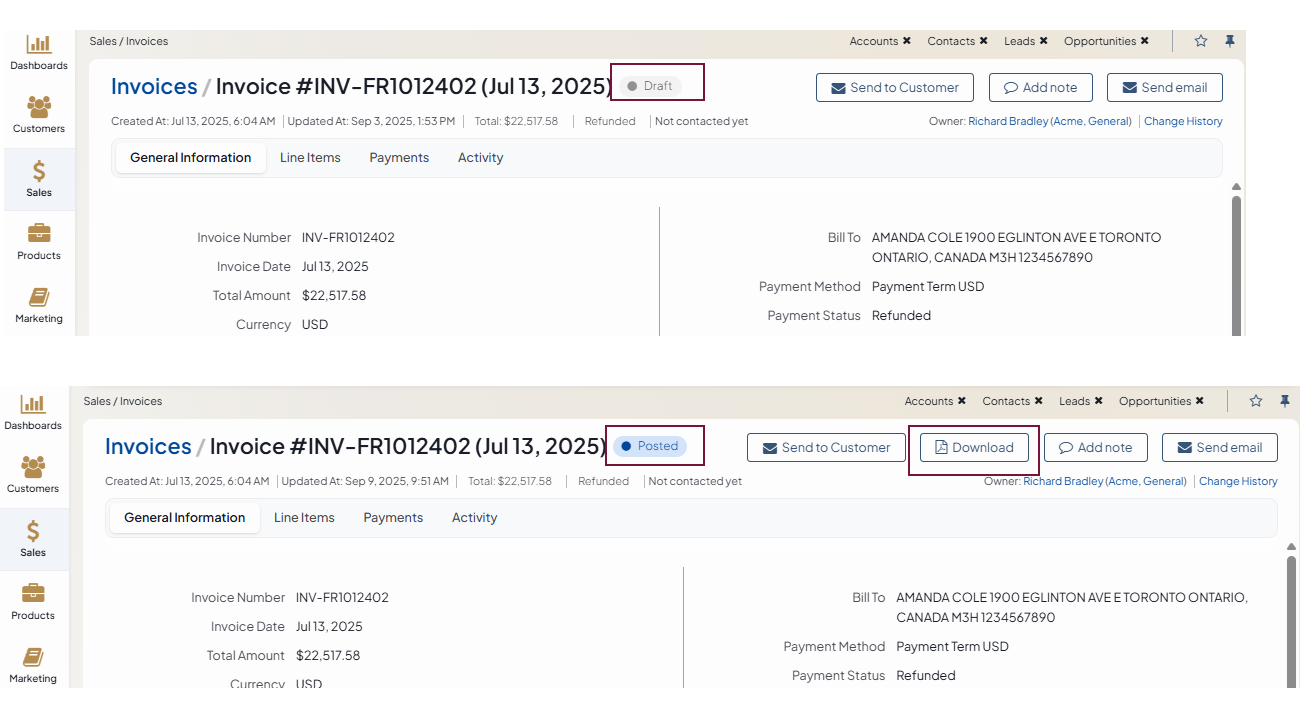
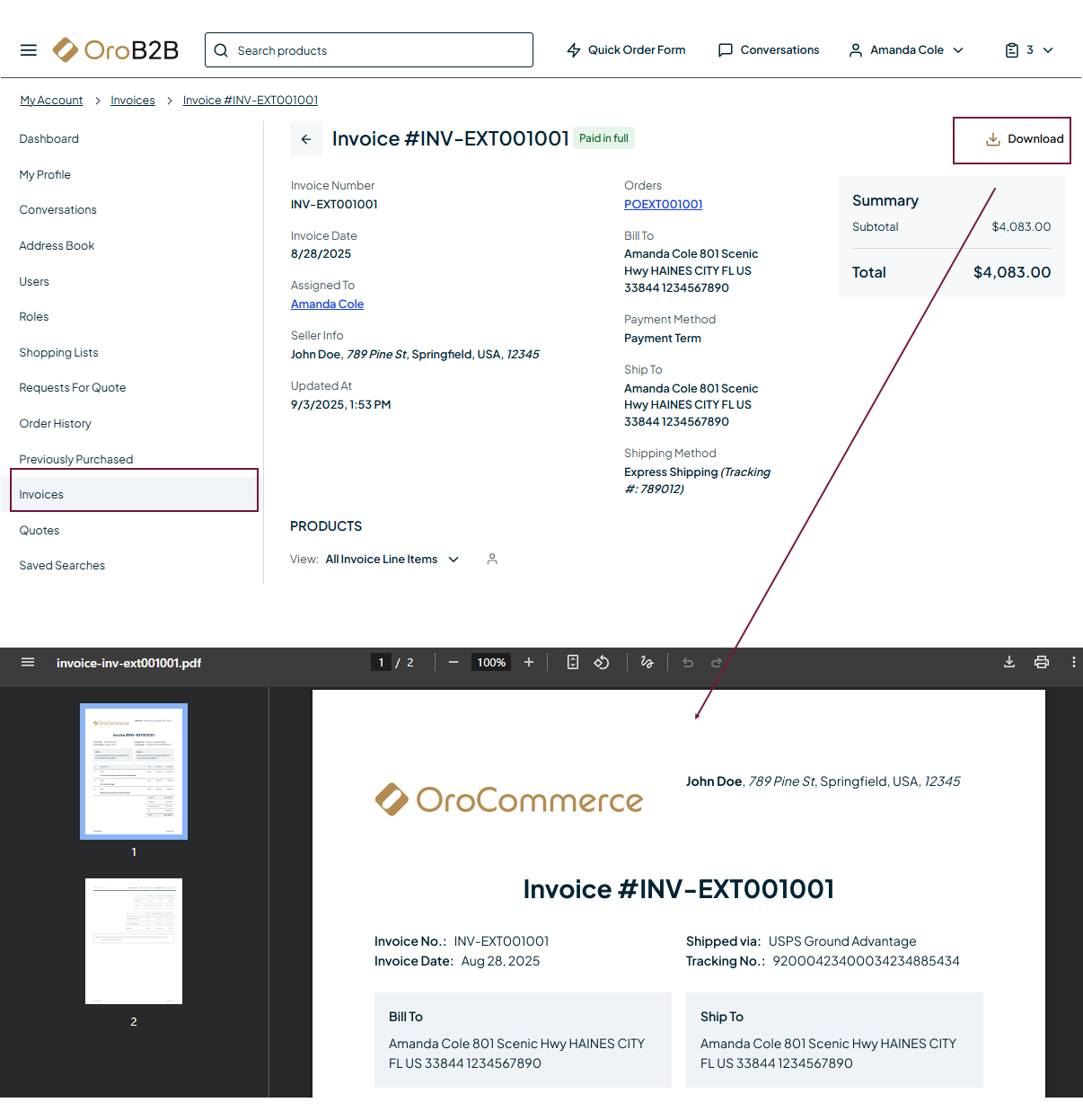
Enable Invoice PDF Download in Customer Portal — Enable the option to display a Download button on invoice pages in the storefront, if a PDF file has been created and attached to the invoice.
In the Payments section, toggle the following options:
Enable Invoice Payments — Enables or disables the invoice payment functionality system-wide. When enabled, a Pay button is displayed in the storefront, and a Payments section is added to the invoice view page in the back-office.
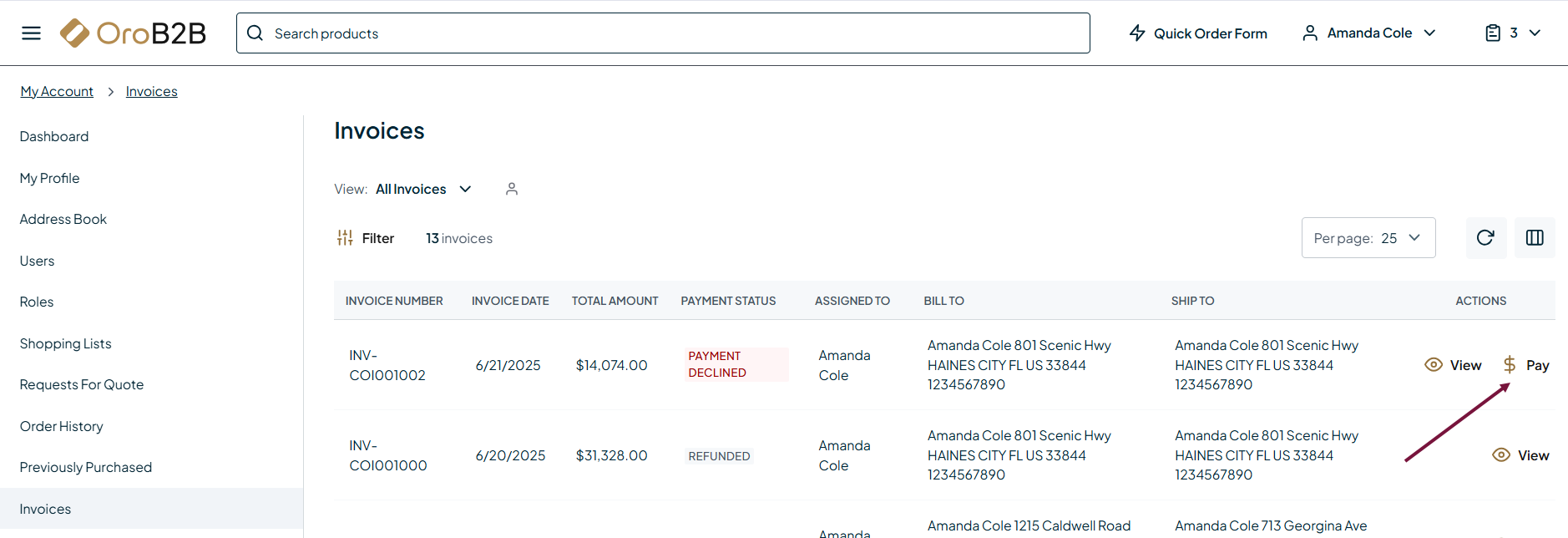
Payment Method — Specifies the payment method used for invoice payments in the storefront. Currently, only the Stripe Integration Element and OroPay are supported. Ensure that a Stripe integration or OroPay is configured under System > Manage Integrations before selecting it here.
Click Save Settings.