Configure Integration Flow Designer Settings per Organization
Note
This feature is available in the OroCommerce Enterprise Edition.
Integration Flow Designer embeds Activepieces, a third-party automation platform, in the OroCommerce back-office. By default, an organization uses the global Integration Flow Designer settings. You can override the global values for a particular organization.
Configure the Settings
To configure Integration Flow Designer for an organization:
Navigate to System > User Management > Organizations in the main menu.
For the necessary organization, hover over the More Options menu at the end of the row and click to start editing the configuration.
In the menu to the left, click System Configuration > Integrations > Integration Flow Designer.
In the Integration Flow Designer Settings section, clear the Use System checkbox next to the setting that you want to change.
Configure the setting.
Click Save settings.
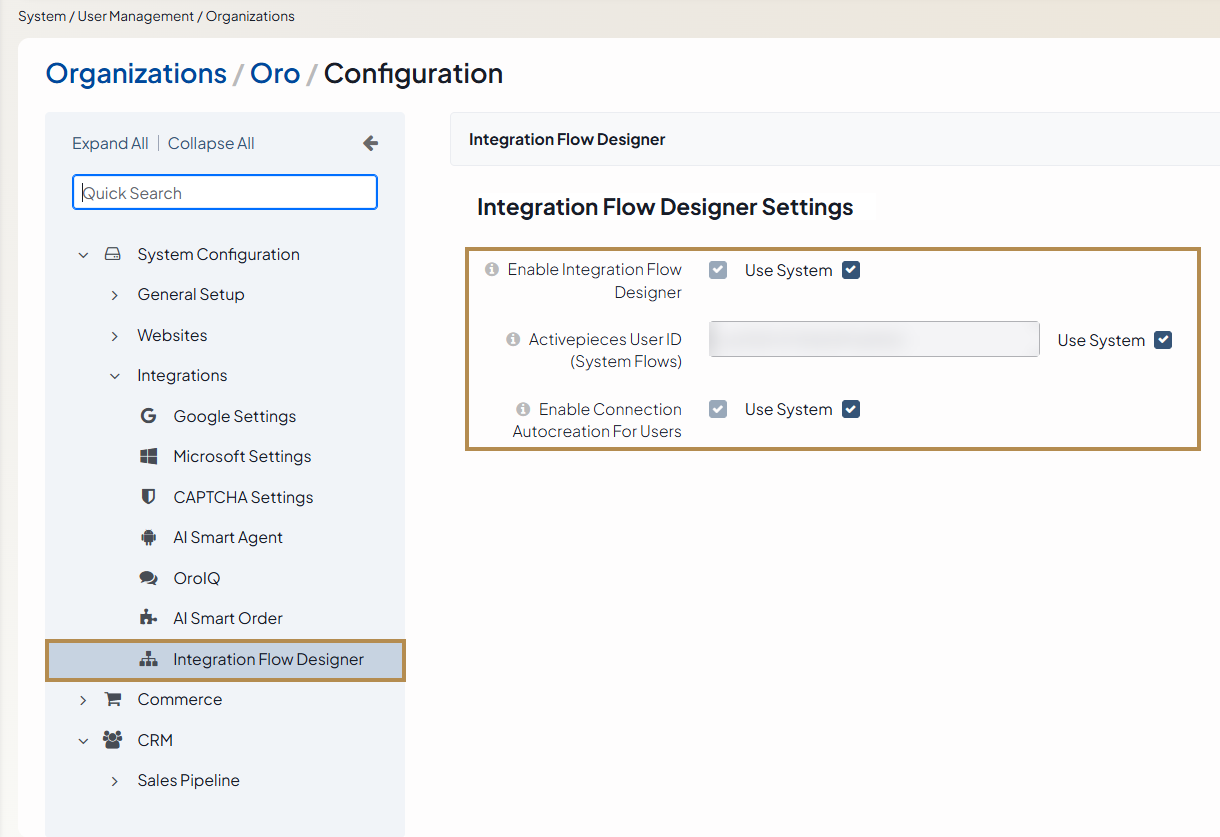
To restore the global value, select the Use System checkbox again.
Settings
The following settings are available:
Enable Integration Flow Designer — Select the checkbox to enable the feature for the organization.
Activepieces User ID (System Flows) — Contains the ID of the Activepieces user that owns the system flows of the organization. For more information, see System Flows in Different Organizations.
Enable Connection Autocreation For Users — Select the checkbox to let the application create the connection from Activepieces to OroCommerce for each user of the organization automatically. For more information, see Connection Autocreation for Users.
Connection Autocreation for Users
Users create their own user flows in My Integrations. To work with OroCommerce data, each user needs an Activepieces user and a connection from Activepieces to OroCommerce.
The application creates an Activepieces user for each user of the organization automatically the first time they open My Integrations. This does not depend on the Enable Connection Autocreation For Users setting.
When the setting is enabled for the organization, the application also creates the connection from Activepieces to OroCommerce at that time. The application does the following:
Creates an OAuth application in OroCommerce on behalf of the user.
Uses the credentials of the OAuth application to create a connection from Activepieces to OroCommerce.
As a result, the flows of the user run on behalf of this user and with the permissions of this user. A flow cannot access any data that the user is not permitted to access.
To review the OAuth applications that the application creates, navigate to System > User Management > OAuth Applications in the main menu.
System Flows in Different Organizations
Activepieces does not have organizations. The application separates system flows by the Activepieces user that owns them.
If different organizations use different Activepieces users for system flows, the users of each organization see only the system flows of their own Activepieces user.
Related Articles