Integration Flows with Activepieces Concept Guide
Note
This feature is available in the OroCommerce Enterprise Edition.
Note
Please contact our support team to learn more about integration flows, discuss how they can meet your business needs, and get started with implementation.
Imagine a distributor that sells through OroCommerce. Orders arrive in the storefront, invoices are issued in an accounting system, customer relationships are managed in a CRM, and the sales team coordinates its work in a messaging tool. Each of these systems performs its function well. However, the business processes that span several systems depend on people who copy data from one system to another, forward notifications, and check whether a change in one place has reached the others.
Connecting these systems through custom development solves the problem but introduces a new one. Each integration requires a developer, a place in the development backlog, and ongoing maintenance. As a result, small but valuable automations, such as a notification to the key account team about a large order, often wait for months or never get built.
OroCommerce addresses this challenge with Integration Flow Designer, which embeds Activepieces in the back-office. Activepieces is a third-party, open-source automation platform. It allows business and operations teams to connect OroCommerce to other applications and to build automations in a visual builder, without writing code and without leaving the Oro application.
Note
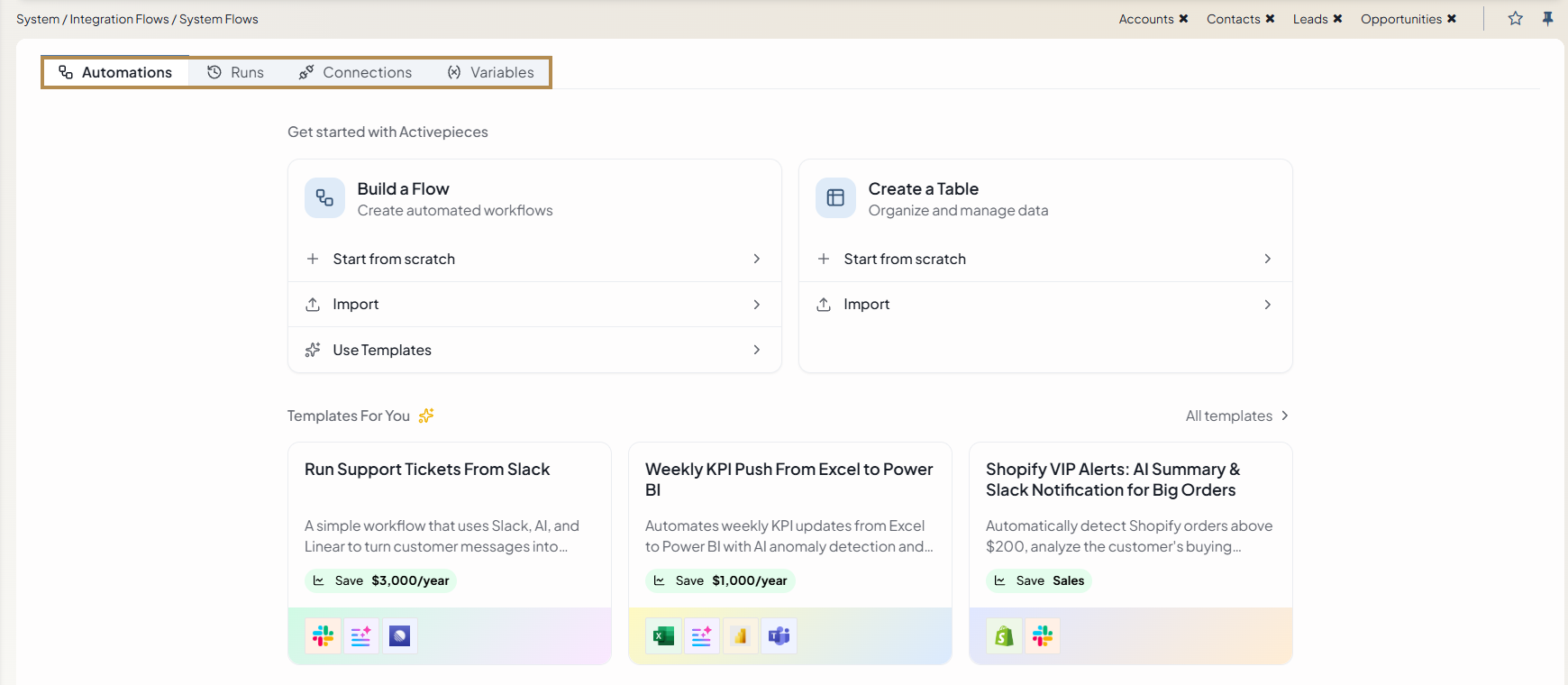
Integration flows are a feature of Activepieces. They are separate from the workflows of OroCommerce, which manage the life cycle of records inside the application.
Understanding Integration Flows
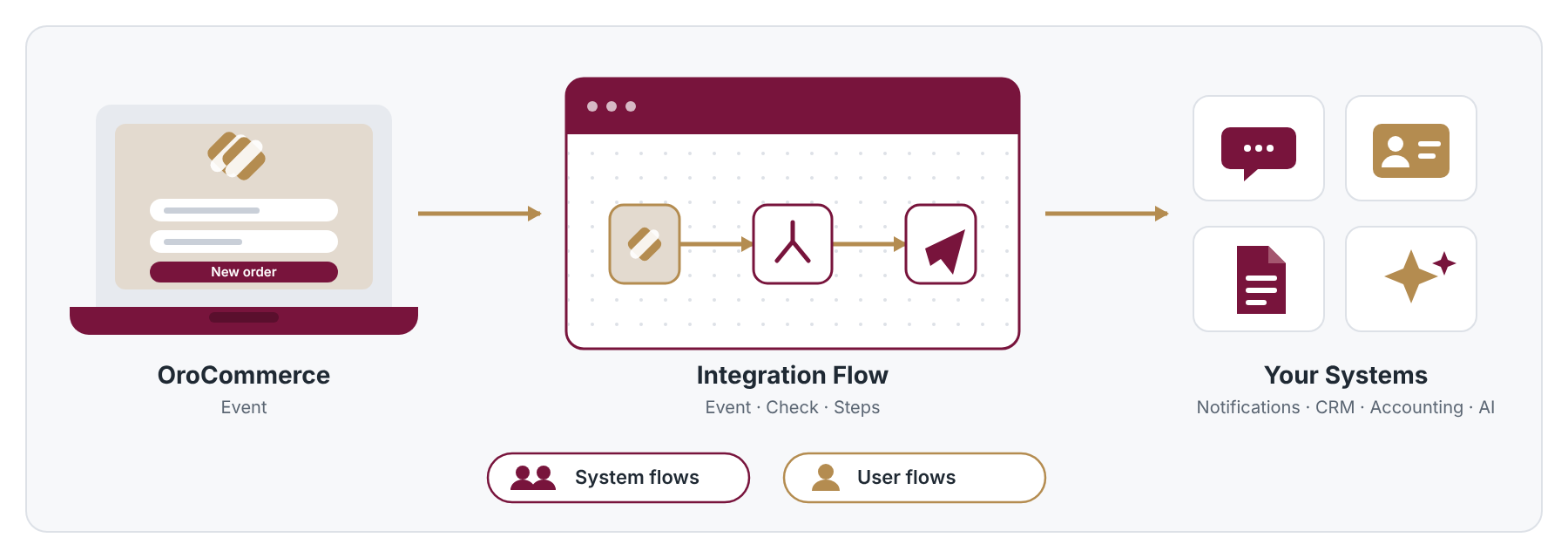
An integration flow is an automated sequence of steps that connects OroCommerce to other applications. Each time a flow runs, it follows the same course:
An event occurs in OroCommerce or in a connected application, for example, the creation of an order in OroCommerce, or a new message or a new issue in another application.
The flow receives the data of the event and checks it against the rules that you define, for example, whether the order total exceeds a specified amount.
If the data meets the rules, the flow completes one or more steps with it, for example, sending a notification, creating or updating a record in OroCommerce, or sending data to another application.
Activepieces records the run, including its duration and the data that the run received.
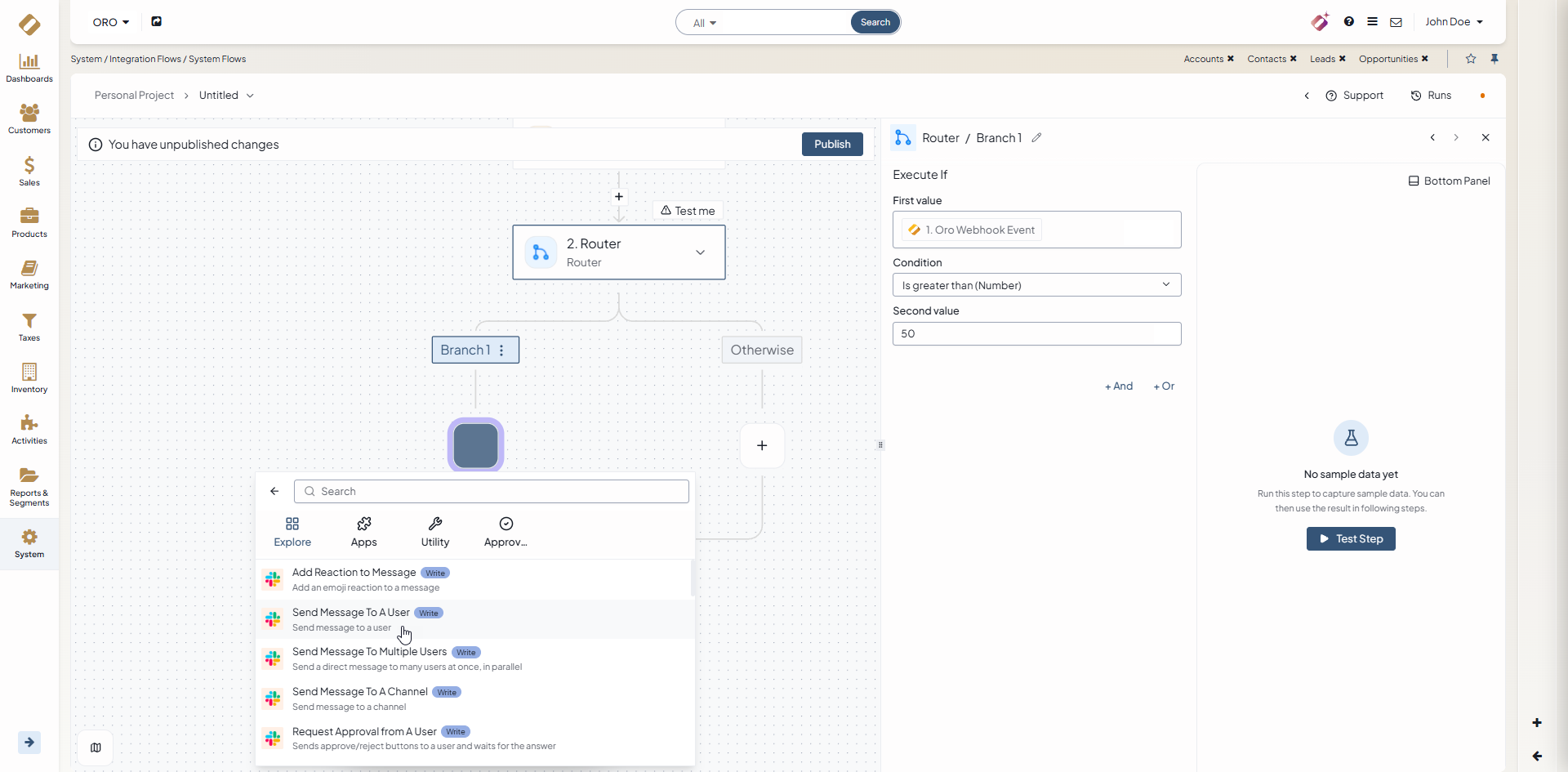
Activepieces provides more than 700 ready-made connectors, which it calls pieces. They cover communication tools, accounting systems, CRMs, ticketing systems, and other business applications. A single flow can combine several connectors, which makes it possible to automate a process that spans OroCommerce and multiple external systems.
Because Activepieces records each run, your team can review any run and see exactly what the flow did.
Integration Flows and OroCommerce
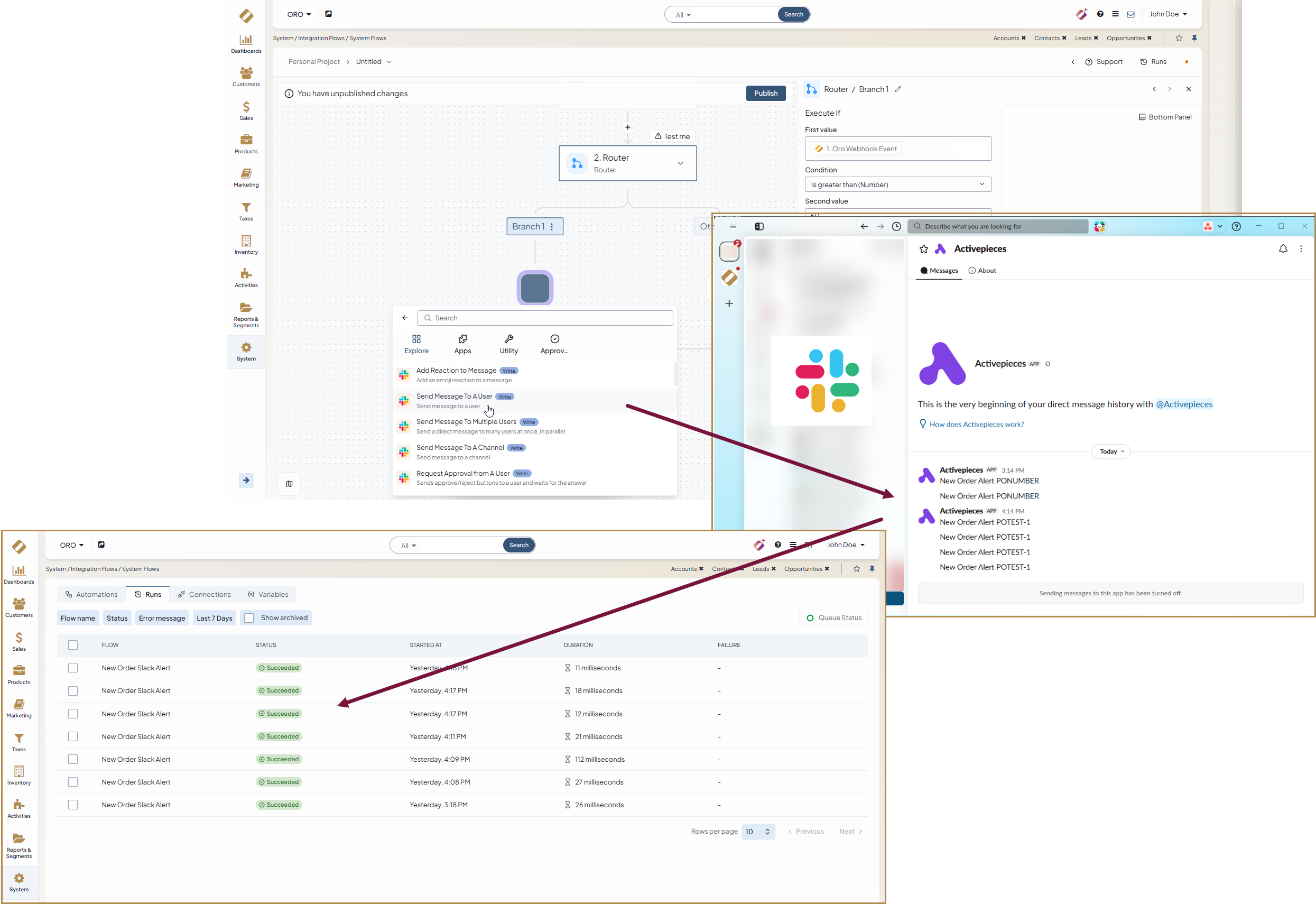
Integration Flow Designer builds on the existing capabilities of the Oro application. Understanding these connections helps you plan which processes to automate and how to control them.
In the Activepieces interface, an event that starts a flow is called a trigger, and a step that a flow completes is called an action. OroCommerce provides both.
Triggers — OroCommerce sends events to Activepieces through webhooks. Webhook access is enabled for several entities, and each event that you can subscribe to can be used as a trigger that starts a flow.
Actions — A flow works with OroCommerce data through the API. The OroCommerce connector provides actions that create orders, invoices, customers, and customer users, and actions that update customers and customer users. A custom API call sends a request to any API endpoint that the connection user can access.
Connection and permissions — A flow connects to OroCommerce through an OAuth application. For this reason, a flow can use only the data and the actions that its owner is permitted to use.
Integration Flow Designer is disabled by default. An administrator enables it in the system configuration. For more information, see Configure Global Integration Flow Designer Settings.
Shared and Personal Automations
Business processes belong to different levels of the organization. Some processes belong to the whole company, and others belong to a single employee. Integration Flow Designer reflects this difference with two types of flows.
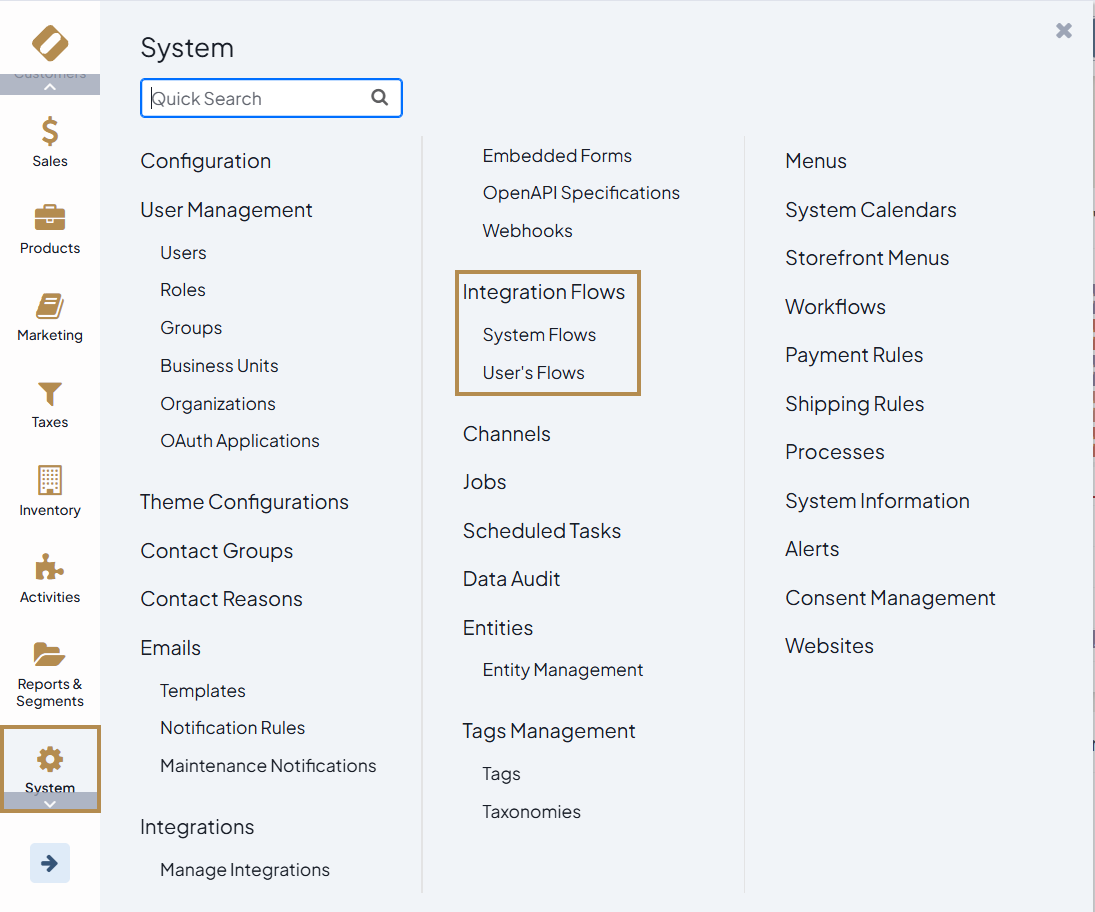
System Flows
System flows are shared by the whole team. They are owned by a dedicated Activepieces user that is created when Integration Flow Designer is set up. Any back-office user with access to System Flows can view and manage these flows.
System flows are suitable for processes that belong to the organization, such as exchanging data between OroCommerce and the accounting system, or notifying a shared Slack channel or an email group about important orders.
User Flows
User flows belong to the individual user who creates them in My Integrations. When a user opens My Integrations for the first time, the application creates an Activepieces user for them. If connection autocreation is enabled, the application also creates an OAuth application and a connection to OroCommerce. From then on, the flows of this user run on their behalf and with their permissions.
User flows are suitable for personal productivity automations. For example, a sales representative can receive a notification when a record is assigned to them, and then start working on it immediately. Because the flow runs with the permissions of the sales representative, it cannot reach any data that the sales representative does not already see in OroCommerce.
Administrators control access to both types of flows through role permissions. For each role, they can allow or deny access to My Integrations, System Flows, and User’s Flows. The User’s Flows permission lets a user view all Activepieces users and open their flows on their behalf.
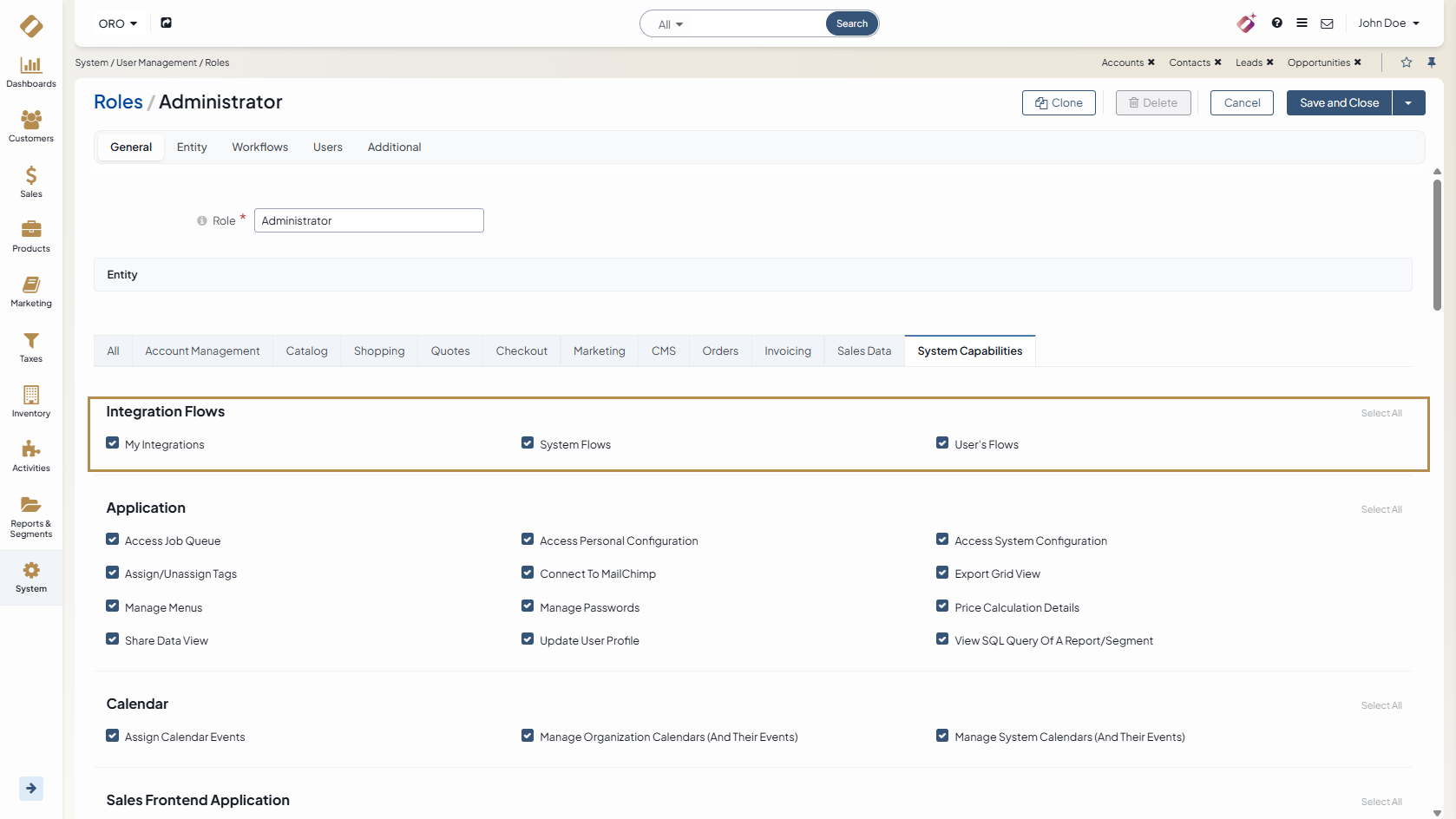
The User’s Flows page lists the users who have opened Activepieces. A user with the User’s Flows permission opens this page to review the flows of these users.

Integration Flow Examples
The following examples illustrate the processes that integration flows are designed for.
These examples are system flows. They serve the whole team or the whole organization.
Scenario |
What the Flow Does |
Benefit |
|---|---|---|
Alert the key account team |
Sends a Slack message when an order exceeds a defined total. |
The team responds to large orders faster. |
Receive orders from an external sales channel |
Creates an order in OroCommerce when a sale is completed in an external shop. |
Employees do not re-enter orders manually. |
Keep the CRM current |
Sends a new OroCommerce customer to HubSpot. |
The marketing team does not wait for manual exports. |
Align invoices across systems |
Copies new QuickBooks invoices to the CRM. |
Both systems contain the same invoices. |
Understand customer messages |
Sends the text of a message to an AI service for a summary or a classification, and then notifies the appropriate team. |
The team receives short, classified messages. |
Note
A flow that uses an AI service sends data to this third-party service. Review the data that the flow sends before you use the flow in production.
Custom Connectors
The catalog of Activepieces connectors continues to grow. If your company uses a system that the catalog does not include, an administrator can install a custom connector in the Oro application. Installing a custom connector does not require an OroCommerce release or the work of OroCommerce developers. As a result, your company can connect its own systems at its own pace.
Related Articles